
The Live Dashboard
Live board
When enabled from the Portal, the standard Summary page will be replaced by the dashboard.
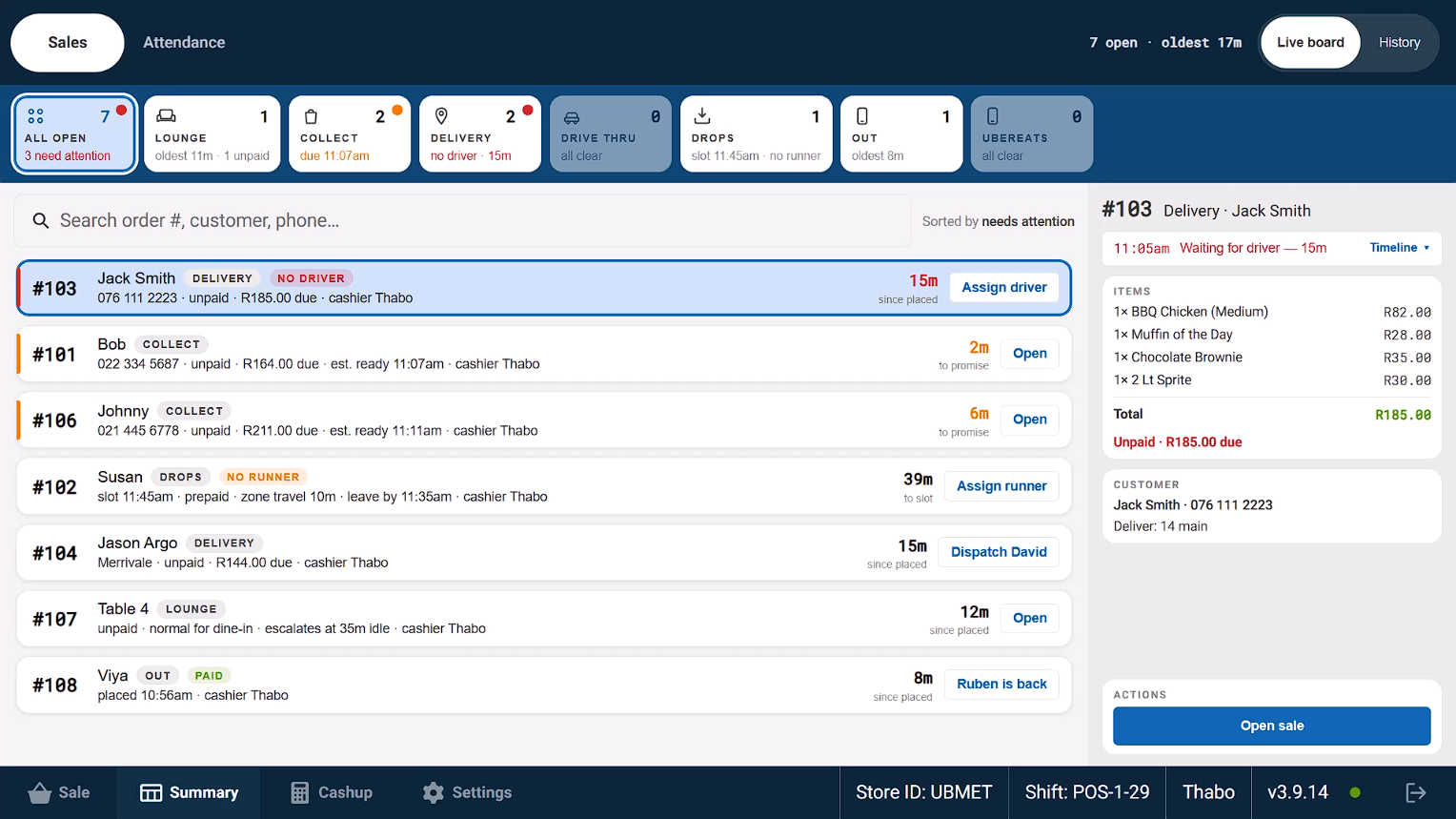
Along the top of the dashboard, a row of tabs break down your orders by type:
- Lounge
- Collect
- Delivery
- Drive Thru
- Drops,
- Orders that are currently Out for delivery
- Your Sales Channels, including third-party delivery services such as UberEats.

Each tab shows how many open orders are in that channel, along with a quick status note.
- Tabs are greyed out when there's nothing outstanding for that order type.
- Tap the tab button to see that order type only.
- An orange dot means that tab has orders that need your attention
- A red dot means that tab has orders that are critical - either because they are overdue or are missing a driver.
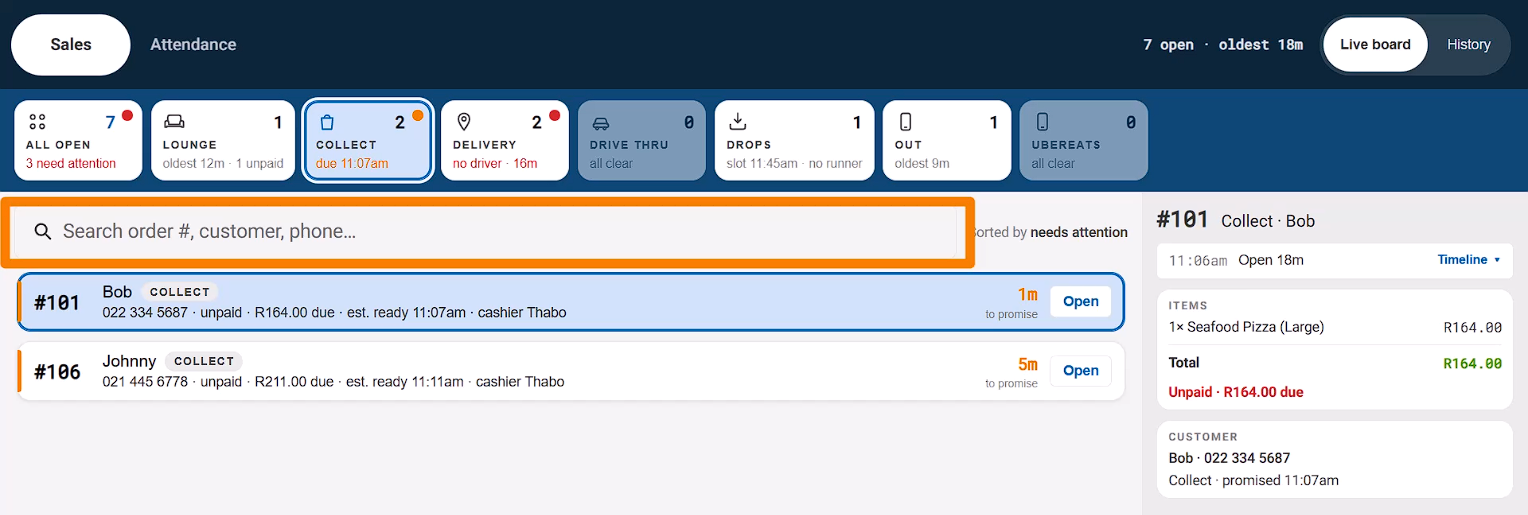
You can also search directly by order number, customer name, or phone number using the Search bar.
The Dashboard defaults to the All Open tab, which gives you a list of all your open orders. The list is sorted by needs attention, which means that orders automatically move to the top of the list if they're running late against their promised time, are still unpaid, or missing a runner or driver.
Each order in the list shows the order number, customer name, it's type, and contact details if necessary. To the right of each order is a counter, either counting down until the promised ready time if the order isn't due yet, or counting the time "since placed" if it's already overdue.

Each item also has an action button at the end of its card that lets you take the next action for the order,
- Orders that need Drivers or Runners will have an Assign action
- Orders that have Drivers/Runners assigned that are ready to go have a Dispatch [Name] button so you can mark the deliverer as out on delivery.
- Orders that are open that can still be added to or paid have an Open button that lets you open it in the Sales screen, so you can do things like add items or notes to it, or take payment.
- Orders that are out for delivery have a [Name] is back button so that you can mark the deliverer as having returned to the store.
If you tap on an order, you can see all actions available for the order at the lower-right of the screen
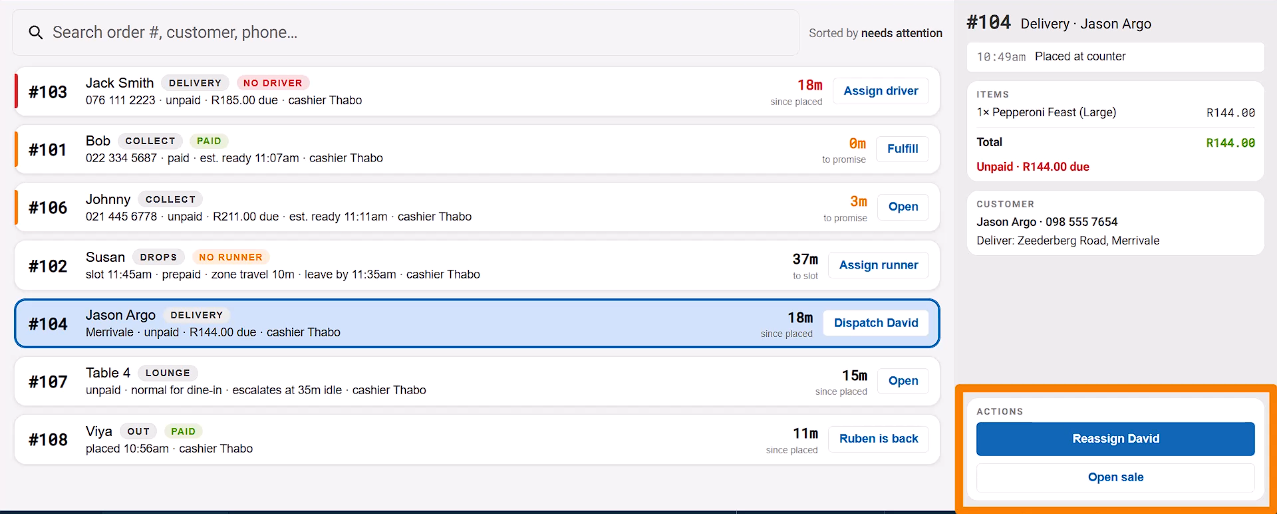
Watch out for alert tags like "No Runner" or "No Driver" — these flag any orders that are still missing requirements, such as an assigned driver or runner.
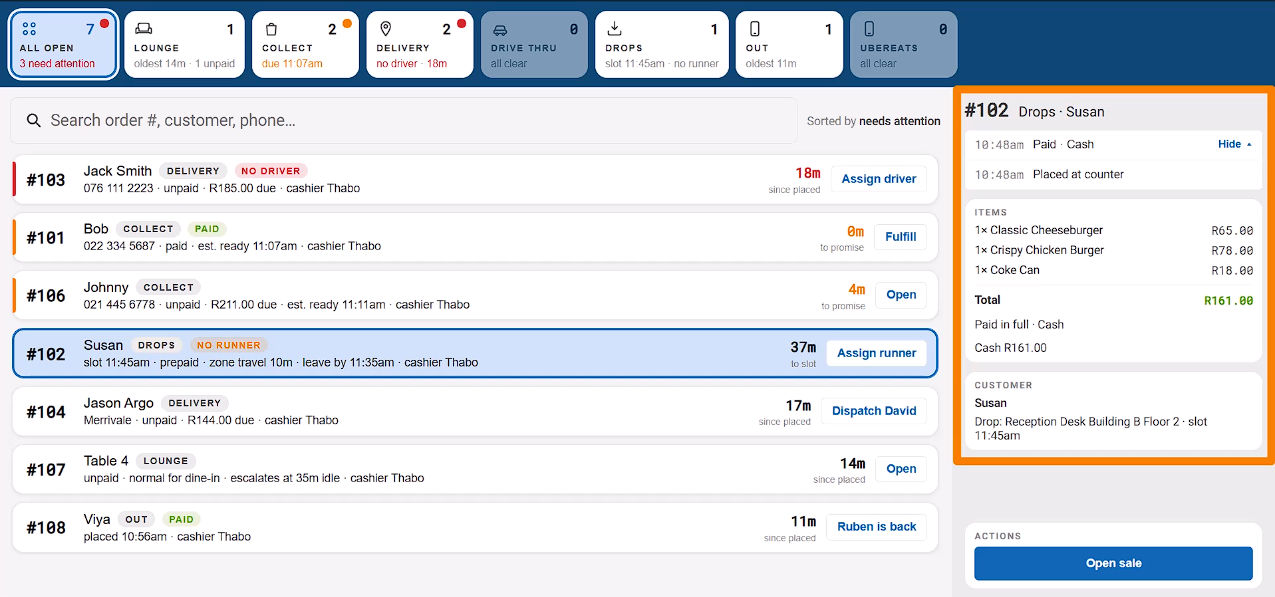
Tapping on any order will show you its full detail on the right. Here you'll see a timeline of events for that order — like when it was placed, printed, or paid — along with the items, total, payment status, and customer or fulfillment details.
The Out tab lets you see orders that are assigned to delivery staff that have already been dispatched.
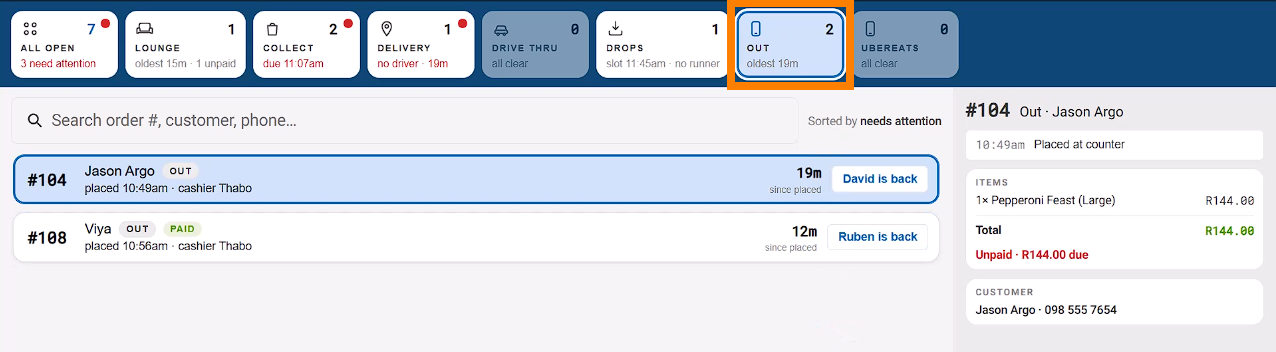
From here, you can indicate if the driver or runner has returned by tapping [Name] is back, which will clear the order and mark it as done.
History
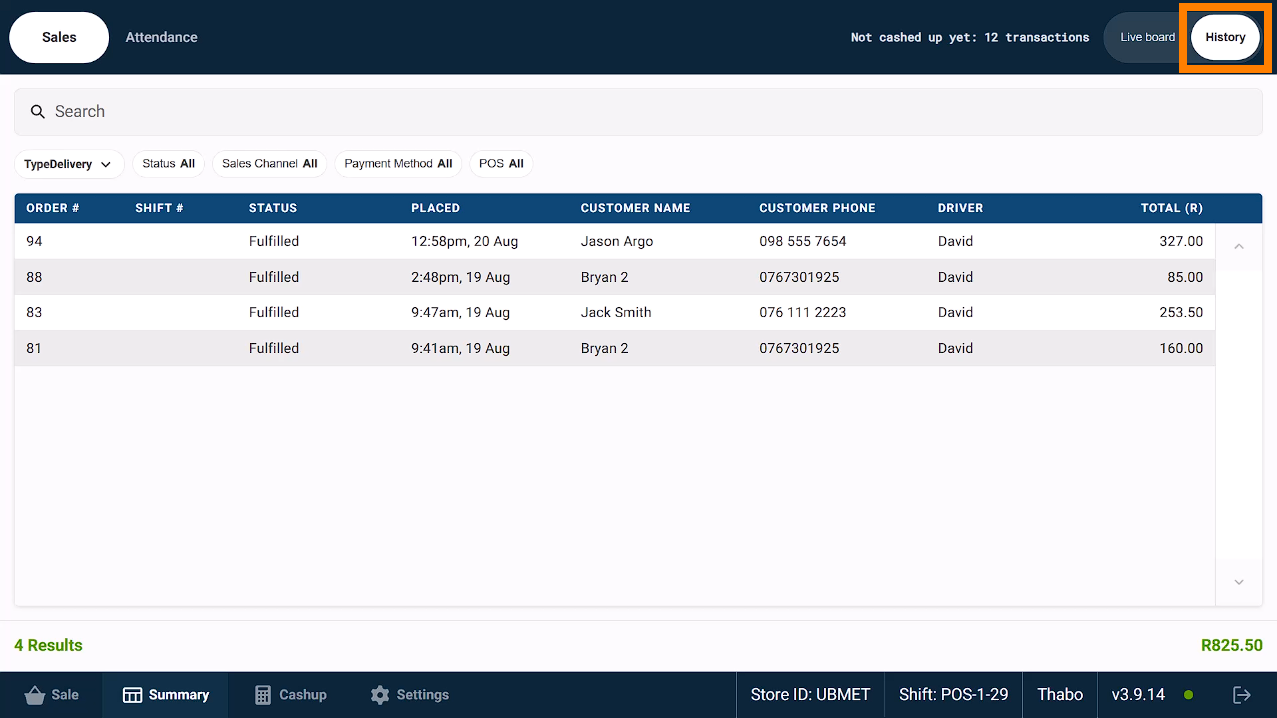
The History page lets you look back at past transactions. These are all sales that have been fulfilled, but are not yet cashed up.
- You can filter this list by Transaction Type, using the Type dropdown
- Use filters to set up a more detailed filter to show orders by Status, Sales Channel, Payment Method or POS.
- Tap on an entry to open a summary page where you can Print or Void the invoice.
At the bottom, you'll see the number of results and the total value for whatever you've filtered.