
Using Sales channels
Using Sales Channels
Each device running CounterPOS is assigned a default sales channel, ensuring that orders are placed under the correct channel without requiring manual changes. However, you can change the sales channel if needed.
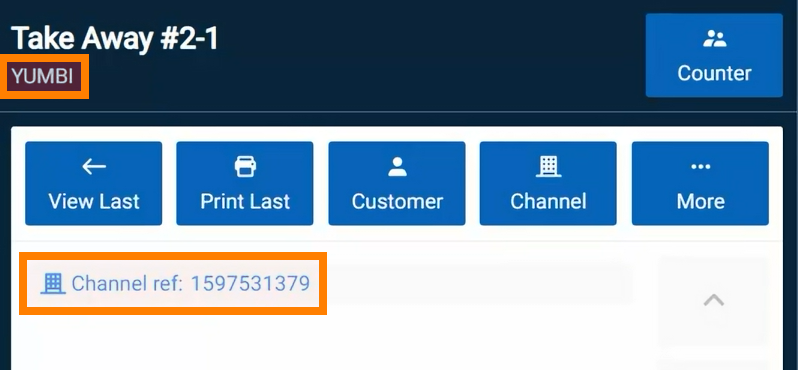
The current sales channel is displayed beneath the invoice number:

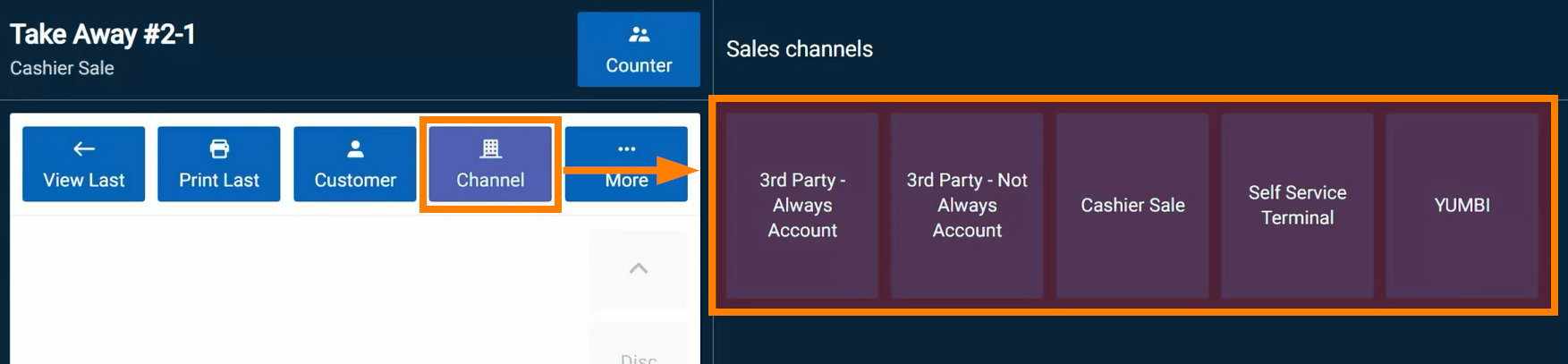
To switch sales channels, tap the Channel button and select the appropriate option.
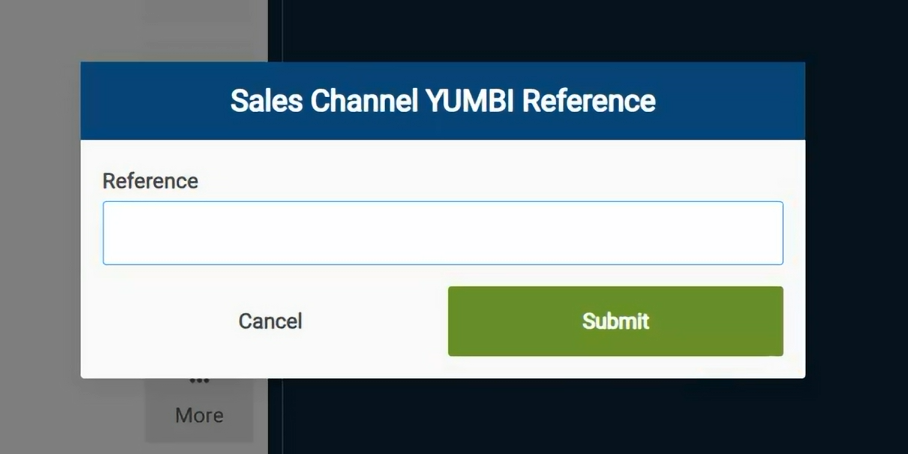
Some sales channels, such as those for third-party delivery services, may require a reference number to be captured for the order. Capture and tap Submit.
The updated sales channel and reference number will appear in the invoice details.
Since different sales channels may have different menus or pricing, always select the correct channel before ringing up items. If the menu differs and items are not available, you may need to abandon the sale and re-enter the order.
Payment options vary based on how the sales channel is set up in the Aura portal. If the channel does not have an account, payment must be accepted before finalizing the order. If it does, you can send the order to the kitchen, and the invoice will be marked as fulfilled.
Sales Channel - Always on account
Some sales channels operate on an account, meaning payment does not need to be recorded immediately. A common example is Uber Eats, where the platform collects payment from customers and settles the balance with the restaurant later.
Sales channels can be configured to always pay on account or allow some orders to be paid immediately. For Uber Eats, all orders are paid on account, so drivers do not carry cash. This setup ensures that orders can be processed and cashed up without requiring immediate payment.
When using a sales channel that always pays on account, payment options will be disabled, and the “Account” button will be locked. To complete the order, change the transaction type to “Collect” and link the sales channel, such as Uber Eats, as the customer.
Once the items are rung up, send the order to the kitchen. When the driver arrives, navigate to the summary screen and fulfill the order.
Sales Channel - Not always on account
Some sales channels have an account but do not always require orders to be paid on account. This means payment can be recorded immediately or deferred, depending on the order.
When using a sales channel that is not always on account, all payment options will be available by default. You can accept payment as usual or choose to put the order on account.
If accepting payment immediately, select a payment method, such as cash or card, and complete the sale. Depending on the sales channel and device settings, the sale may need to be fulfilled manually from the summary screen.
If the order needs to be paid on account, select "Account." CounterPOS will prompt you to confirm whether the sale should be recorded on account. Once confirmed, send the order to the kitchen.
As with other sales channel setups, fulfilling the sale may still be required from the summary screen.