
Kitchen Workflow Manager (KWM) shutdown procedures
It is important to shut down your kitchen display properly at the end of every trading day.
To shut down your KWM display, use the following process depending on your interface:
Touchscreen/Tablet
On the KWM interface, tap Shutdown (-).
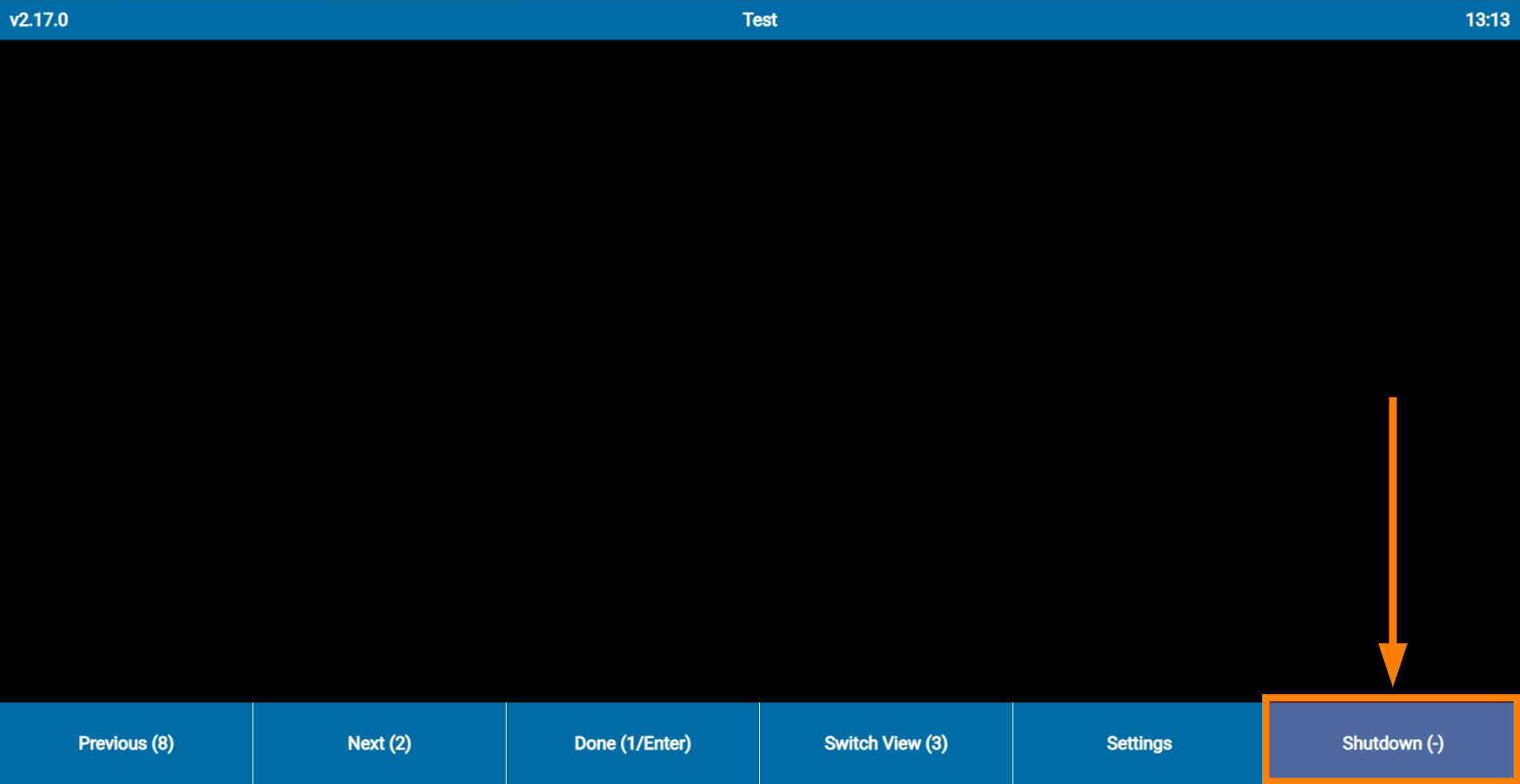
You will then be prompted to confirm the shut down.
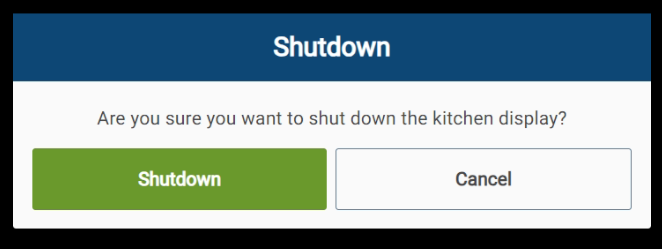
Tap Shutdown. If maintenance is required, it will prompt you to perform maintenance.

Tap Perform maintenance. The System will close the app on the device when maintenance is done.
Numpad/Keyboard
If you are using a standard display and a numeric keypad or keyboard to interact with KWM, press the [ - ] button on the keypad.
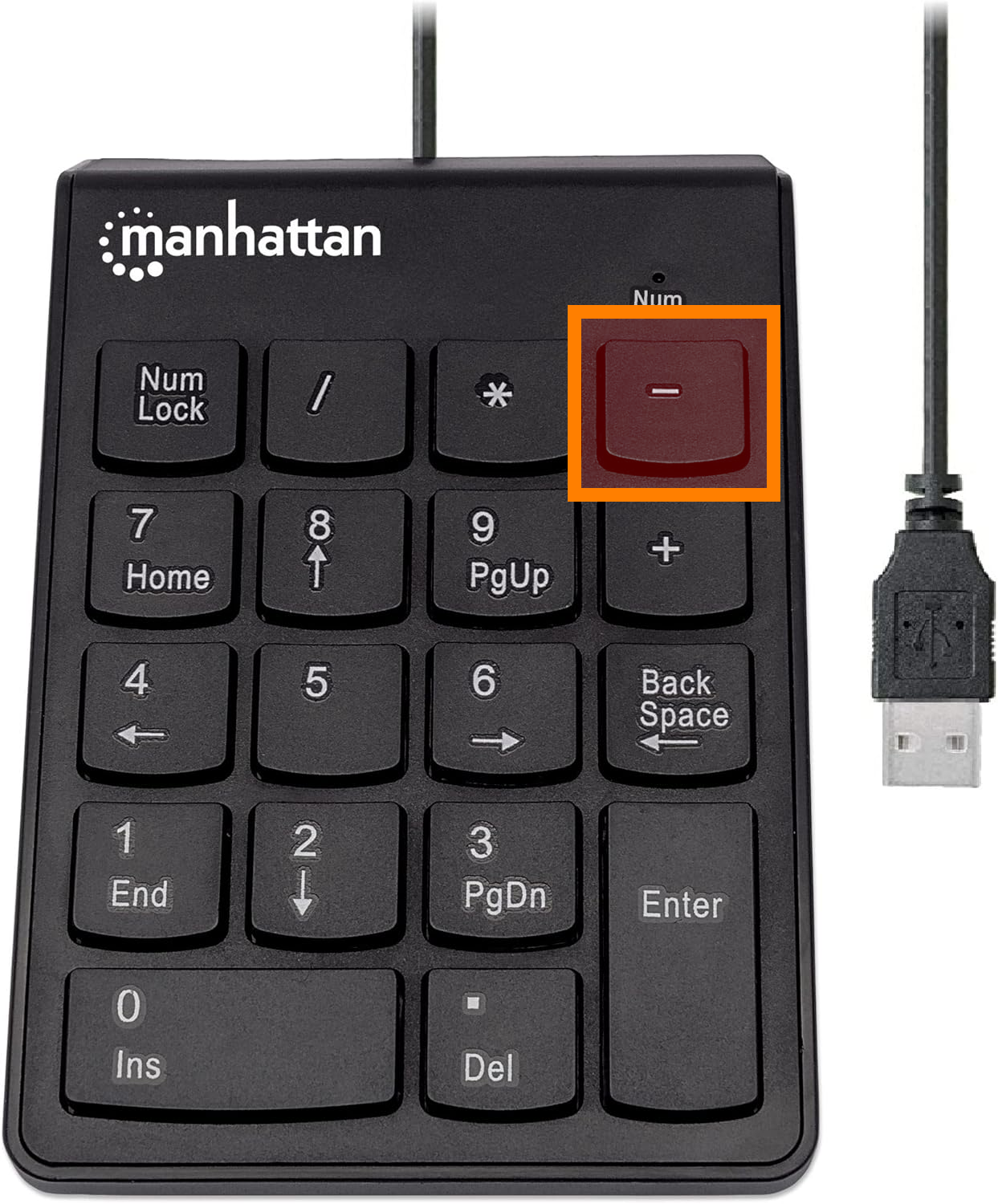
You will then be prompted to confirm the shut down.
Press [Enter] on the numpad. If maintenance is required, it will prompt you to perform maintenance.
Press [Enter] on the numpad again. The system will perfom maintenance the device when maintenance is done.
Cosoft Bump Bar
If you are using Cosoft's specialized Bump Bar, use the button on the bar called [Close App] to properly close KWM.
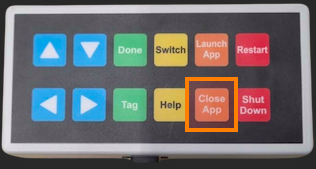
You will then be prompted to confirm the shut down.
Press [Done] on the bump bar. If maintenance is required, it will prompt you to perform maintenance.
Press [Done] on the bump bar again. The system will perfom maintenance the device when maintenance is done.