
Logging into CounterPOS and starting a new shift
The Log In screen
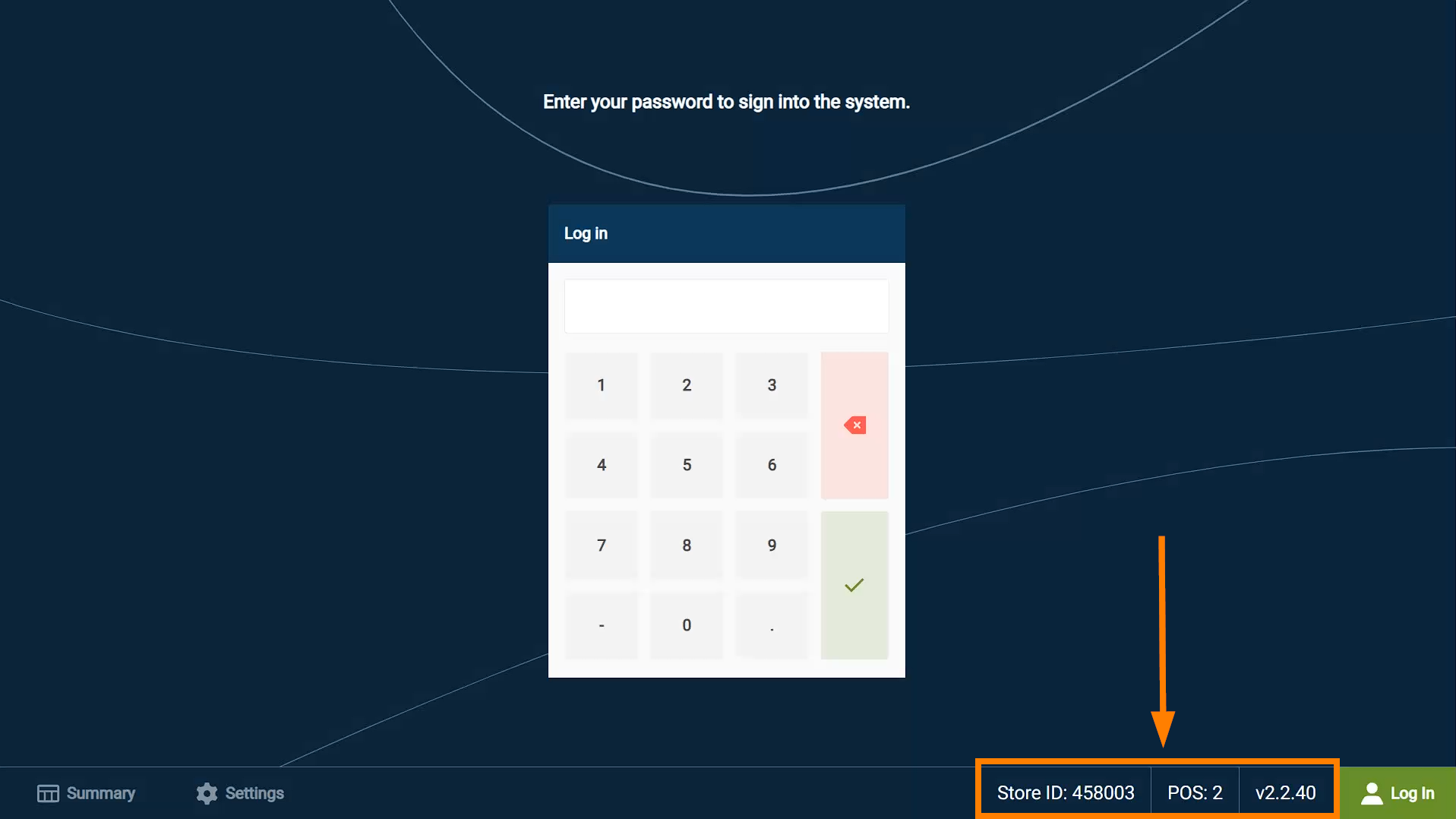
When logged out, CounterPOS shows the Log In panel, and the Footer bar that gives you access to the Summary and Settings screen, as well as useful POS information.
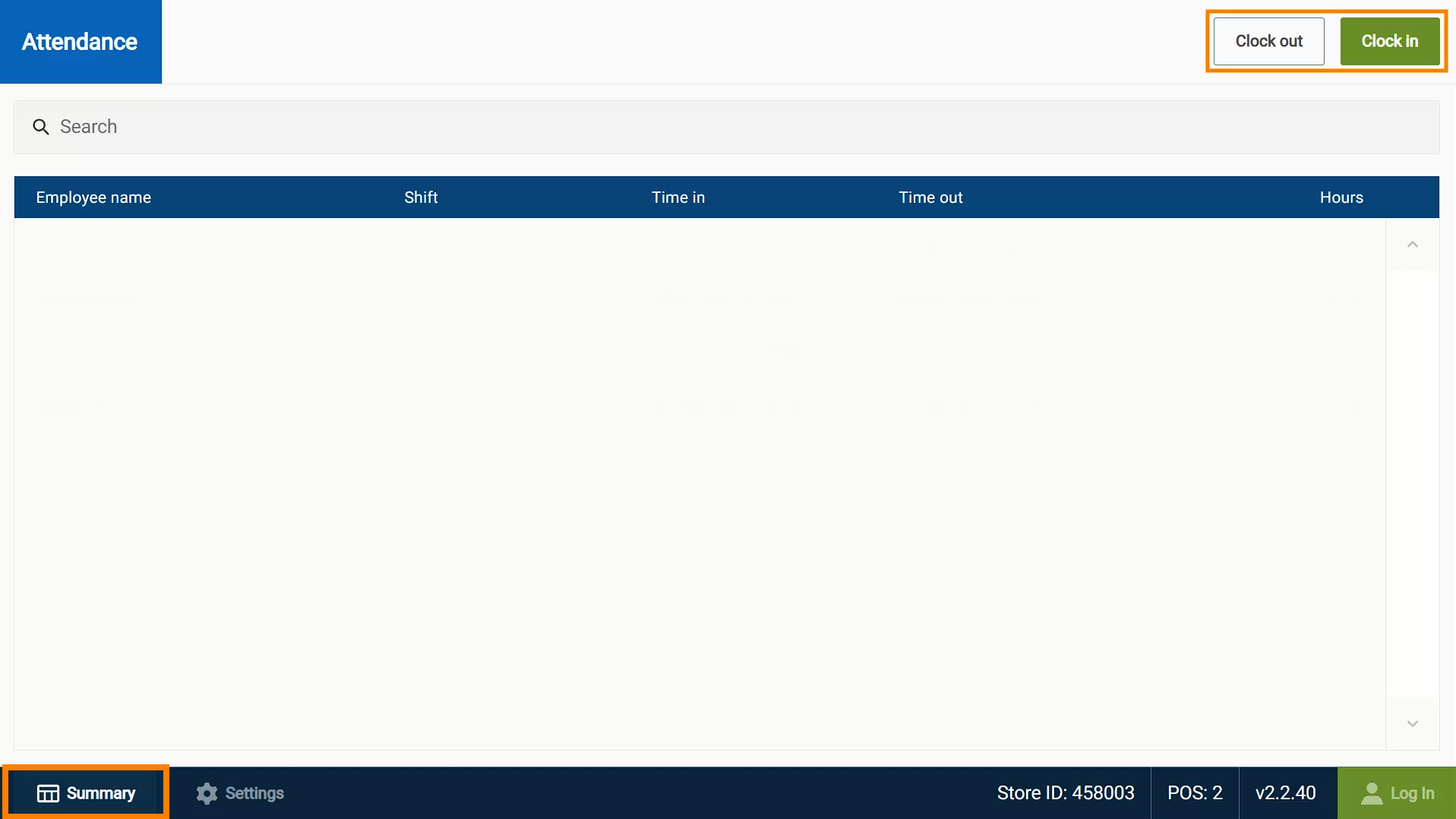
- Tapping the Summary screen will take you to the Attendance register, where users can Clock-In and Clock-out, even if they don't have login access (useful for tracking the attendance of staff that don't otherwise use the POS, such as drivers or kitchen staff).
- Basic Settings for this POS can also be found from the settings page. Don't change any settings unless directed to do so by a system admin or support agent, as some settings could cause the POS to stop working as intended.
- On the right-hand side of the footer is POS info.
- The first of these is the Store ID which is a unique identifier assigned to your restaurant location. If you ever reach out to support, they will ask you for your store number - so you’ll need to remember where to find it.
- The next number is your Unique POS Device ID number. Each POS will have it's own ID number.
- The last number represents the version of CounterPOS that this device is currently on.
Logging In
To log in, the user will need to enter in their POS password (as set in the Aura Portal).
Note: If your POS password has letters or other characters beside numbers, you will have to use an on-screen or physical keyboard to enter it.

You will now be logged into the POS on the Summary screen.
Starting a shift
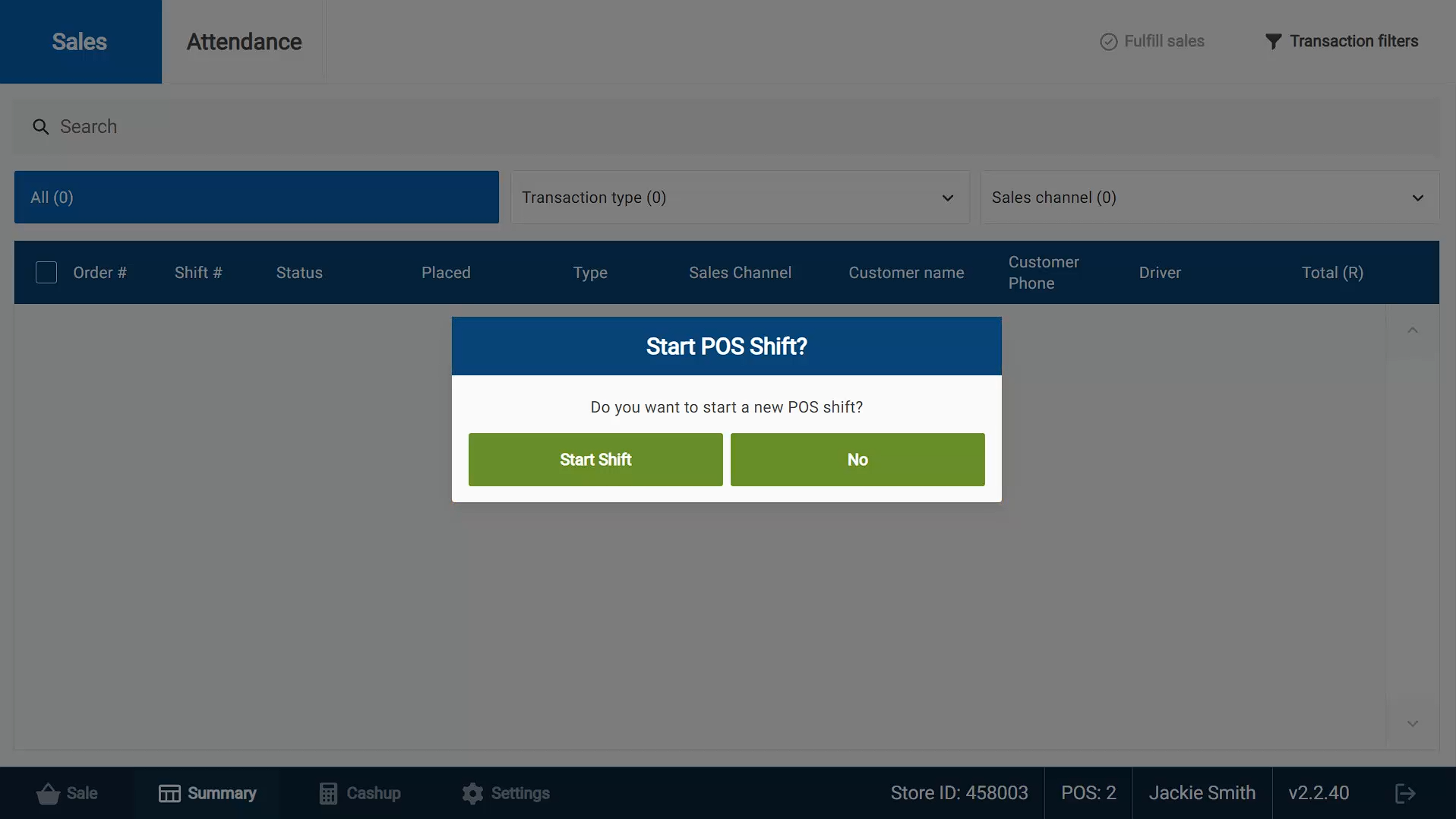
Tapping Sale from the footer bar will prompt you to start a new shift.
A POS Shift is a period of time when a user is making sales on the device. A new shift will be assigned to the logged-in user and any sales recorded on the device will be the responsibility of the user who started that shift.
Tap Start Shift to open a new shift for sales. If you select No you will not be able to process any sales.
Note: When you have finished working on CounterPoz you should Log Out to prevent unauthorised access to the system. To do this, tap the “logout” button at the bottom right of the screen.