Creating and Managing Menu Categories
Category Groups
Categories are organized into Category Groups, which act as the top-level structure for the menu.
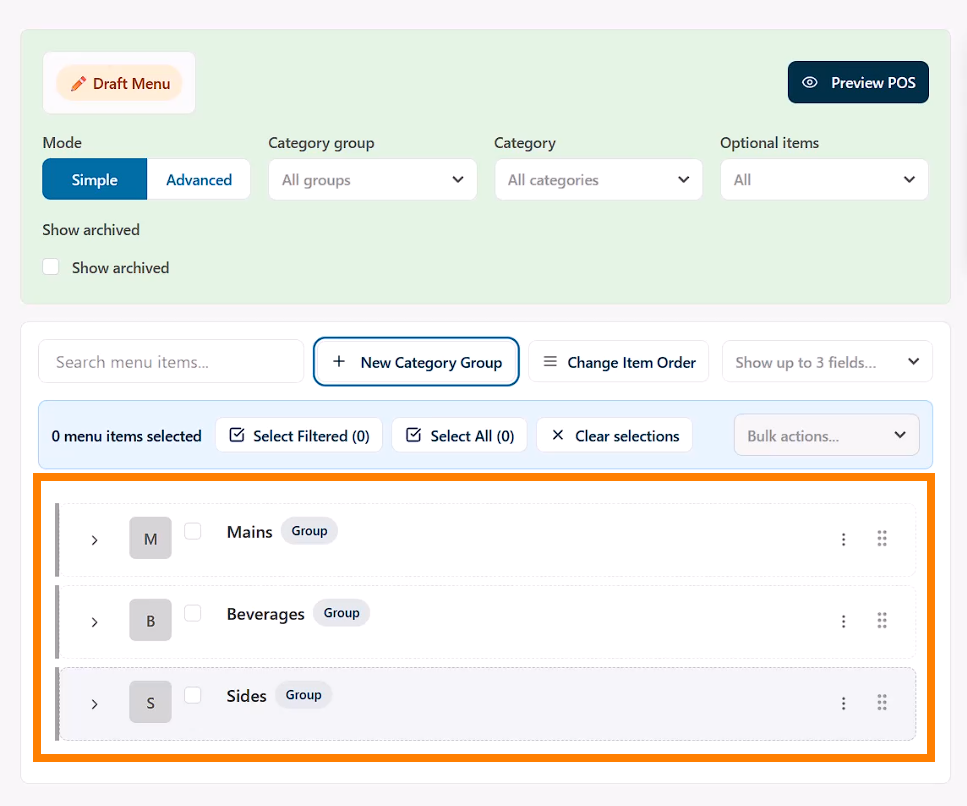
- A “Mains” category group might include your main menu categories such burgers and pizzas; alternatively you could create "Breakfast" and "Lunch" groups.
- A “Beverages” category group might include hot and cold drink categories
- A “Sides” category group might include add-ons, instruction or extras categories.
It is important to note that Category Groups are primarily used for organization and reporting. They do not appear on the POS interface—only the Categories themselves are visible to users.
Creating a New Category
To add a new menu item, an appropriate category must exist. For example, adding a soft drink like a Coke requires a “Sodas” category.
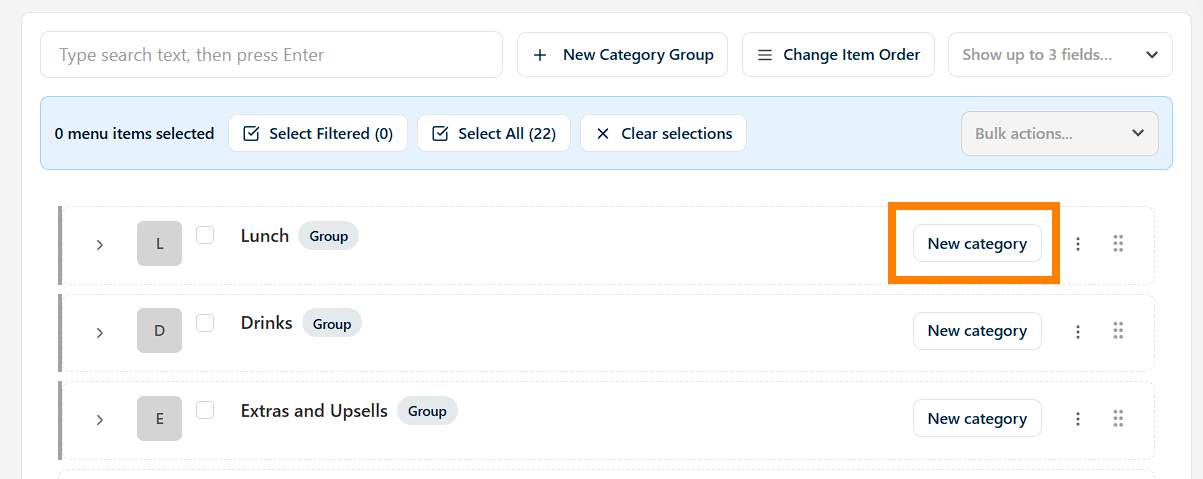
To create a category:
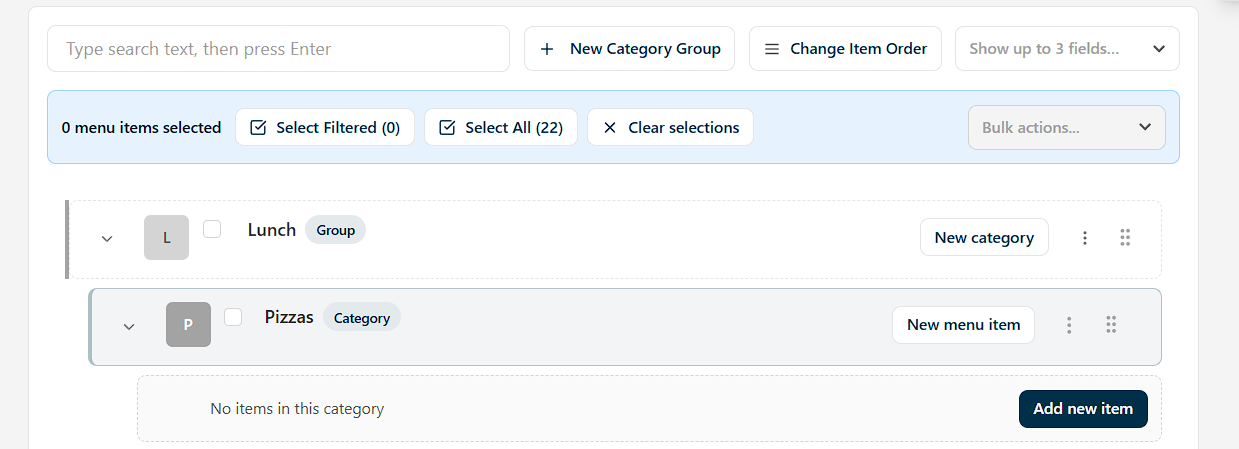
- Click the New Category button on the Category group card, or
- Open the kebab menu on the relevant Category Group and select “New Category”
- Enter a Category Name (e.g. Sodas)
- Optionally, assign a Category Code (used for internal organization)
- click Create
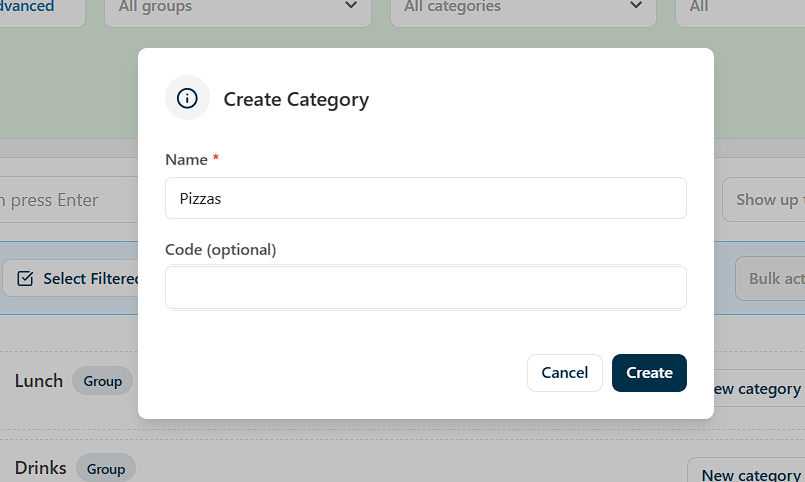
Once created, the new category will appear as a category card in the list.
Managing Category Options
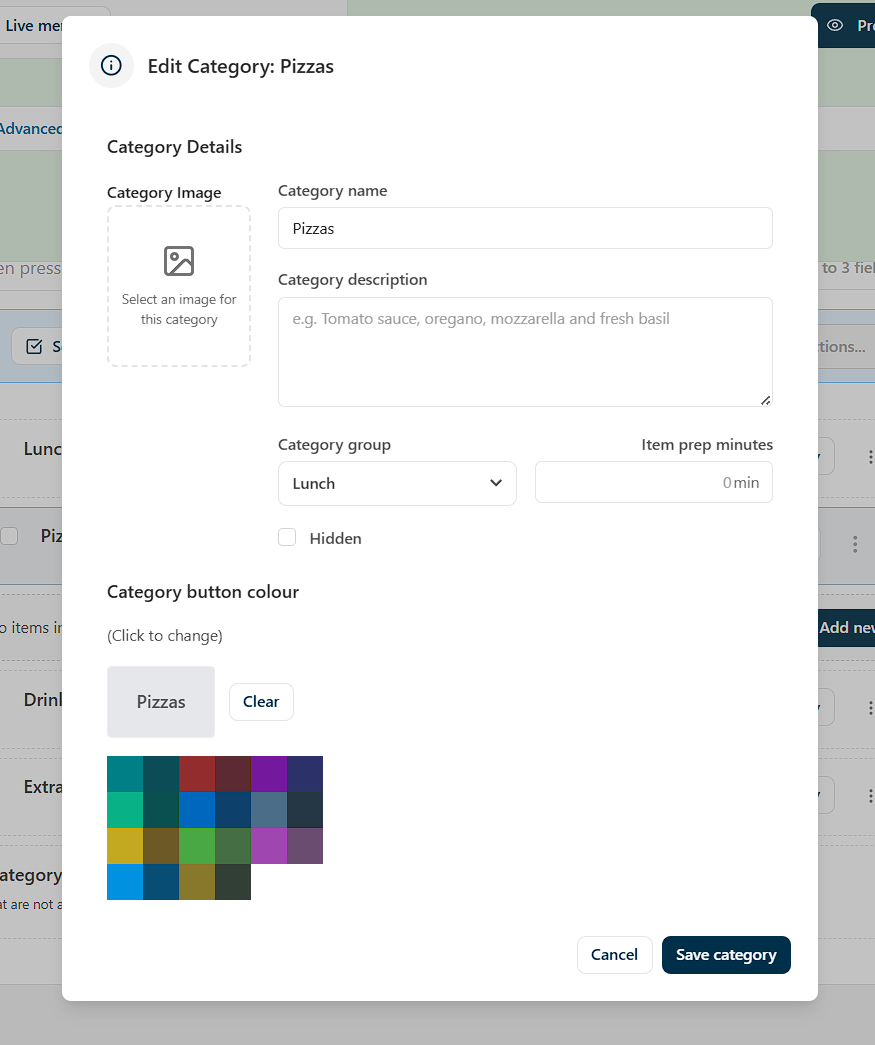
Each category includes several configurable options that affect both operations and customer experience.
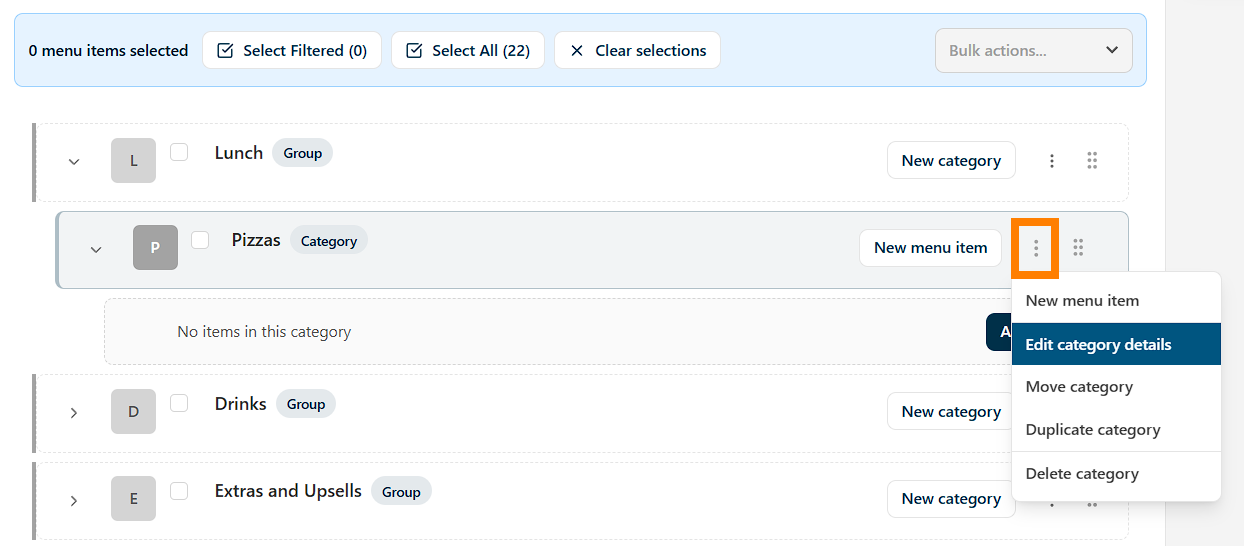
Access these by opening the category’s kebab menu and selecting Edit Details.
Category Image
An image can be uploaded to represent the category.
This is displayed on self-service kiosks and customer-facing interfaces, so it should clearly reflect the items within the category.
Category Description
A short description can be added to provide context. This text appears on online ordering platforms and kiosks, and should be clear, informative, and appealing to the customer.
Category Button Colour
This setting changes how the category appears on the POS interface.
Using distinct colours helps cashiers quickly identify categories, improving speed of service.
Food Preparation Time
The Food Prep Minutes field defines the average preparation time for items in the category.
- Used in reporting and customer-facing displays
- If left blank, the system defaults to the global preparation time
Hidden Categories
Categories can be marked as Hidden, which keeps them active but removes them from the POS display.
This is typically used for:
- Option list items
- Upsell components
- Supporting or backend menu structures not intended for direct selection
After configuring the category, select Save Category.
Organizing Categories
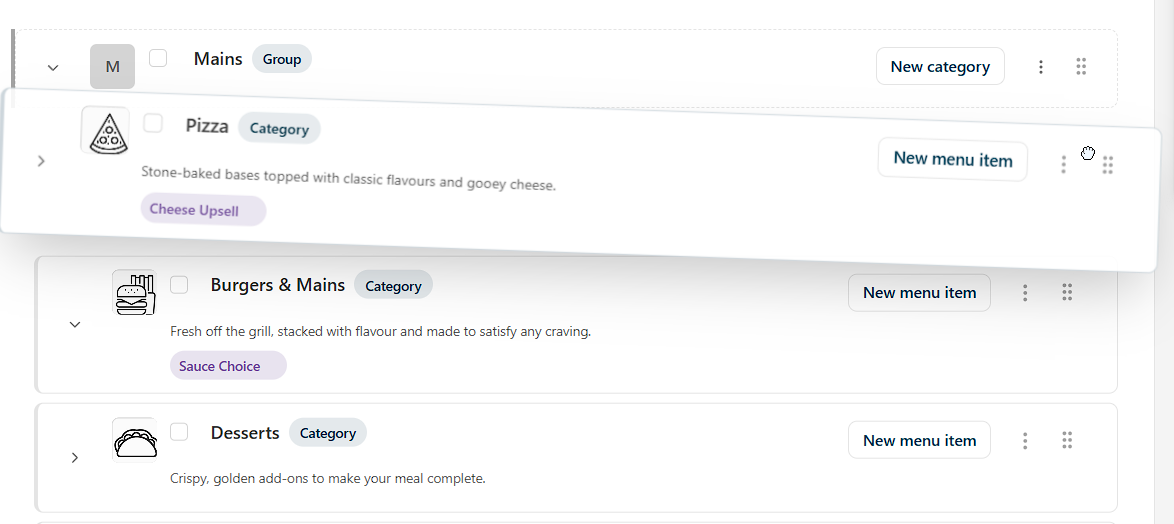
The category will then appear in the category list. When multiple categories exist, they can be reordered using drag-and-drop by grabbing the handle at the end of the card, which determines how they display in both the system and on the POS.