
Ringing up Collect orders
Starting a Collect Sale
When starting a Sale in CounterPOS, tap the Transaction Type button to switch your transaction type:
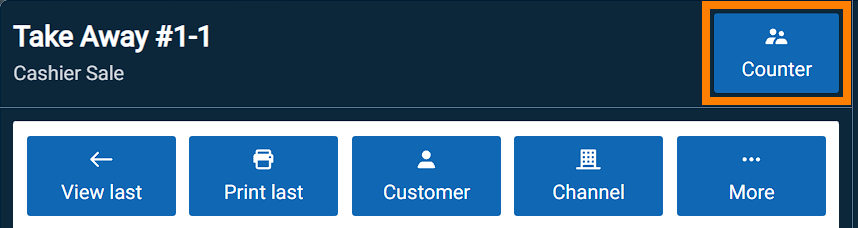
Then, tap Collect.
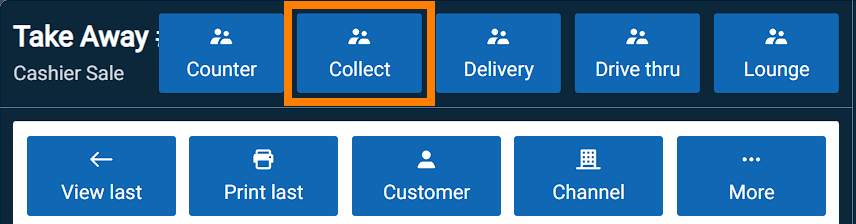
CounterPOS will immediately open up the Search Customers panel.
Adding an existing customer
You can search for an existing customer by their phone number by default. If you want to search by name or any other criteria, you need to tick that option first.
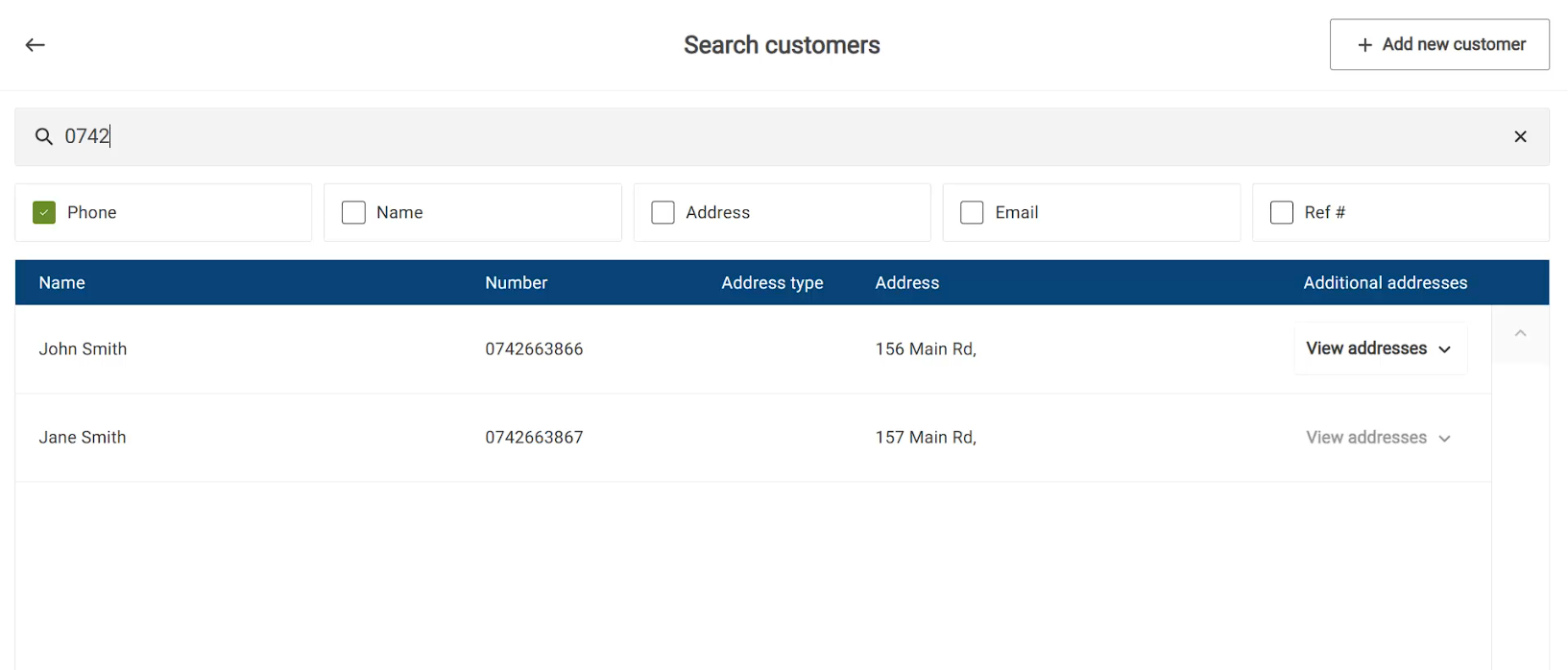
Note: You need to type in at least 4 numbers of a phone number before filtered results will show. Also, if your device is offline, you will not be able to search your existing customer database, since it's stored on the cloud. |
Tap a customer from the results list to open their Details.
Review and confirm their details and tap Save to link them to the order.
Adding a new customer
If you need to add a new customer, tap + Add new customer to capture a new customer's details.
For a Collect order, you only need a customers Name and Phone number.
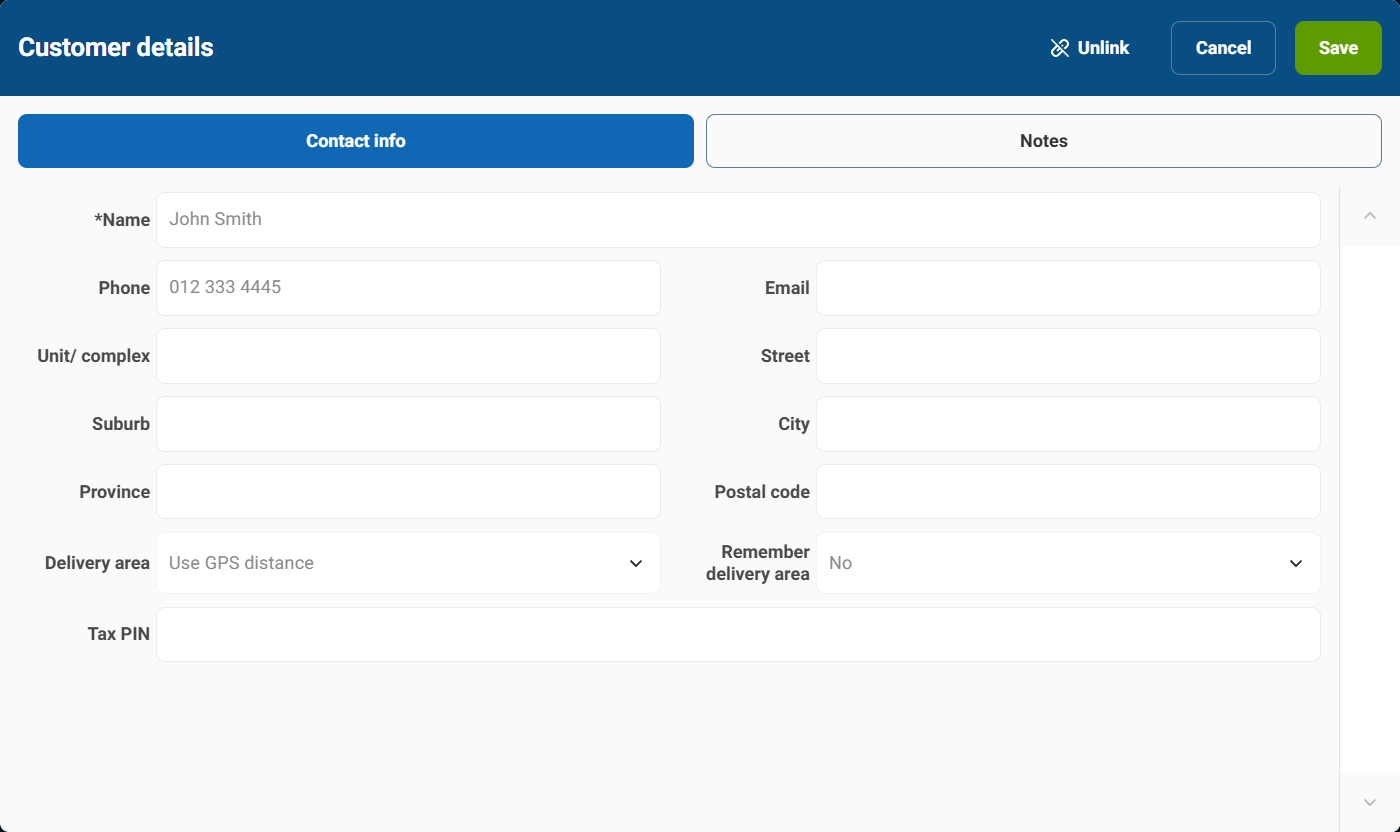
Tap Save to link them to the order. The Customer control button will have an exclamation to show that there's a customer already attached to the order, and the Customer's details will show in the Invoice header.
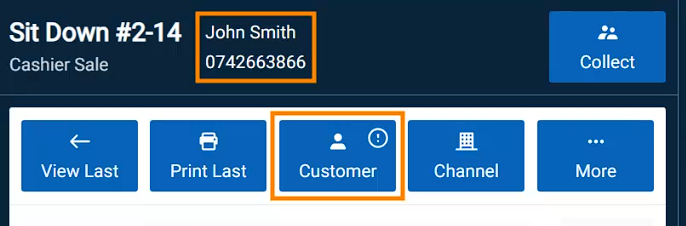
You can tap the Customer button to edit the customer's details or Unlink them from this sale.
Sending the Order
Now, ring up the customer's order. A collect order will usually only be paid when the customer arrives at the store, so you don't need to take payment now.
From the Sale Controls above the item basket, you'll have the option to Send the order to the kitchen, so they can start preparing it.
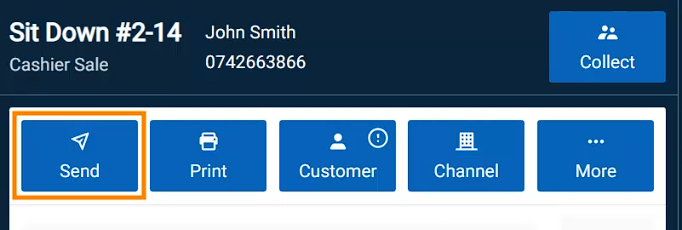
Once sent, CounterPOS will start a new sale.
Completing the order and taking payment
A not-yet collected or paid-for Collect order will show on the Summary screen with the status of Unpaid.
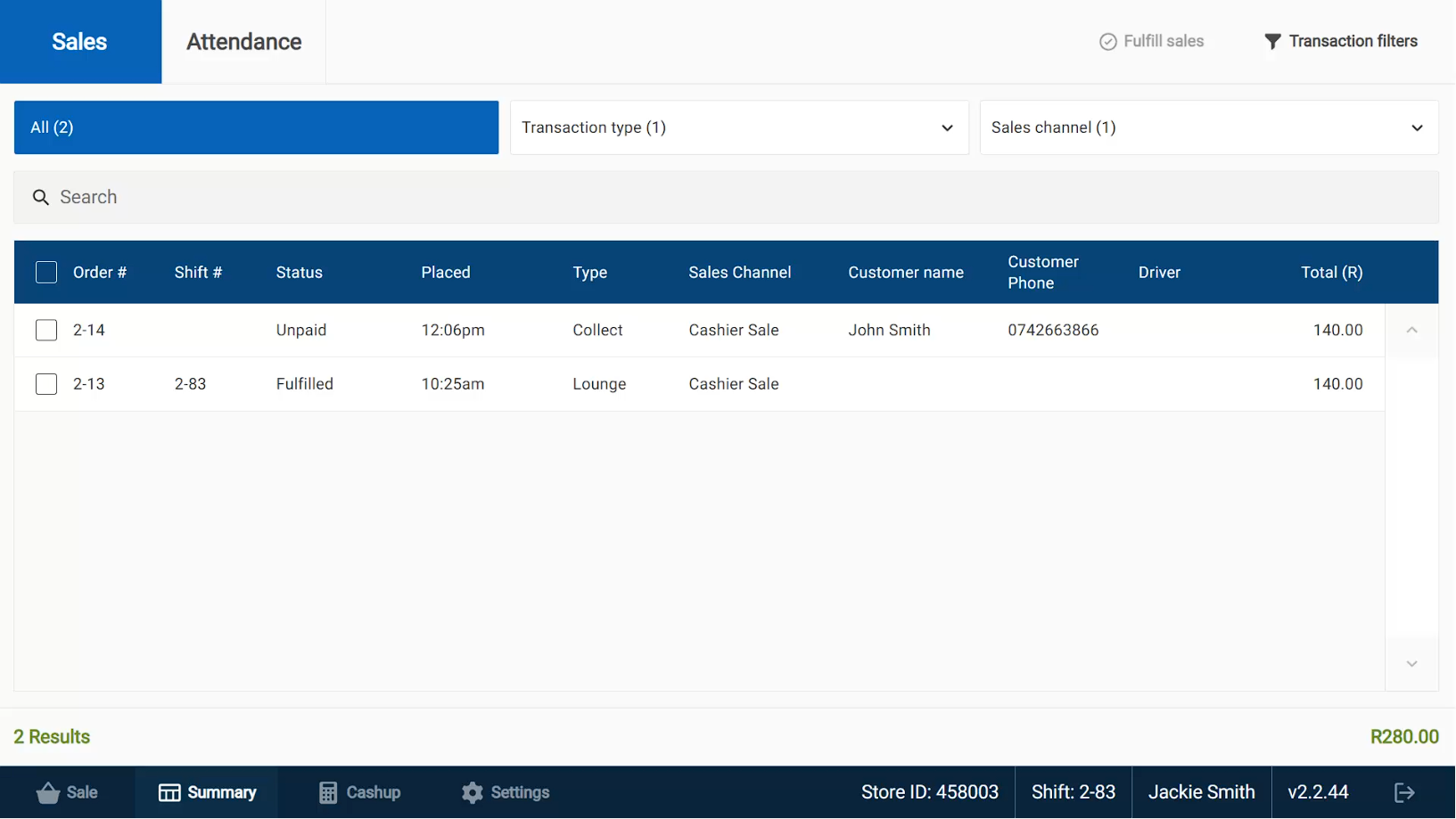
When the customer arrives to collect the order, you'll need to find the order from the summary screen - You can use the Search bar to search by customer name or number, or use the Transaction type quick filter to look for open Collects.
Once you have it, tap on it to open the order in the Sale screen.
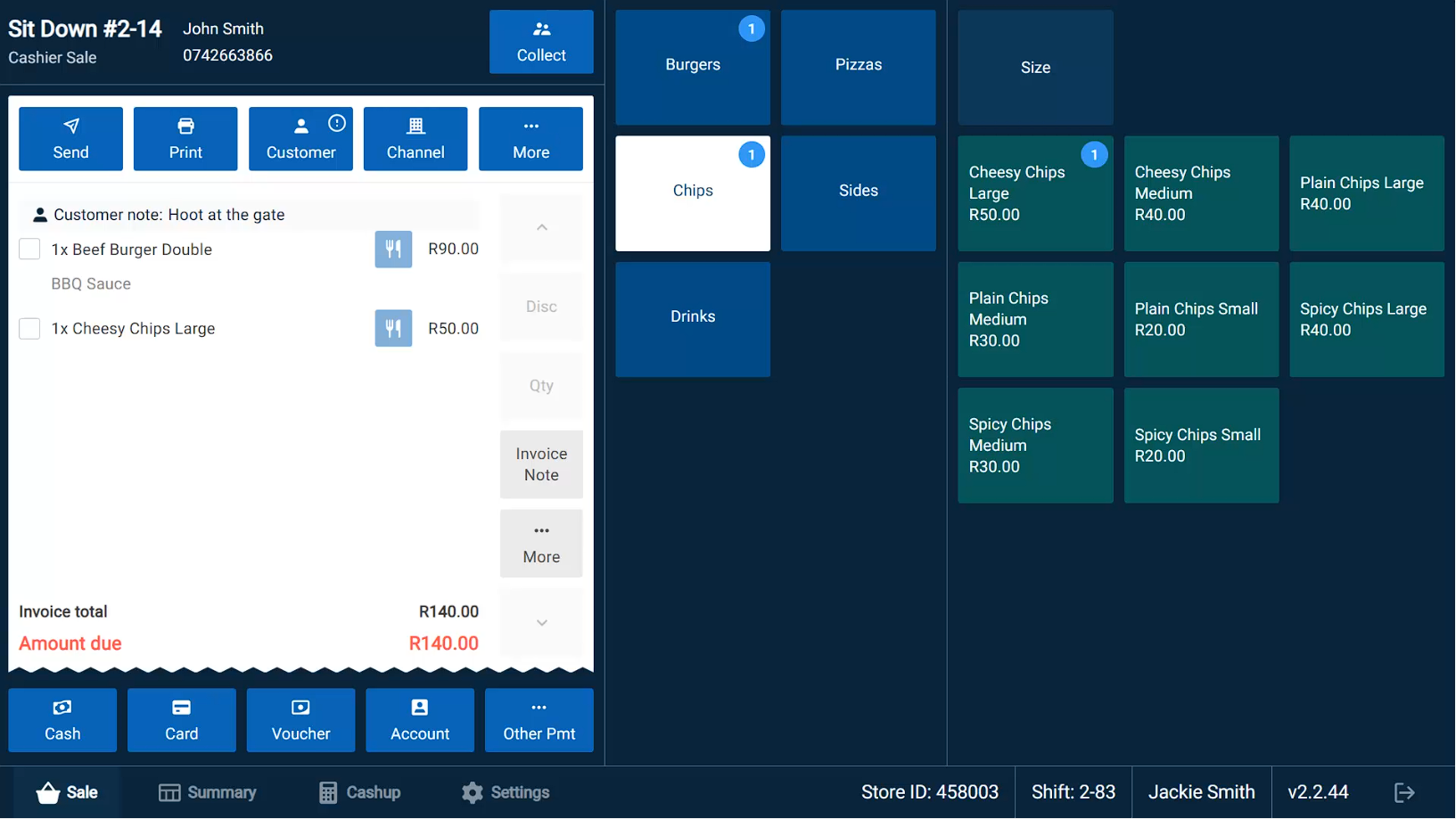
From here you can add items if requested (But not you CANNOT edit or remove items that have already been sent through to the kitchen) and take payment.
Once payment has been taken, the order will be marked as paid.
This will complete the order. However, note that depending on your stores' settings, you may also need to mark the order as Fulfilled before it is included in the cashup.