Menu Builder Overview
This page allows you to build, adjust, and publish menus in a simple but powerful interface.
Accessing the Menu Builder
NOTE: The Menu Builder is a Brand-level function and is only available from the Brand context. |
To access it, switch to the Brand-level context, then:
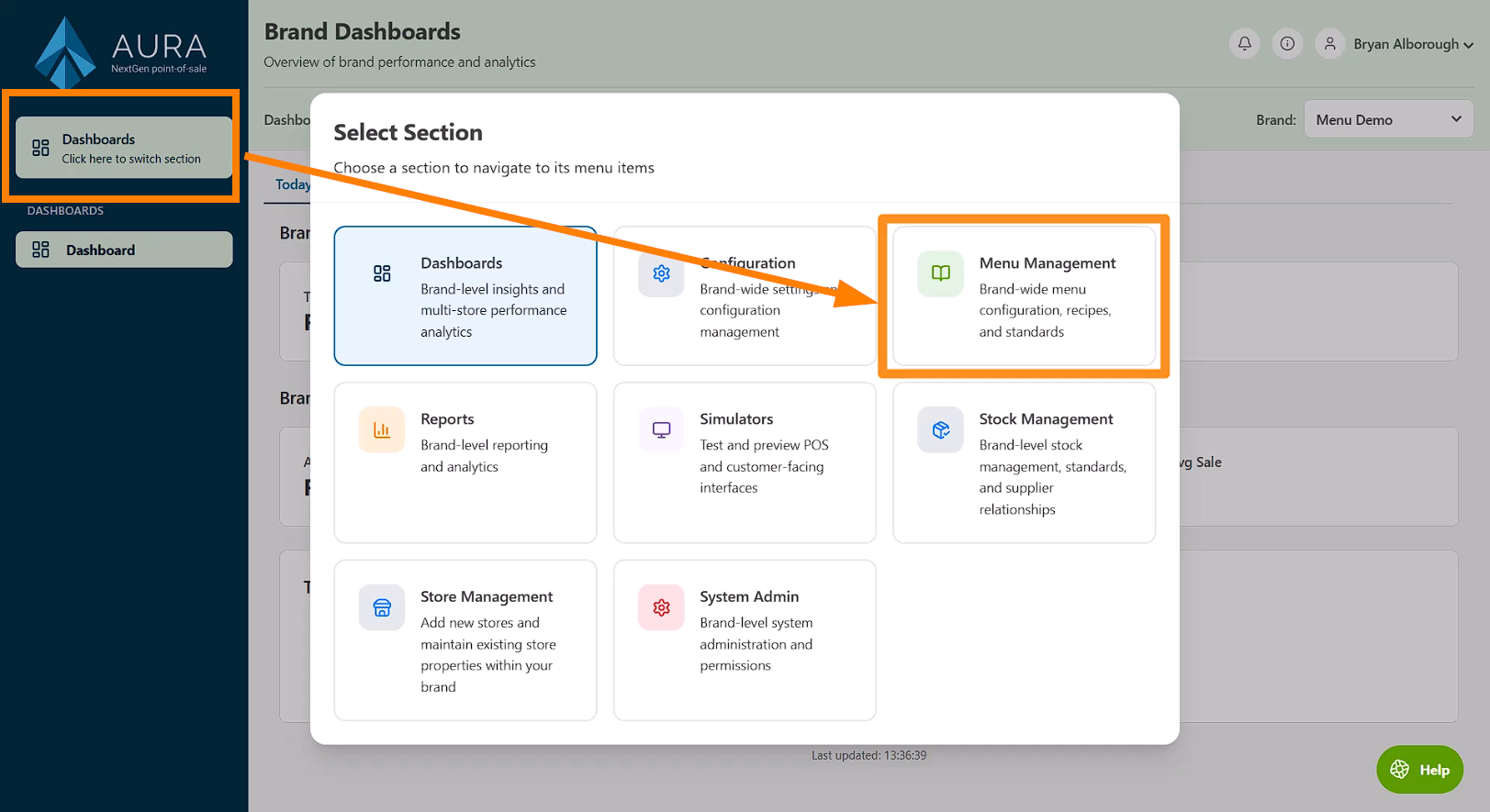
Open the Section Menu, and go to Menu Management;
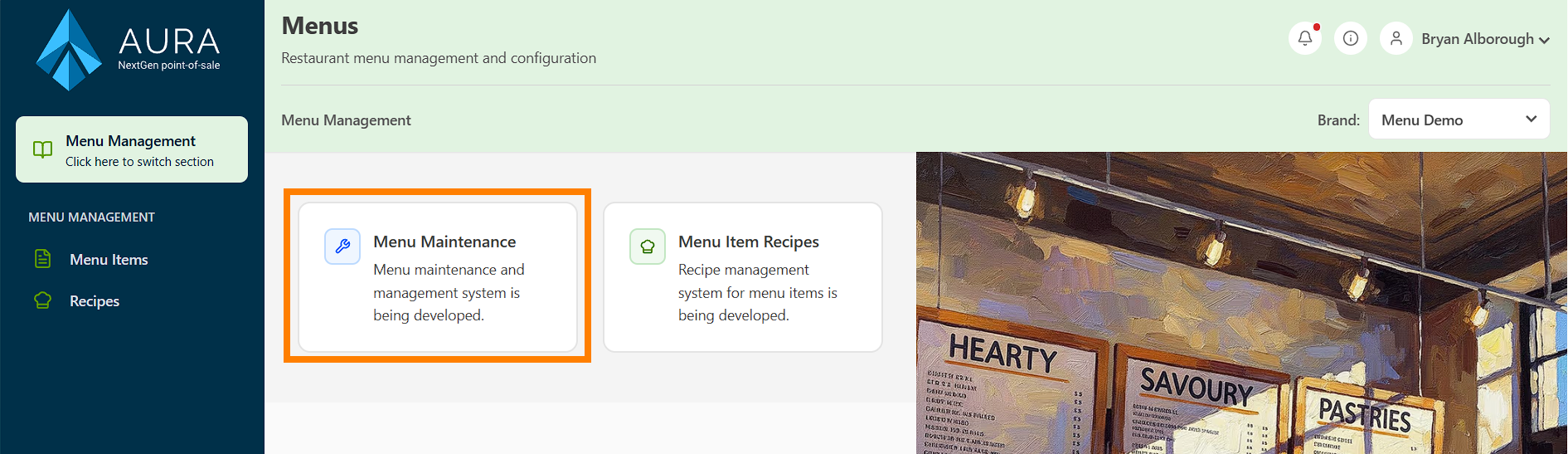
from there, click Menu Maintenance:
This opens the Menu Builder workspace.
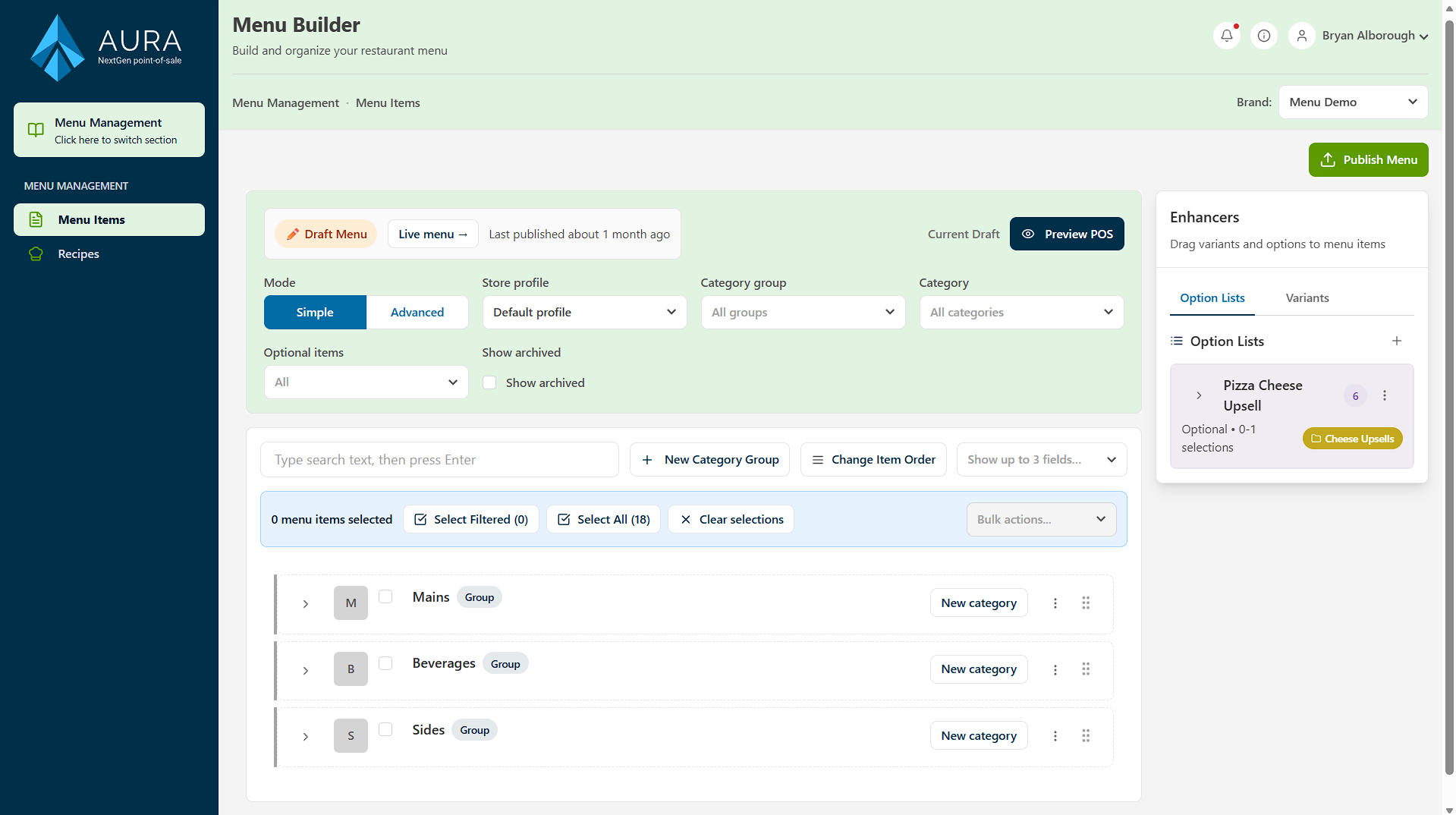
From there, you can:
- Review your current Live menu
- Create a new Draft menu that you can edit
- Preview the menu using a simulator
- Publish the draft menu to your POS devices
- Access Advanced menu revision management
Understanding the Menu Structure
The menu is displayed as a nested structure, made up of three levels:
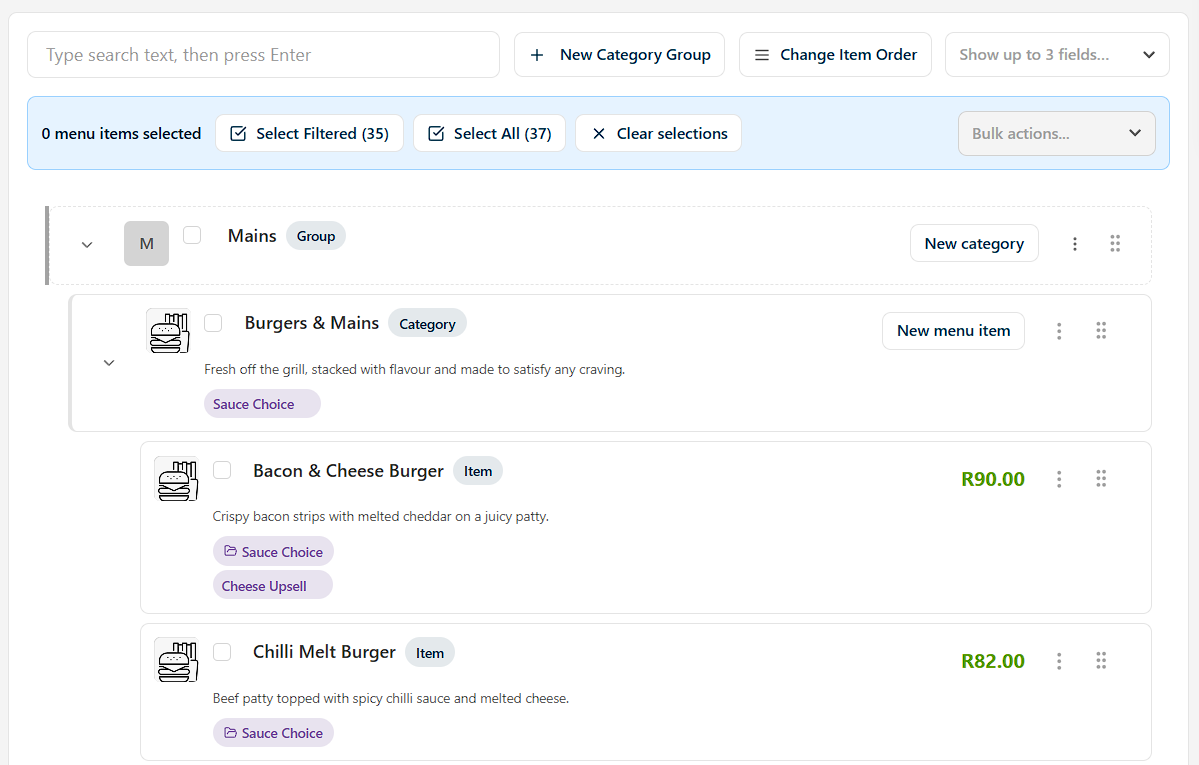
- Category Groups are the highest level, and are used to group related categories
- Categories contain individual menu items
- Menu Items - products sold on the POS
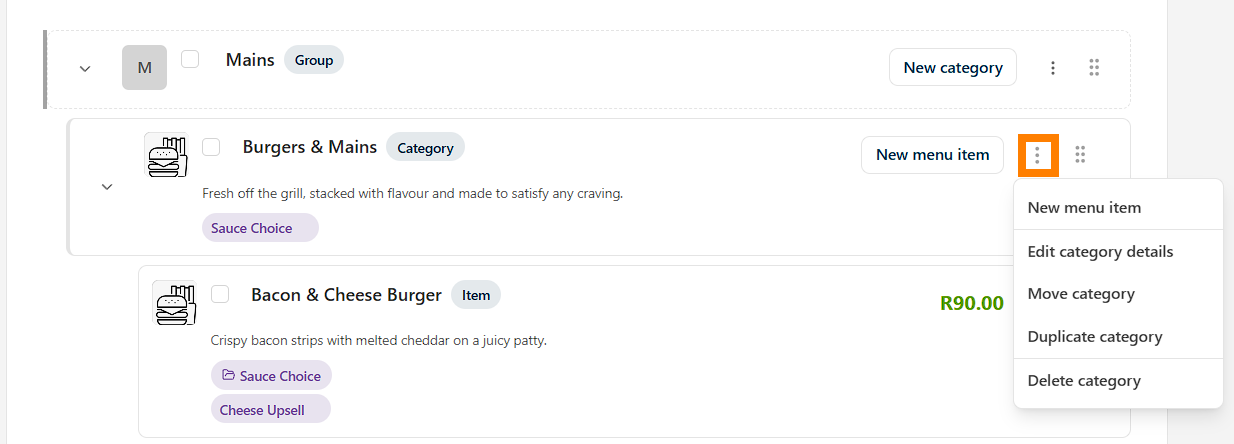
Each level has its own configurable properties, allowing you to control how items behave and appear on the POS, accessed by the kebab menu at the end of the card.
Sorting and Ordering
Menu elements can be arranged in different ways:
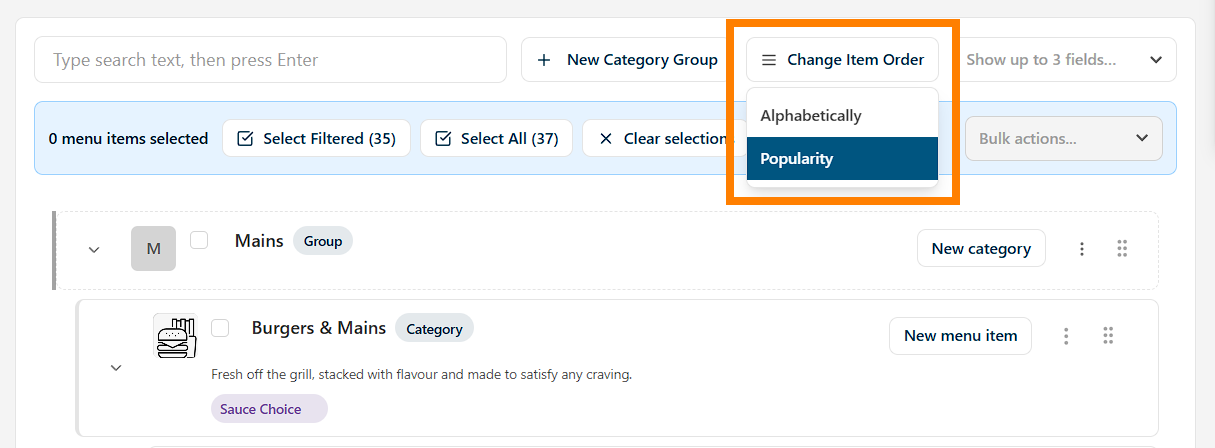
- Alphabetically
- By Popularity
- Manually, by dragging and repositioning items using the handle on each card
Manual ordering is typically used to optimise cashier workflows by placing high-frequency items in more accessible positions.
Enhancers
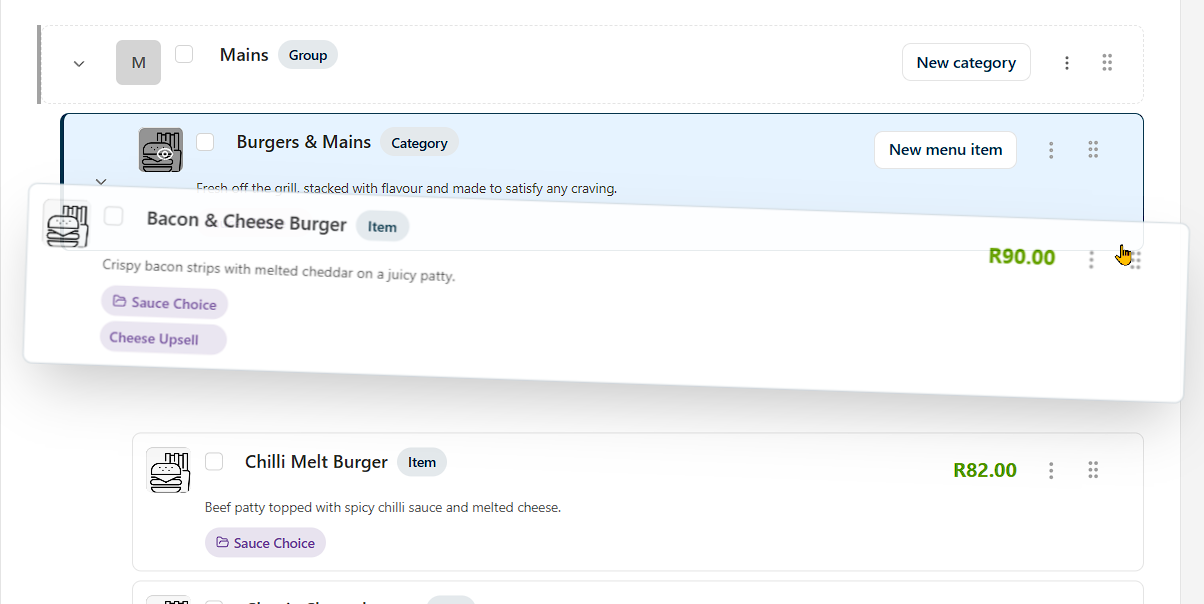
Menu items can also include Enhancers. There are two kinds of enhancer:
- Option Lists - lets cashiers pick from a list of choices that are triggered by menu items.
- Variants - different versions of a menu item, such as sizes (Small, Medium, Large etc)
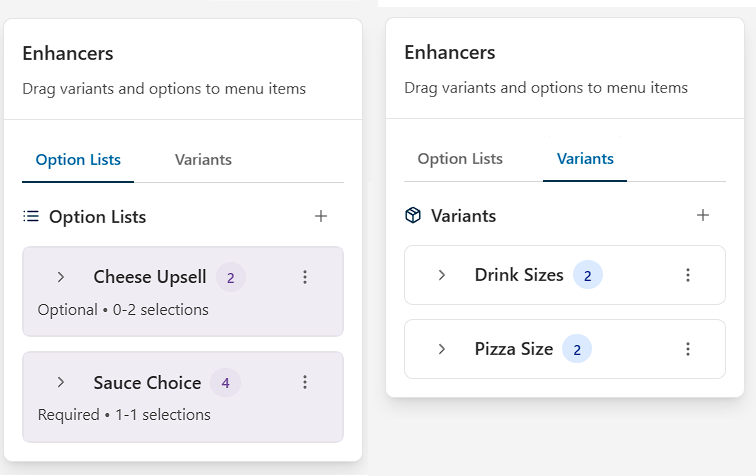
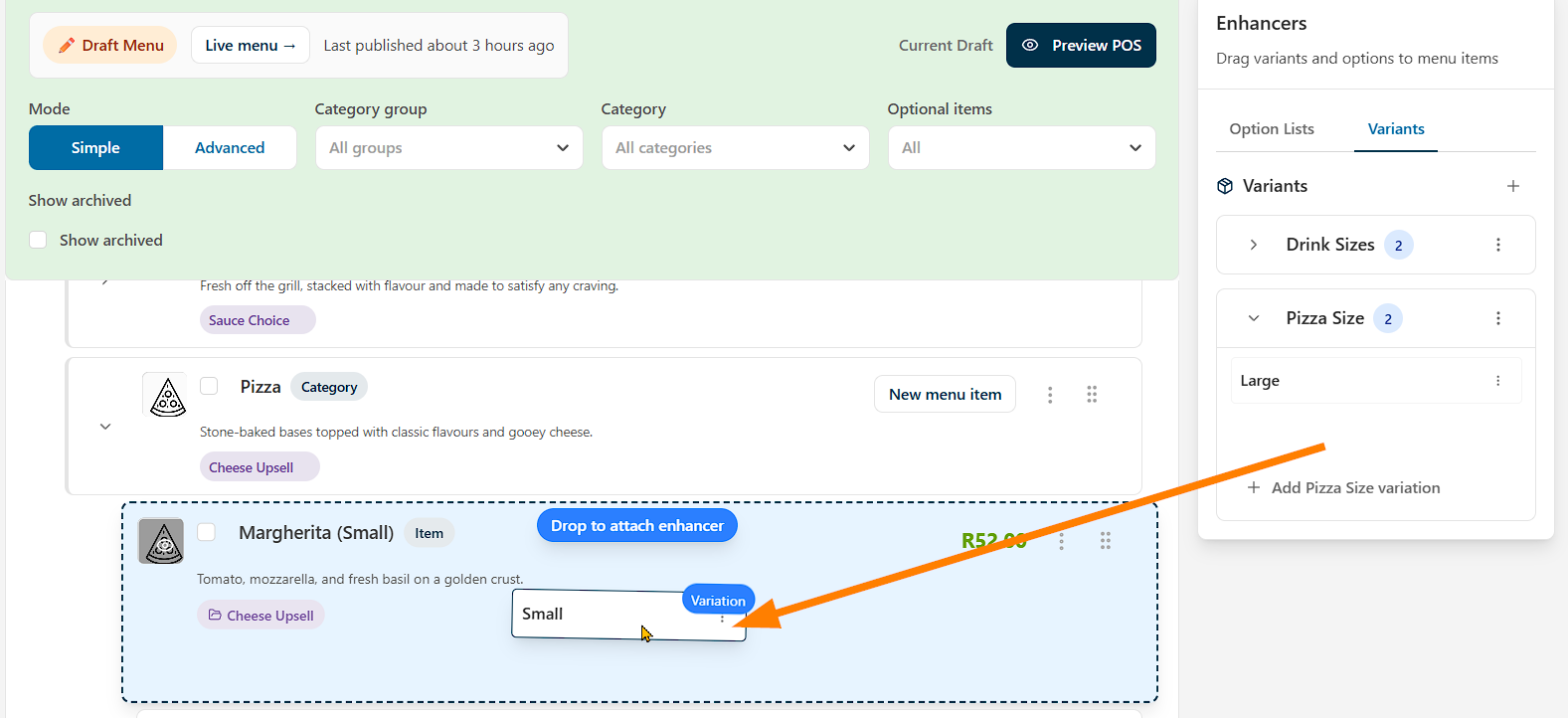
Enhancers are be dragged and dropped onto menu items to apply them