
Ringing up Drive-thru orders
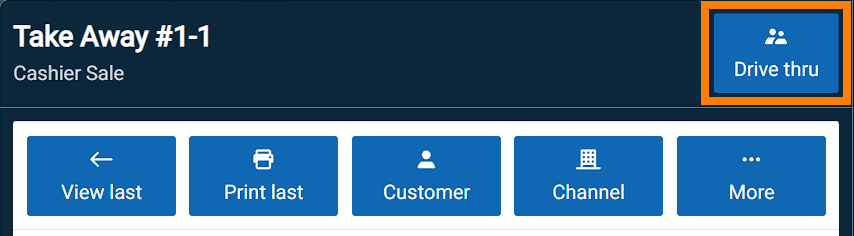
To begin, make sure the Drive thru transaction type is selected from the top of the screen. For POS devices at the drive through window, this should be set as the default transaction type.
Note: Different drive through setups might have different workflows compared to what's described here; this is a common arrangement but it might be a little different for your store. |
When the customer placed their order, ring it up on the sales screen. After they have confirmed that it is correct, you can tap Send to save the order and send it to the kitchen.
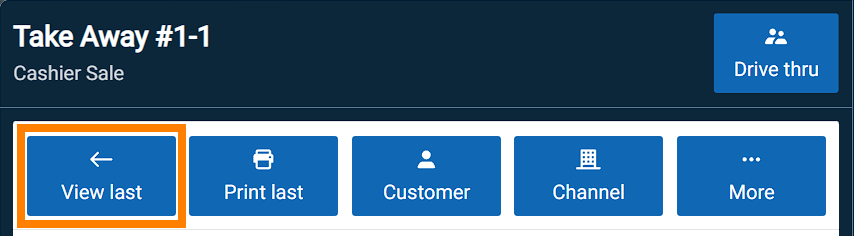
Sending the order parks it so that you can start helping the next vehicle. To quickly return to the last order, you can tap View Last.
When the customer gets to the window to pay, go to the Summary screen to find the order access their order and accept payment. Note that depending on your drive-though setup, this part might be done by a different employee at a different window, on a different device.
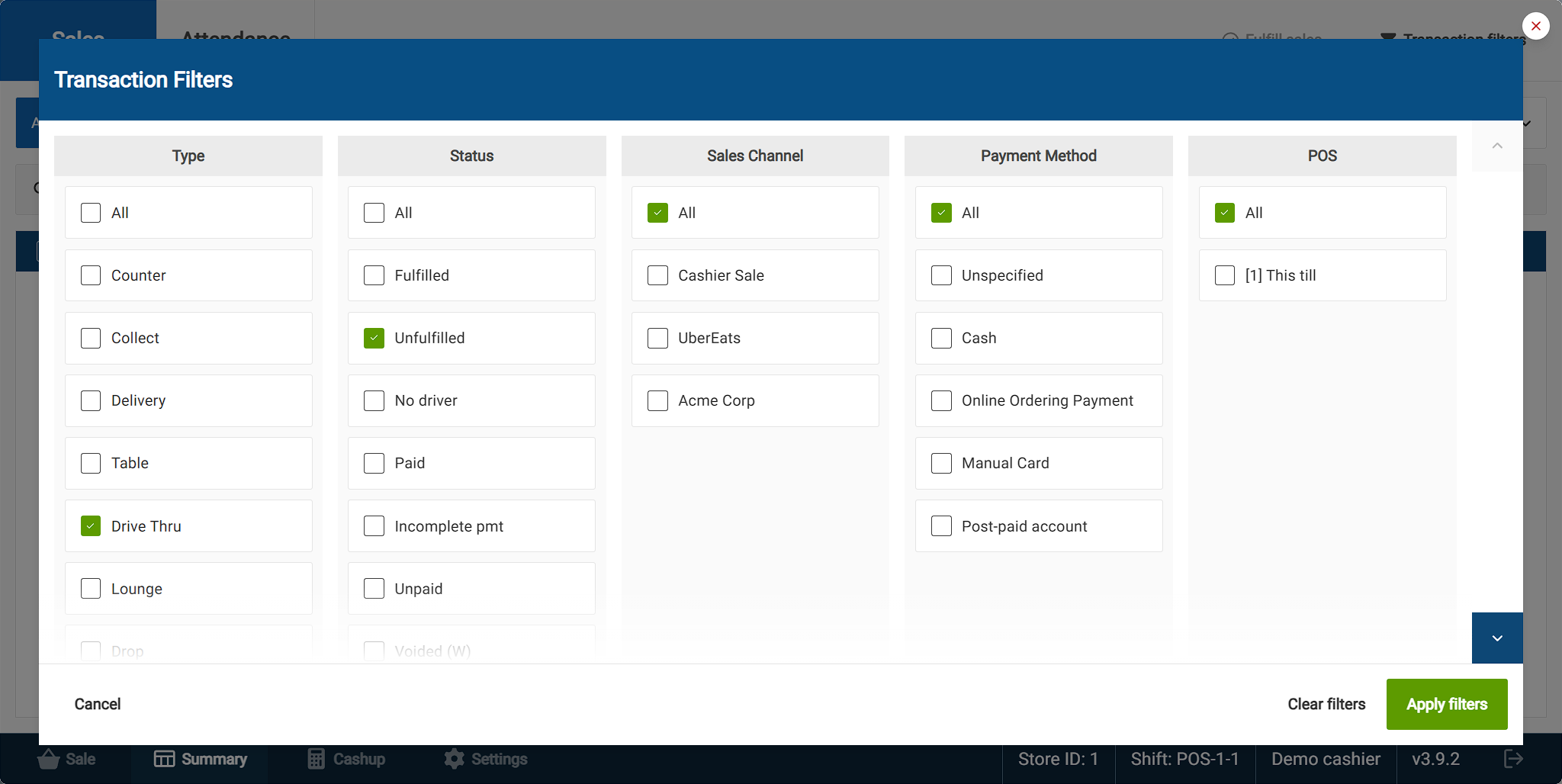
It's also recommended to set up the Transaction filters on drive through POS devices to only show Unfulfilled Drive thru order types so that you can focus on only the orders that are still to be paid.
After payment is recorded, make sure to mark the sale as Fulfilled to complete and clear it.
Only fulfil the order if the food was given to the customer and payment was recorded successfully. If, for example, there was a delay and you had to ask the customer to drive to the waiting bays, you would not immediately fulfil the order.
Sometimes fulfilling invoices will be done at the payment window and sometimes it will be done at the collect window, but it depends on the configuration of the drive-through.