
The Users page
This page will display any users that are assigned to your store or group, depending on which data Selectors are currently selected.
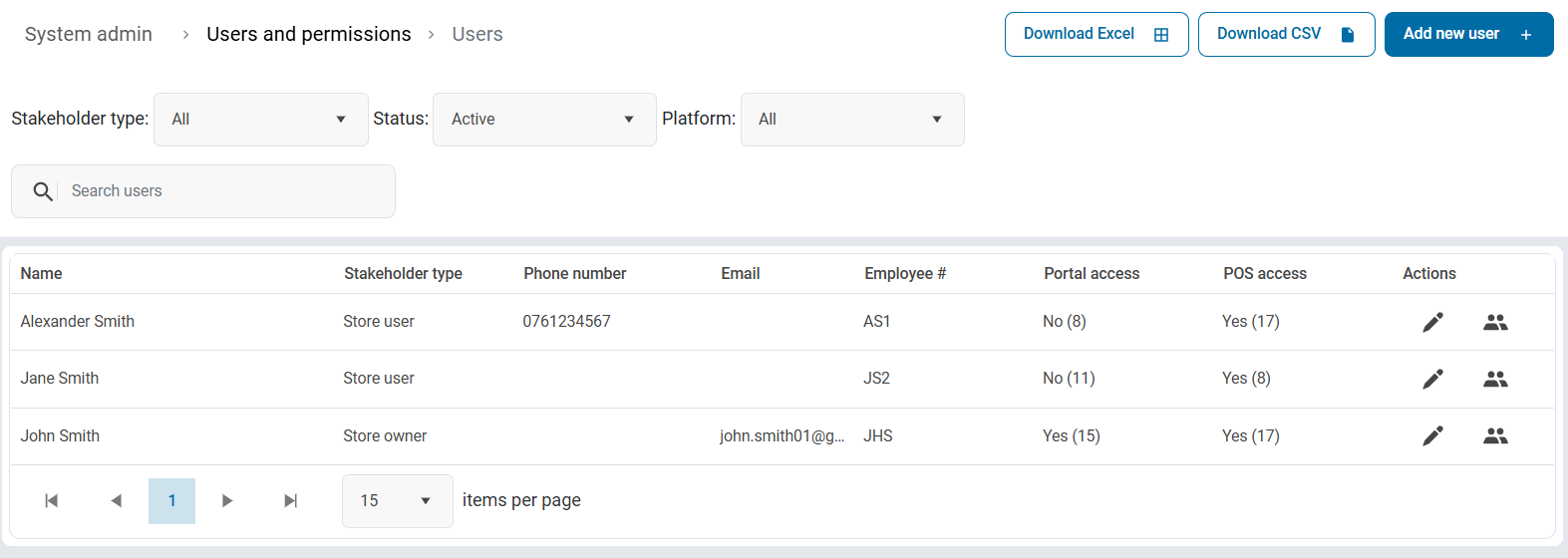
Users can be filtered by the following:
- Stakeholder type - being Store users, owners or other administrators including Brand managers, Franchisors or Cosoft internal users.
- Status - Active or Inactive users
- Platform - users for the POS, the Portal or both.
The user details will also display a list of key details for the user in several columns, including indicating if the user has Portal access or POS access and indicates the number of permissions given for each platform in parentheses.
Actions
Edit lets you edit the user and will open the User Details panel.
Roles lets you assign roles assigned to this user.
The list of users can be exported to a downloadable file using the Download Excel or Download CSV buttons.
Click the Add new user button to add a new user. This will open the User Details panel.
User Details
User details panel on the Basic Information tab, where you can capture the necessary user information.
Basic Information
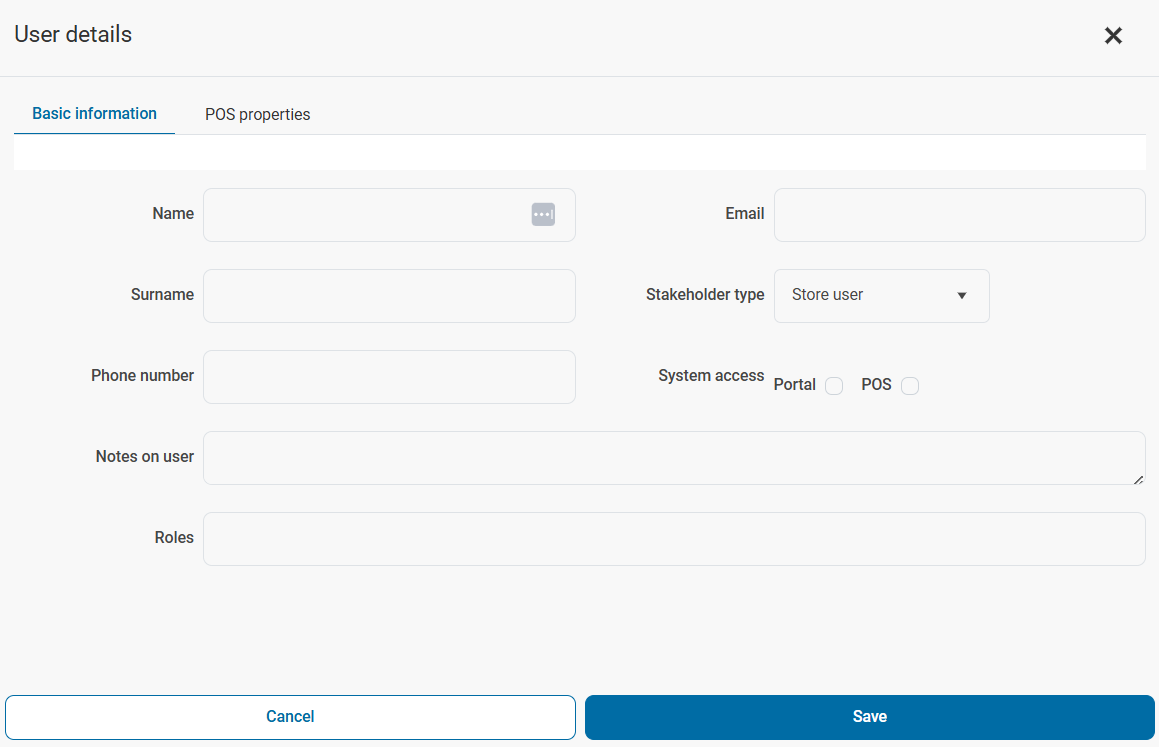
- First Name - Capture the user's first name. This is a compulsory field.
- Last Name - Capture the user's last name. This is a compulsory field.
- Phone Number - Capture the user's contact number. This is an optional field.
- Email Address - An email address is required for Portal users, but not necessary for
POS users (i.e any user that will be interacting with CounterPOS or other POS devices, but will not use the Online Portal).
- Stakeholder Type - This indicates if the user is a store user such as a cashier or manager, or a store owner.
Note that stakeholder types may be hidden depending on the level of the user currently logged in. For example, a Store User would not be able to create another user at Store Owner level.
- System access
- Portal - Setting this will give this user access to the Aura Online Portal. An Email Address will be required for the user’s login.
- POS - Setting this will give the user access to POS products such as CounterPOS. If enabled, you will need to capture POS Properties for this user.
- Notes on user - You can capture any optional additional information on this user for reference.
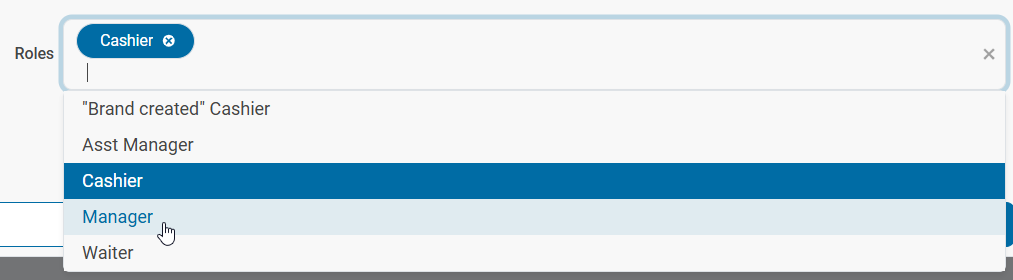
- Roles - Select a role for this user, selecting from a list of roles that have been created on the User Roles & Permissions page. Roles determine a user’s access levels on the POS and Portal. Multiple roles can be assigned to a user.
POS Properties
This tab is where you set necessary information and settings for POS users.
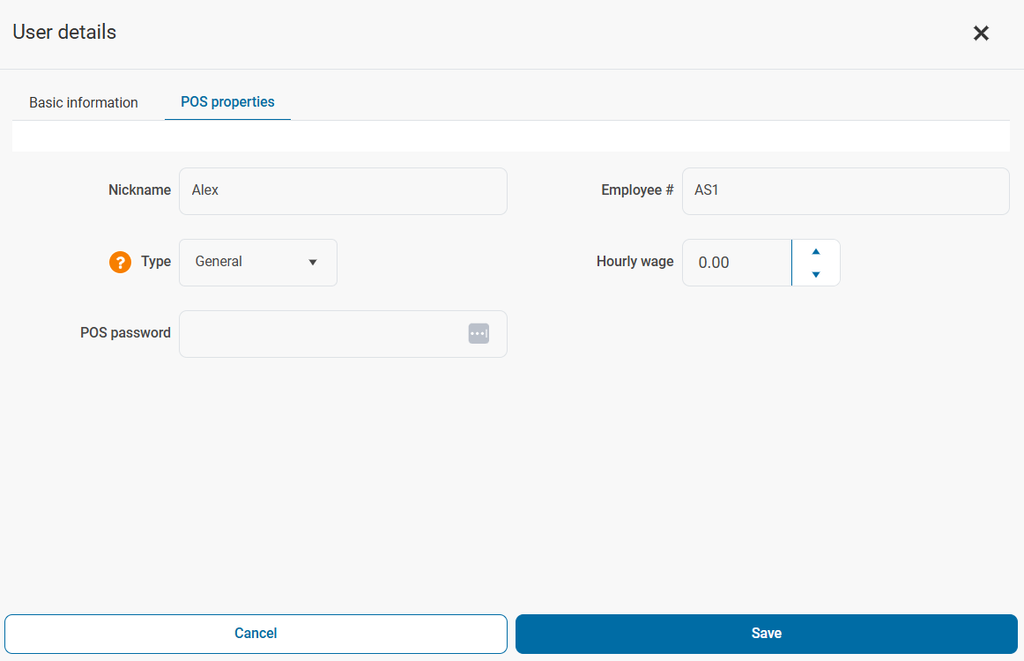
- Nickname - This is a shorthand name that will be used in the POS and prints on the customer receipt
- Type - This refers to the employee type
- General is a default user such as a Cashier or Manager. Delivery and Table orders cannot be assigned to a general user.
- Driver is a user to whom delivery orders can be assigned.
- Waiter is a user to whom table orders can be assigned.
- POS Password - This is the password/code that a user uses to log in or access certain activities in CounterPOS. The password requires a minimum 3 digits but no more than 5 digits. USE NUMBERS ONLY!
- Employee # - This is a unique number used by the POS to refer to this POS user. It can use numbers or letters (NO special characters). It cannot be the same as any other user.
- Hourly Wage - This is where an hourly wage can be specified for this user if necessary. Once done, click Save.
Roles
The roles icon in the Actions column of the user will open the Role Assignment window:
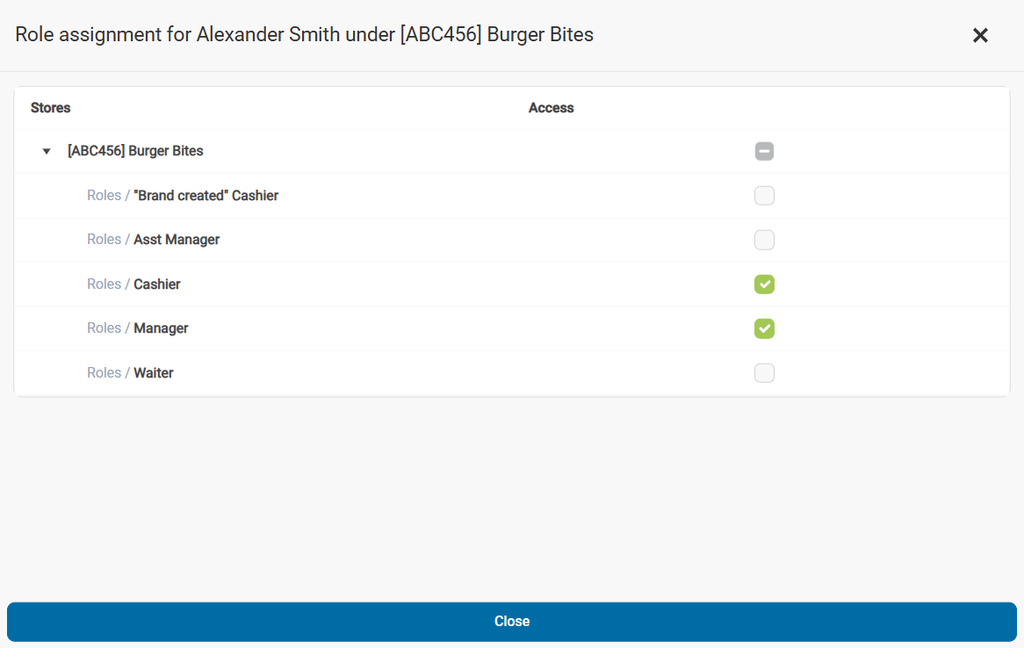
This screen lets you set/unset available roles for this user.