CounterPOS transaction types and sales channels
CounterPOS provides a number of with different transaction types to cover your business needs.
Transaction types:
- Counter orders allow sales to be put through without needing any customer details to complete the transaction.
- Collect orders cover an order that is prepared for the customer before they actually get to the store.
- Delivery* orders would be used if a driver is to deliver the order to the customer at their preferred location.
- Table orders are provided for sit-down meals where more items may be added before the bill is paid.
- Drive Thru orders are a type of Counter order that are logged as ‘drive thru’ in order to track sales placed at drive thru windows.
- Lounge orders allow an invoice to be “parked” with an ad-hoc reference word or number. Items can be added to the invoice and then the invoice paid and completed at a later date. This is designed for coffee shops and bars to be able to create tabs for patrons where there is not necessarily a table to assign the order to.
| *Delivery transactions now use Google Maps instead of creating your own addresses, this will require you to sign up for Google API Key. |
In addition to transaction types, Cosoft is introducing Sales Channels.
Sales Channels:
Uber Eats & Mr. Deliver orders can now be captured as in their own sales channels making it easier to track and report on 3rd party orders. Sales Channels are created on the Aura Portal
Yumbi orders can now also be captured as their own sales channel instead (This is only relevant to failed online orders that print on the GSM printer that use to be captured as Special Orders on Invoicing)
Sales channels come with two different properties, which consist of always paid on account / sometimes / never.
When creating a sales channel you will have two options "Has Account" & "Always on Account"
- Has Account allows customers to pay on "account" pay with cash/card.
- Always on Account will only allow customers to pay on "account".
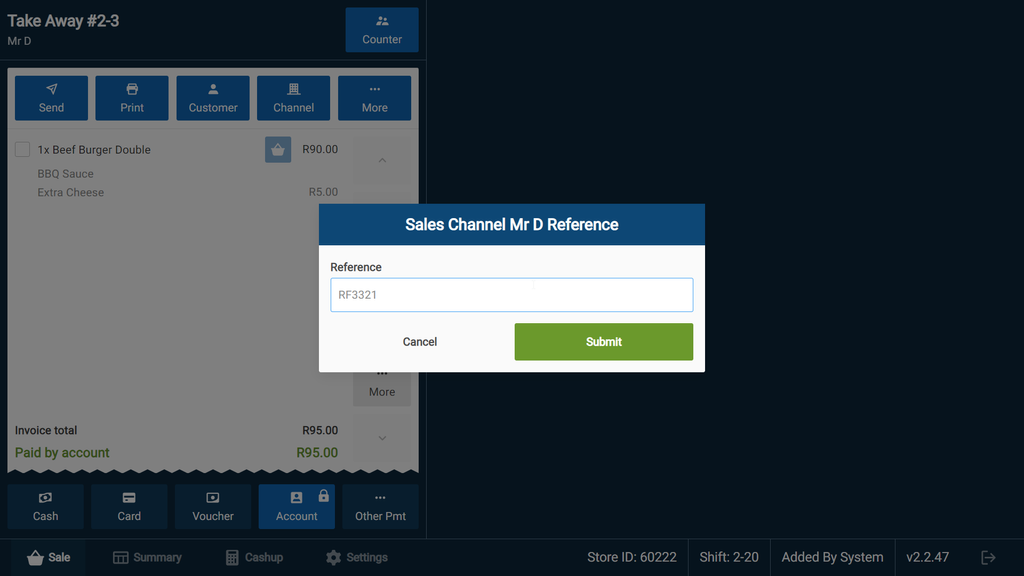
Select a Sales Channel by tapping the Channel button in the sales screen:

Once the Sales Channel has been selected, you will notice in the top bar underneath the order number it will indicate the chosen sales channel and open up the Reference field, this is where the order number from the sales channel should be added.