The Roles and Permissions page
Roles refer to each user’s role in the store or company - such as cashier, manager, assistant manager and so on. Each role will have a defined list of Permissions, which are the specific actions that each role may be allowed or restricted from.
Each role only needs to be created once, thereafter they can be assigned to users. The roles can be edited to alter permissions as necessary by any user with the access to do so.
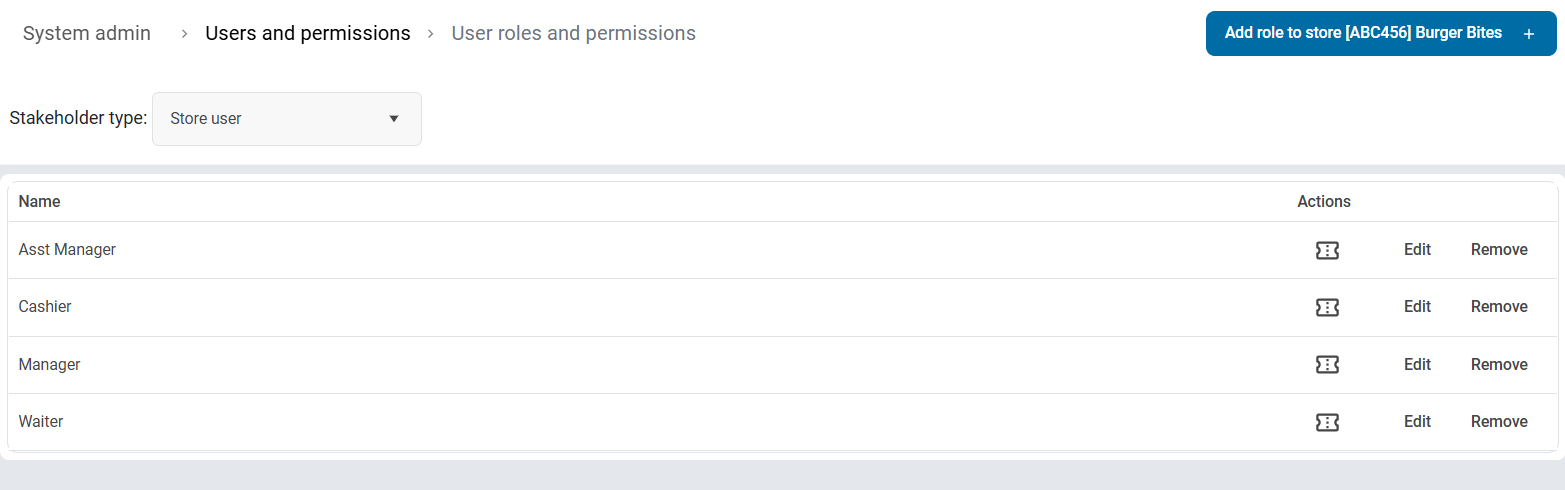
The User roles and permissions screen shows all roles according to the selected Stakeholder Type, which a predetermined category of user that exists to be able to set what access a user has to roles or certain areas of the the portal.
For example, if the logged in user is set to a Store User, they will not be able to view or edit the roles for the Store Owner stakeholder type.
Click Add role to store [(storeID)] (Store Name) to add a role to the currently selected stakeholder type.
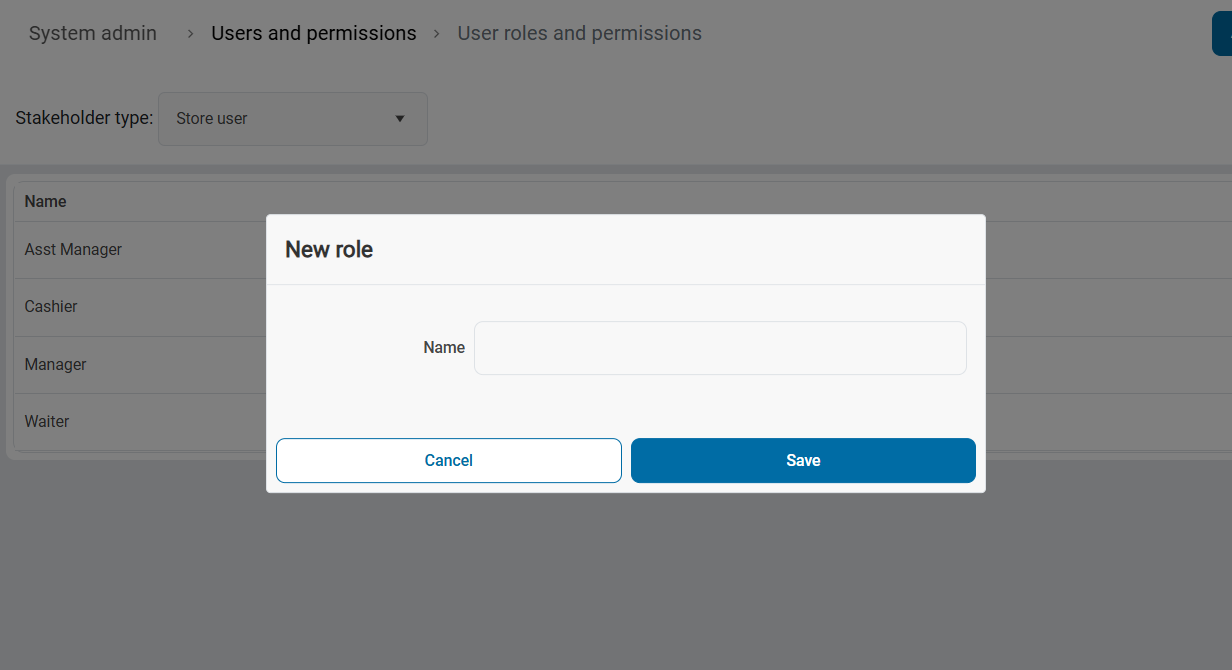
A panel will appear prompting you to input a Name for the role. This should correspond to the users’ role in the store (i.e cashier, manager etc.). Click Save to save the role.
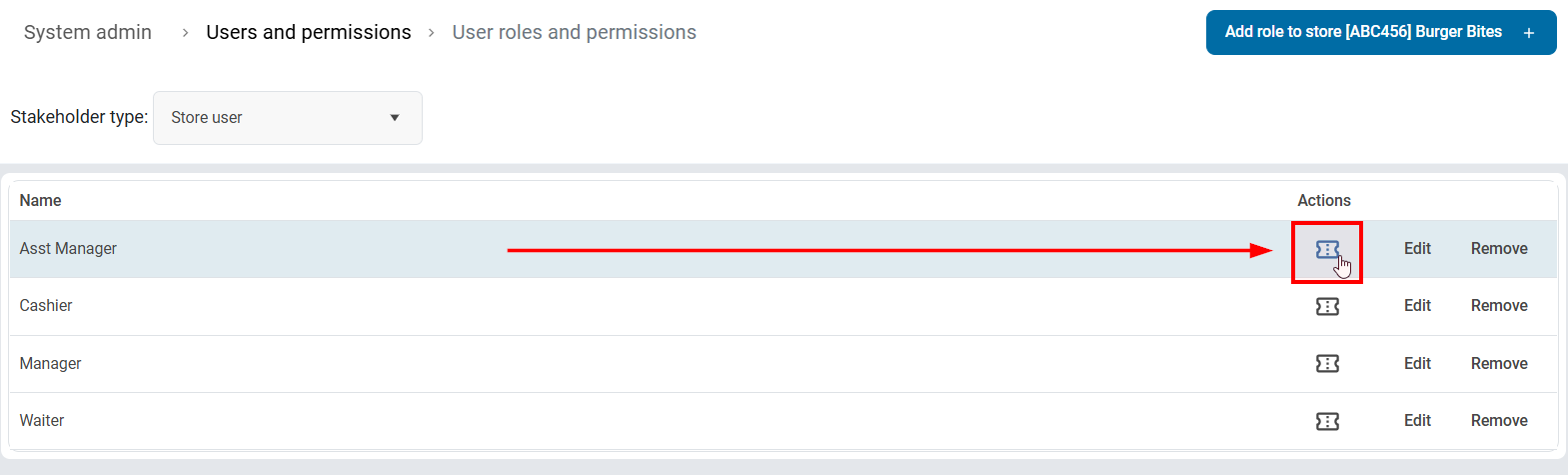
The role will now display on the main page. click the new role’s Permissions icon to set permissions for this role.
| Note that new roles have no permissions set by default, so any user assigned to it will not have access to anything at all until they are configured. |
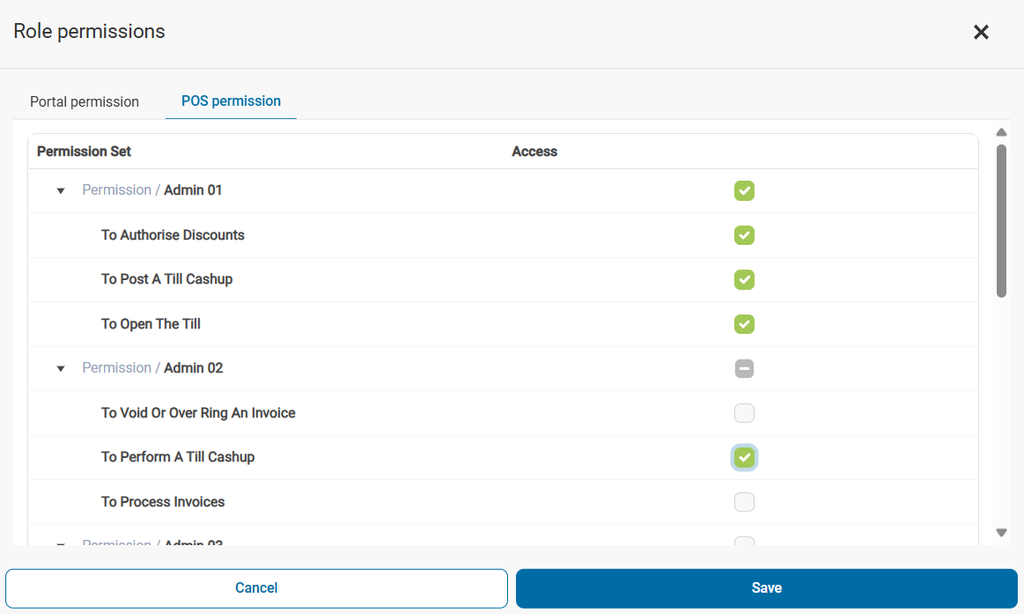
Role Permissions
Portal Permissions
The Role Permissions panel will open on the Portal permission tab.
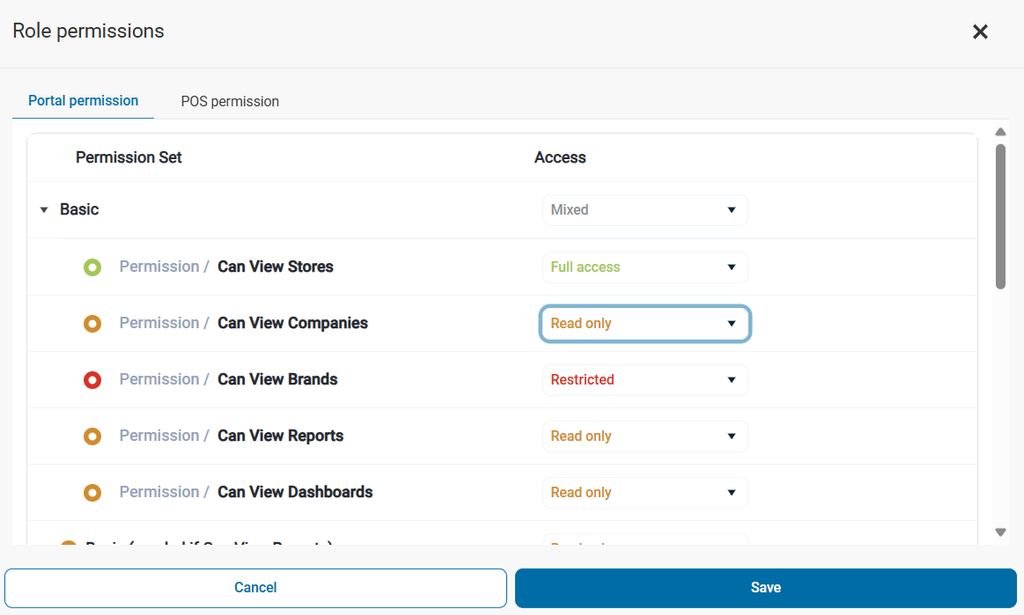
Permissions are grouped in Permission Sets. Access can be granted to the entire set or to each individual permission. Access to Portal permissions has three levels:
- Restricted prevents access to that page or activity completely.
- Read Only allows the user to view the page and its contents but does not allow the ability to add or edit entries.
- Full access allows the user full access to create and edit entries.
Note that if individual permissions are set to different levels in a set, the set heading will show Mixed.
POS Permissions
POS permissions are binary in that they are only either allowed or restricted. POS permissions govern what a user can do in POS products such as CounterPOS. Click the checkbox to allow/deny a permission set or individual permissions in each set.