Creating and using Named Recipes
This helps streamline recipe management by creating sub-recipes for frequently used components—such as pizza bases or chip packets that always include chip forks and salt sachets. Named recipes can also be used for stock items that are prepared in-store and need to be tracked, like coleslaw or pre-mixed sauces.
Step 1: Create a Named Recipe
Go to the Named Recipes page. (Menu > Stock management > Named recipes).
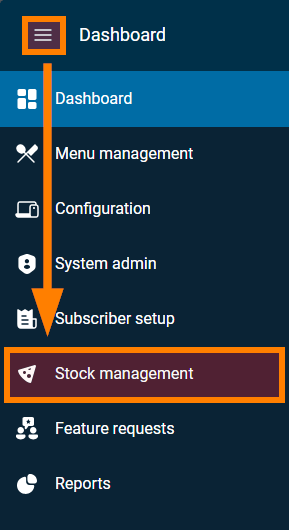
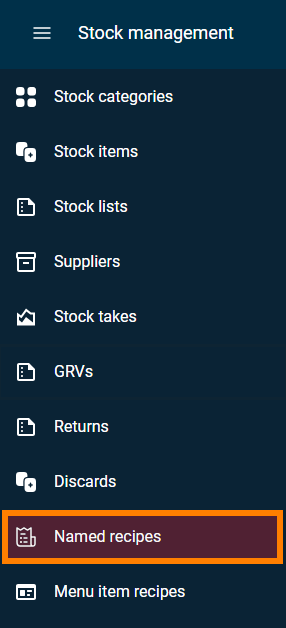
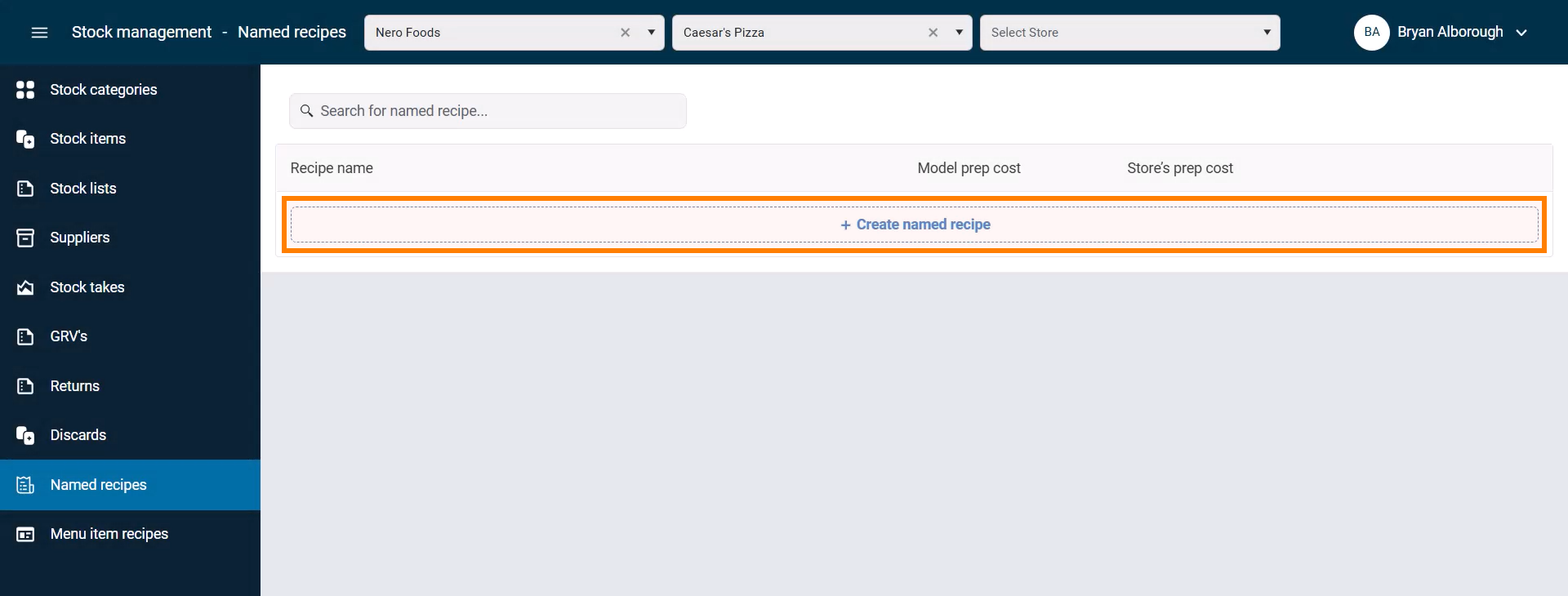
On the Named recipes page, click Create named recipe.
Enter the recipe name (e.g., Coleslaw).

Press Enter to save.
The new recipe will now appear in the list.

Step 2: Add Ingredients to the Recipe
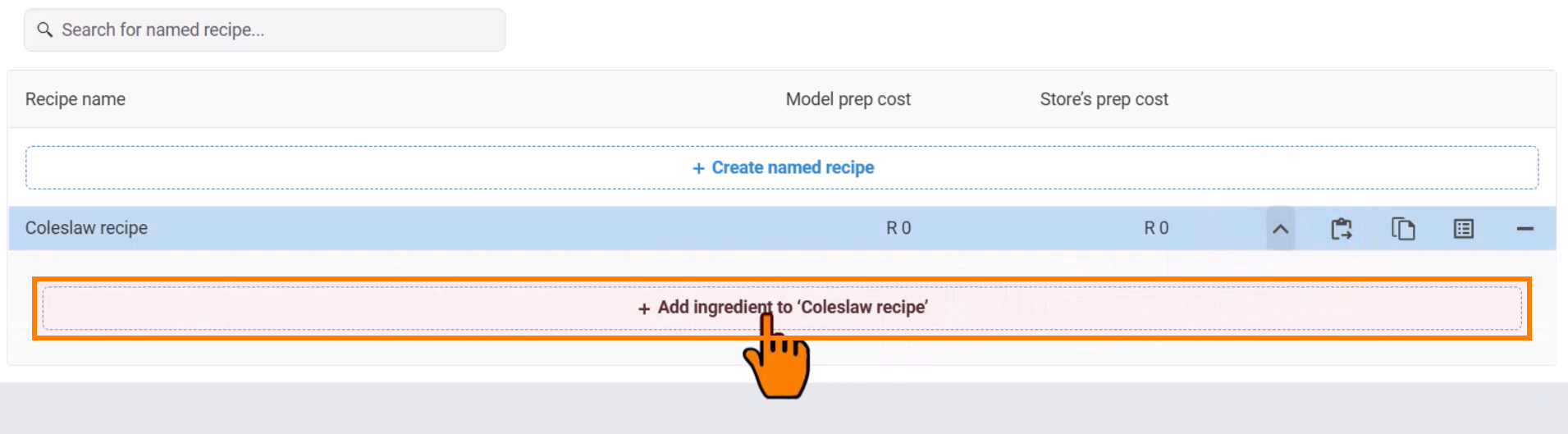
Click the Expand button next to the recipe.

Click Add Ingredient to Recipe.
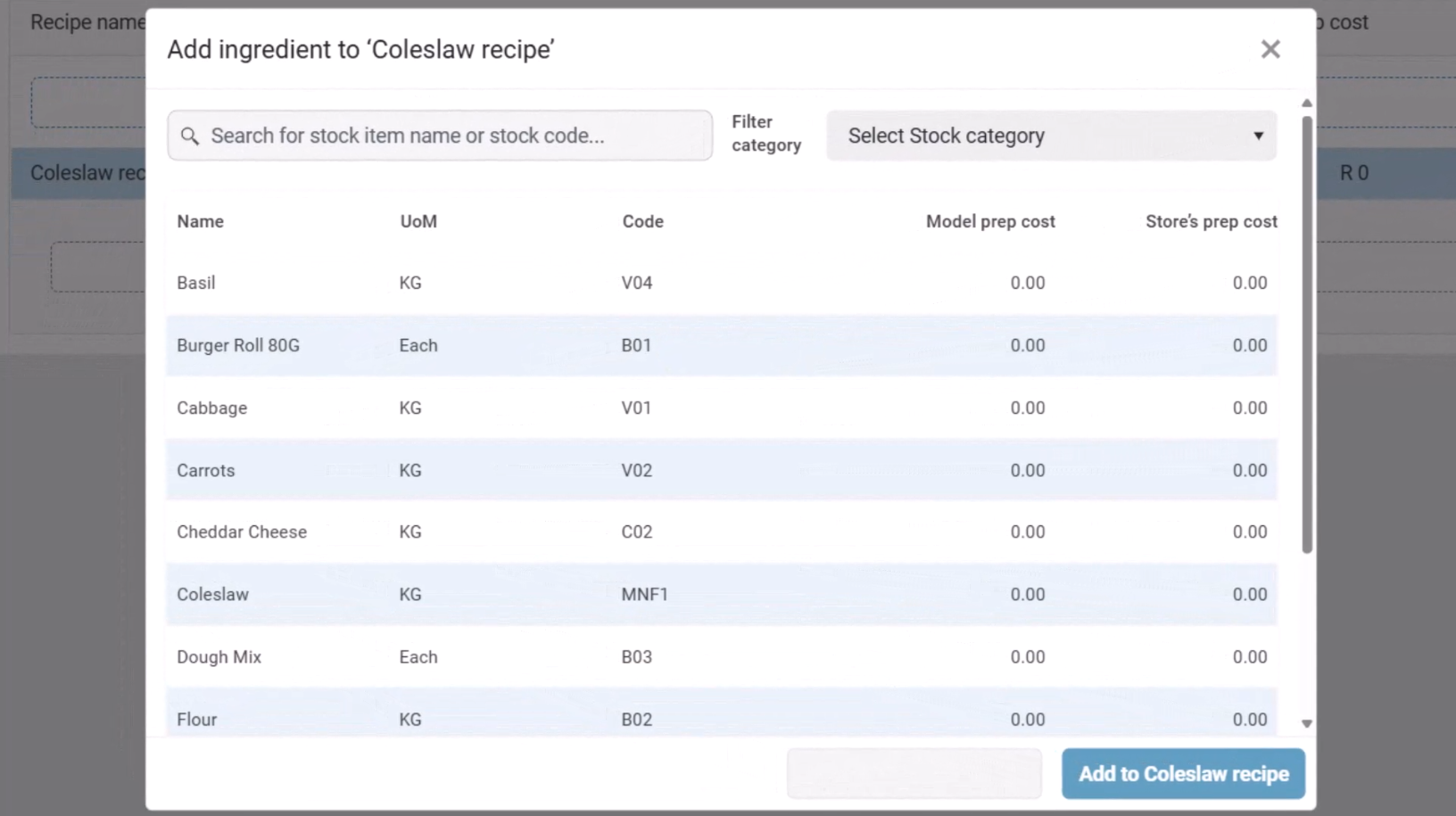
In the pop-up window, search for a stock item (e.g., cabbage, carrots, mayonnaise).
Enter the quantity to be used.
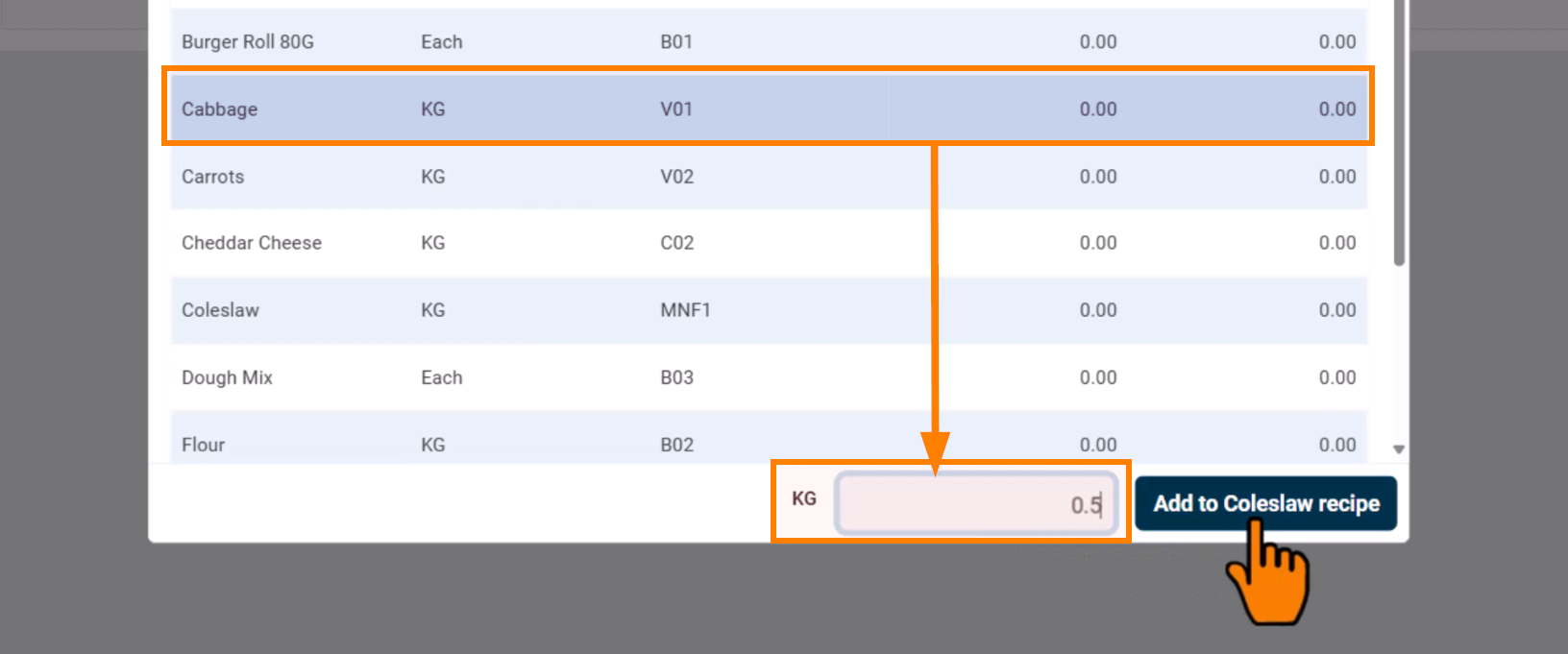
Click Add to Recipe.
Repeat these steps to add all necessary ingredients.
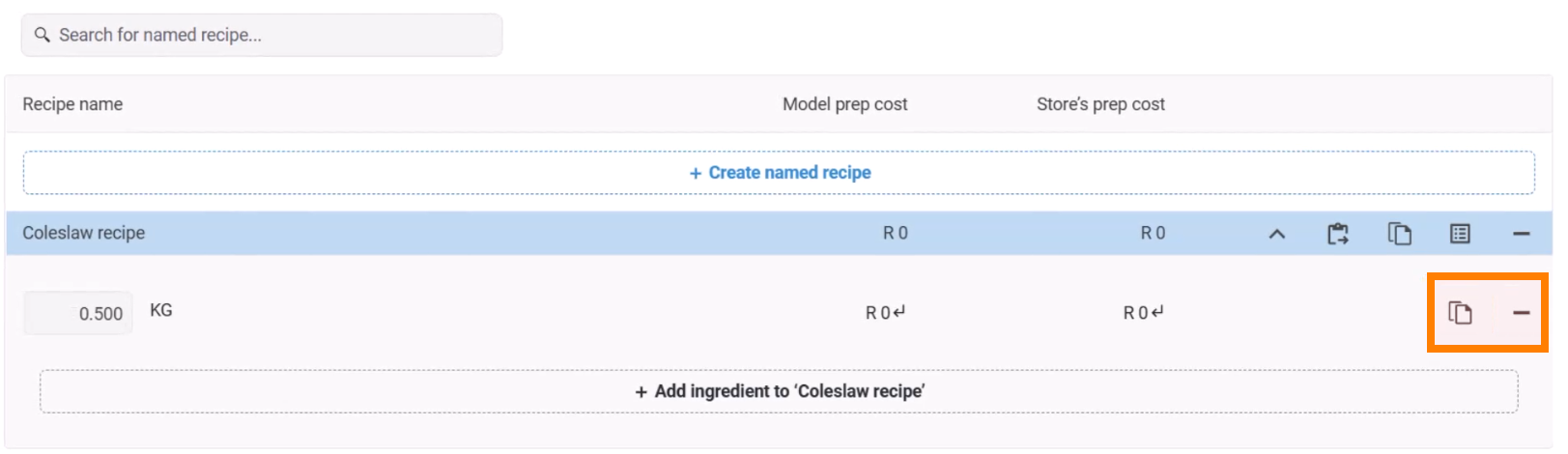
- Use Copy Item to duplicate an ingredient.
- Use Delete Item to remove an ingredient.
Additional Recipe Options
Once all ingredients are added, additional actions are available:
- Paste Ingredients into another recipe.
- Copy All Ingredients to duplicate a recipe structure.
- View All Items that use this recipe.
- Delete Recipe to remove the entire recipe.

Using Named recipes
Option 1: Link the Named Recipe to a Stock Item
Go to the Stock Items page.
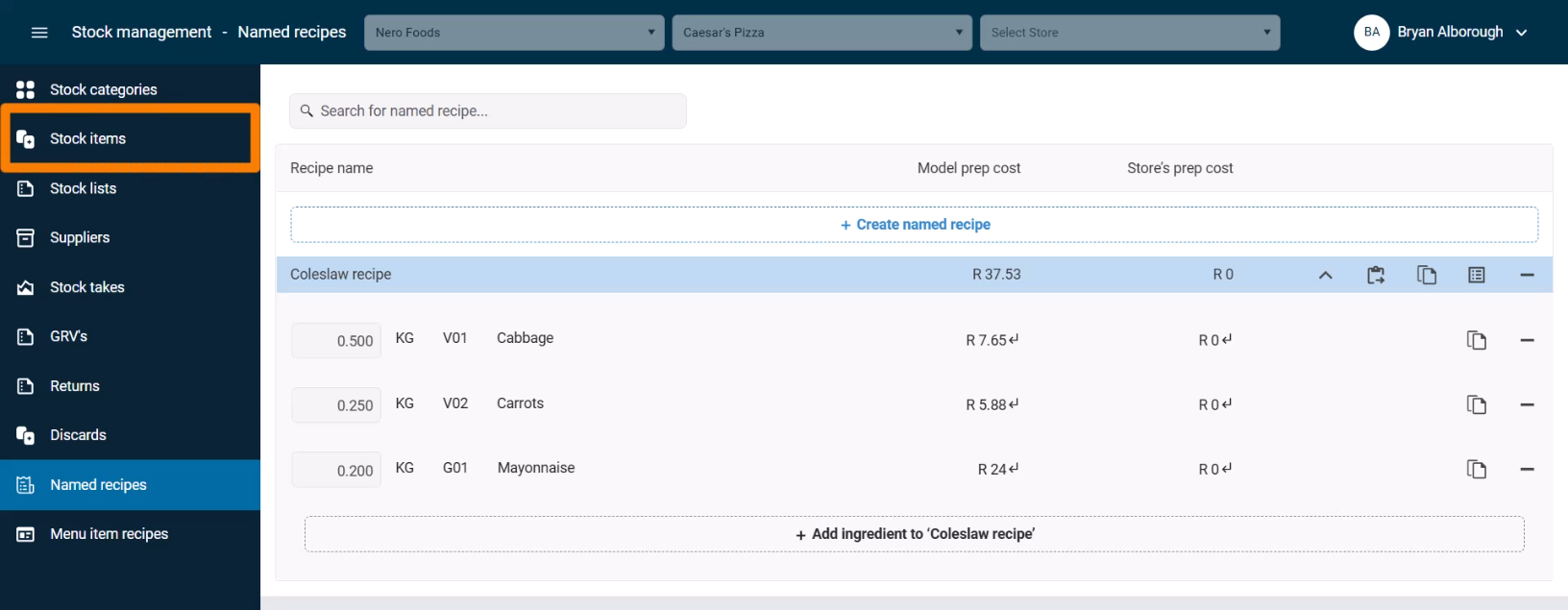
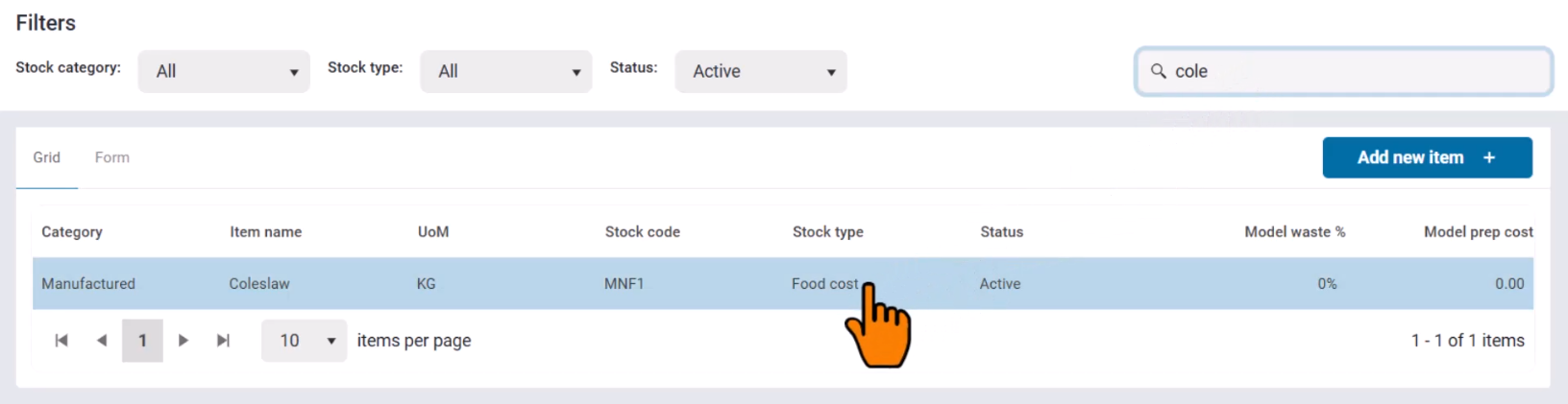
Search for the parent stock item (e.g., Coleslaw).

Click on the item to open its properties.
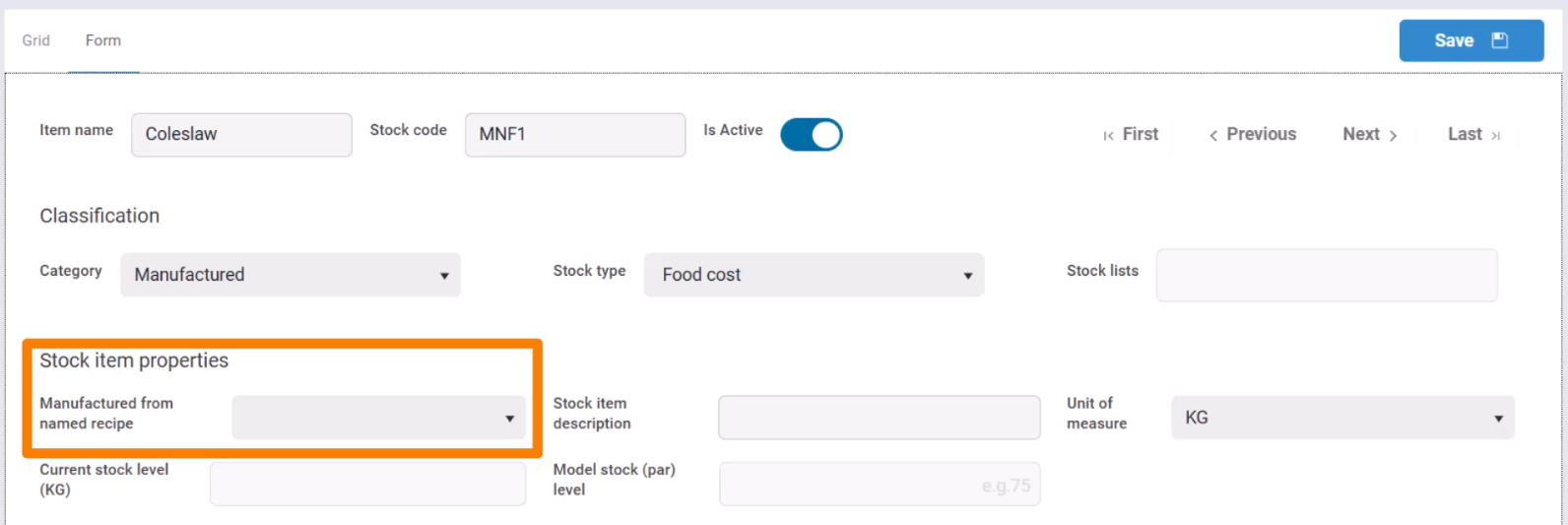
Under Stock Item Properties, find the Manufactured from Named Recipe dropdown.
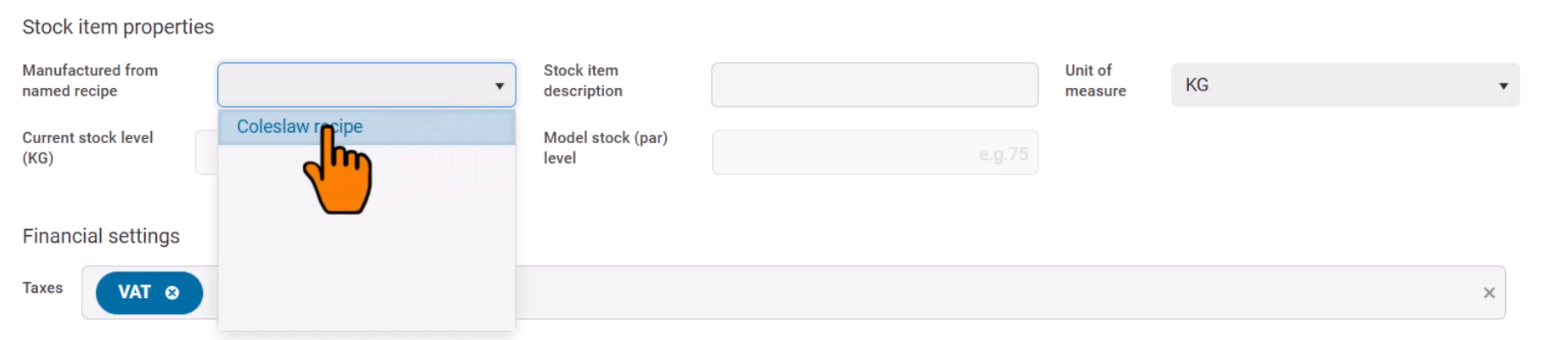
Select the named recipe you created.
Scroll to the top of the page and click Save.
Now, the stock item is linked to the recipe and can be tracked accordingly.
Option 2: Use Named Recipes in Menu Item Recipes
Named recipes can also be used in Menu Item Recipes.
Under the Stock management menu, click Menu item recipes.
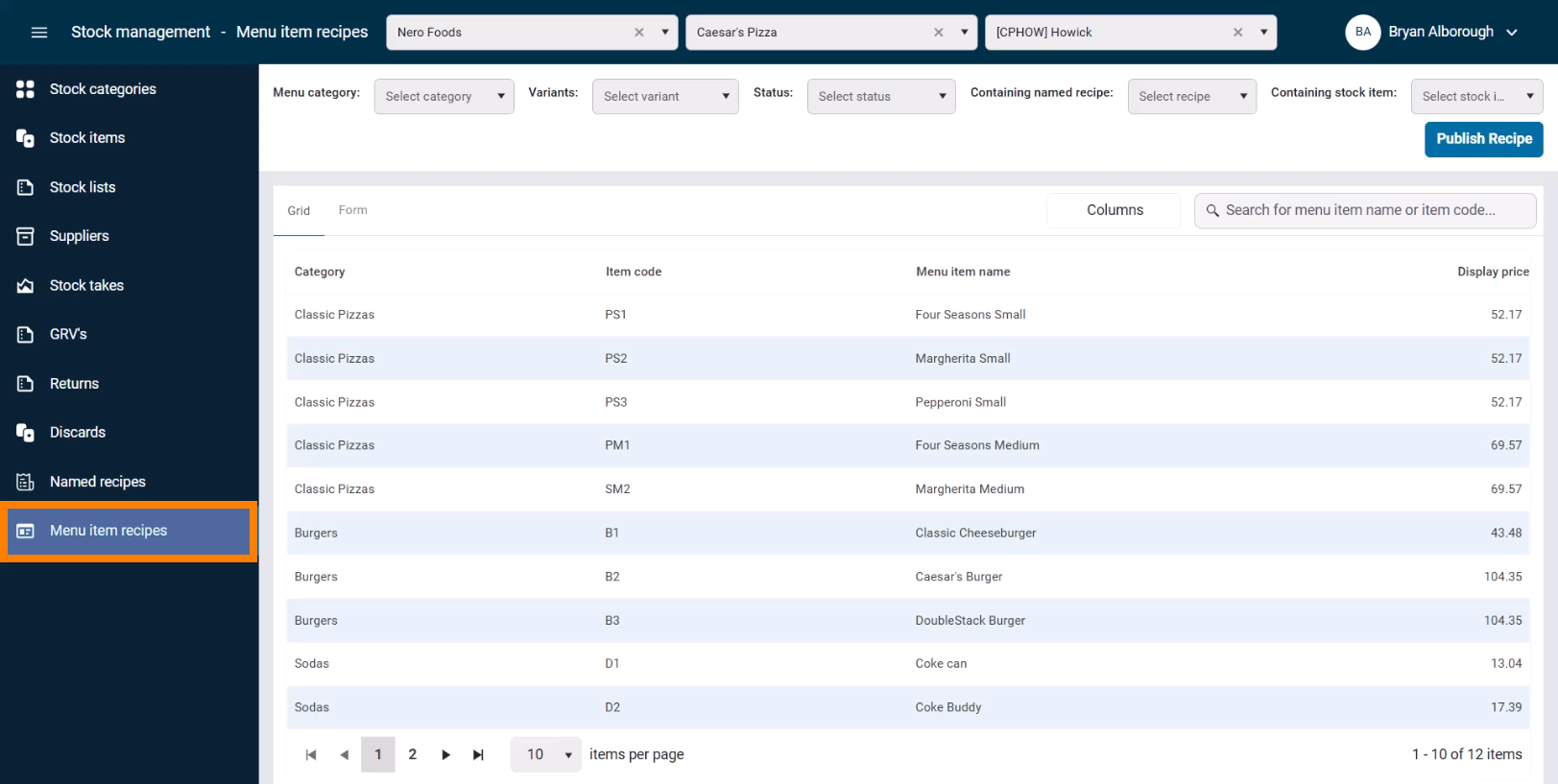
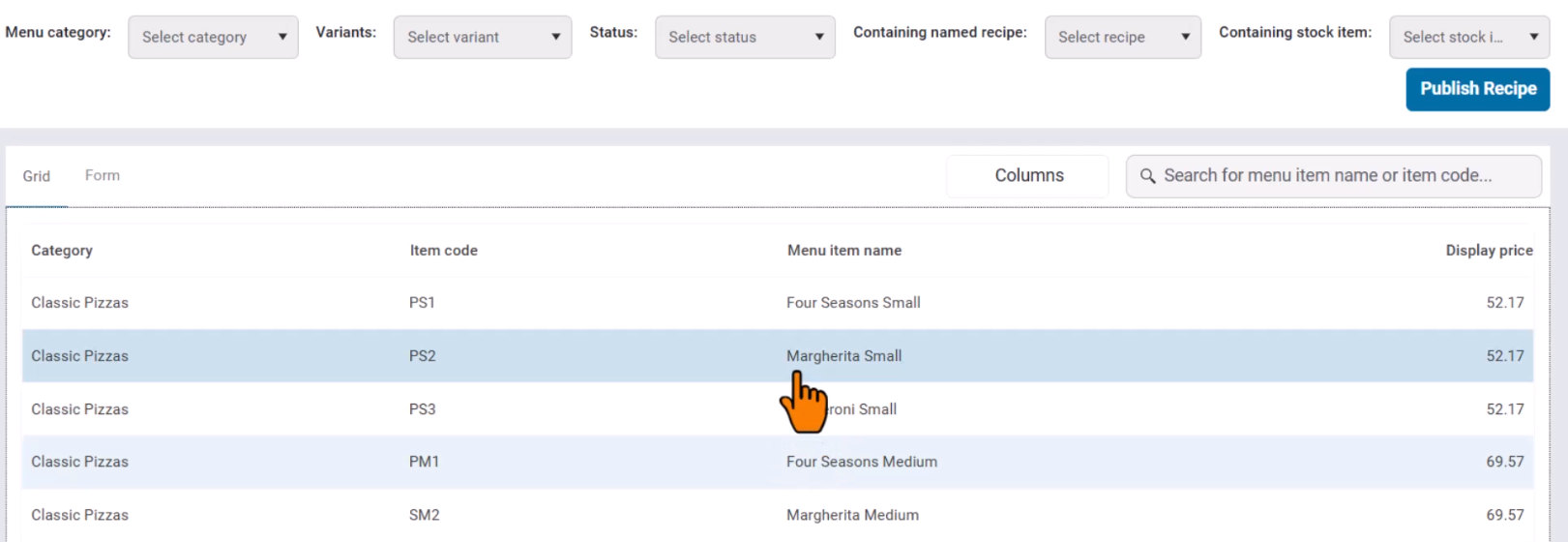
Select the item you want to add the named recipe to, and click it to open the item properties.
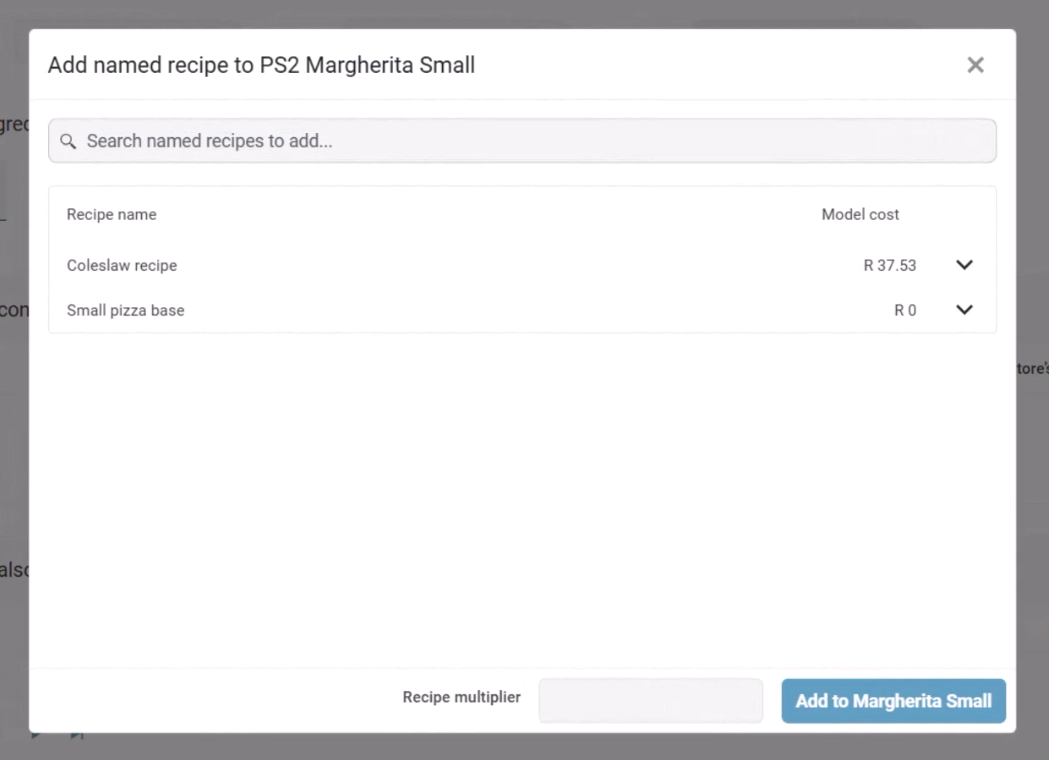
Click + Add named recipe to add your named recipe to the menu item recipe.
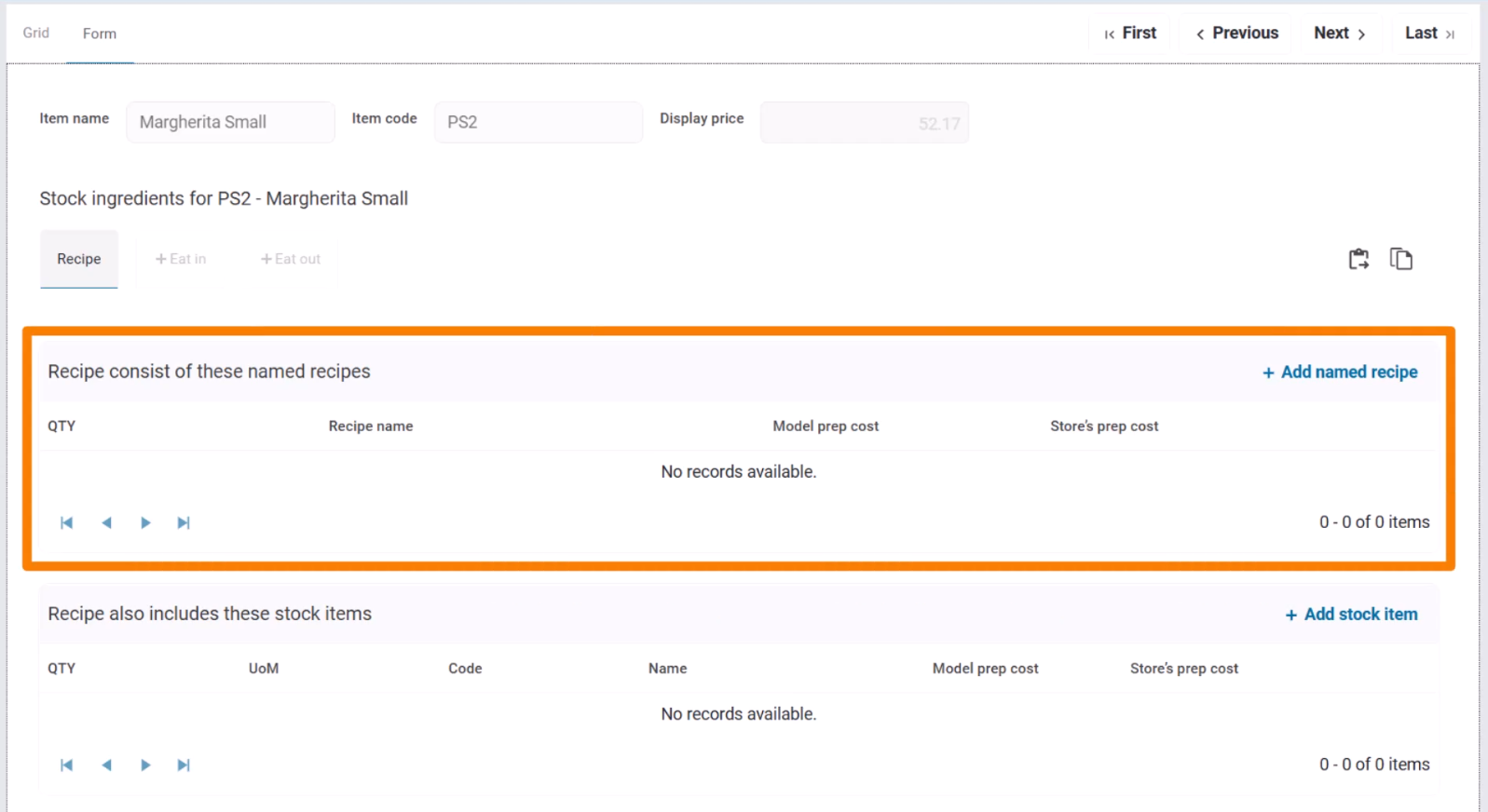
Select the named recipe and set the Recipe multiplier (how much this recipe must be multiplied for this item) then click Add to [item]