
How to cash up Drivers and Waiters in CounterPOS
Select an Employee to Cash Up
Open the Waitron/Drivers tab at the top left of the Cashup screen.
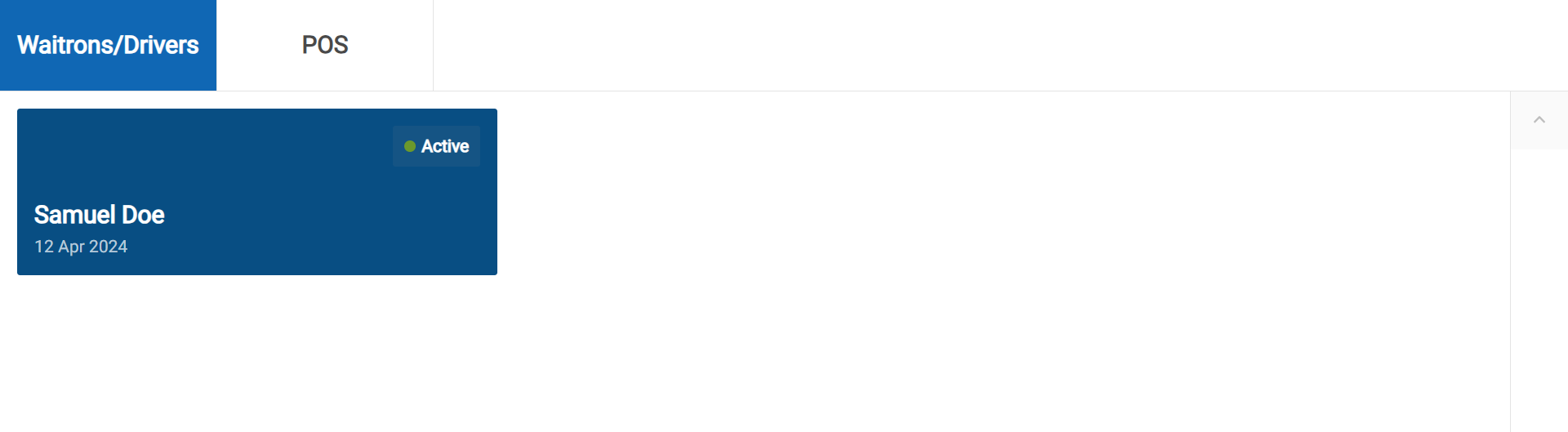
A list of employees requiring cash-up will be displayed. If an employee is still clocked in, an Active label will appear on their card. Tap the employee's name to begin.
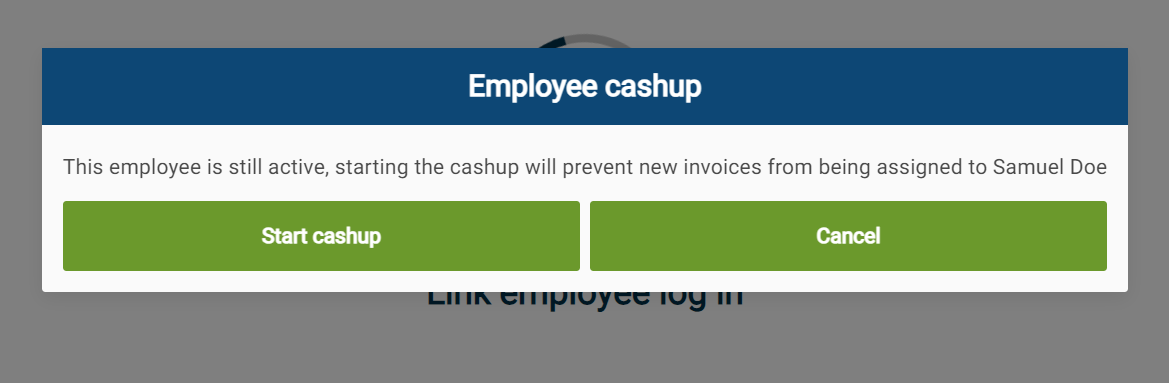
If the employee is still clocked in, an alert will inform you that they can no longer be assigned new sales. Tap Start Cashup to proceed.
Capture Payments
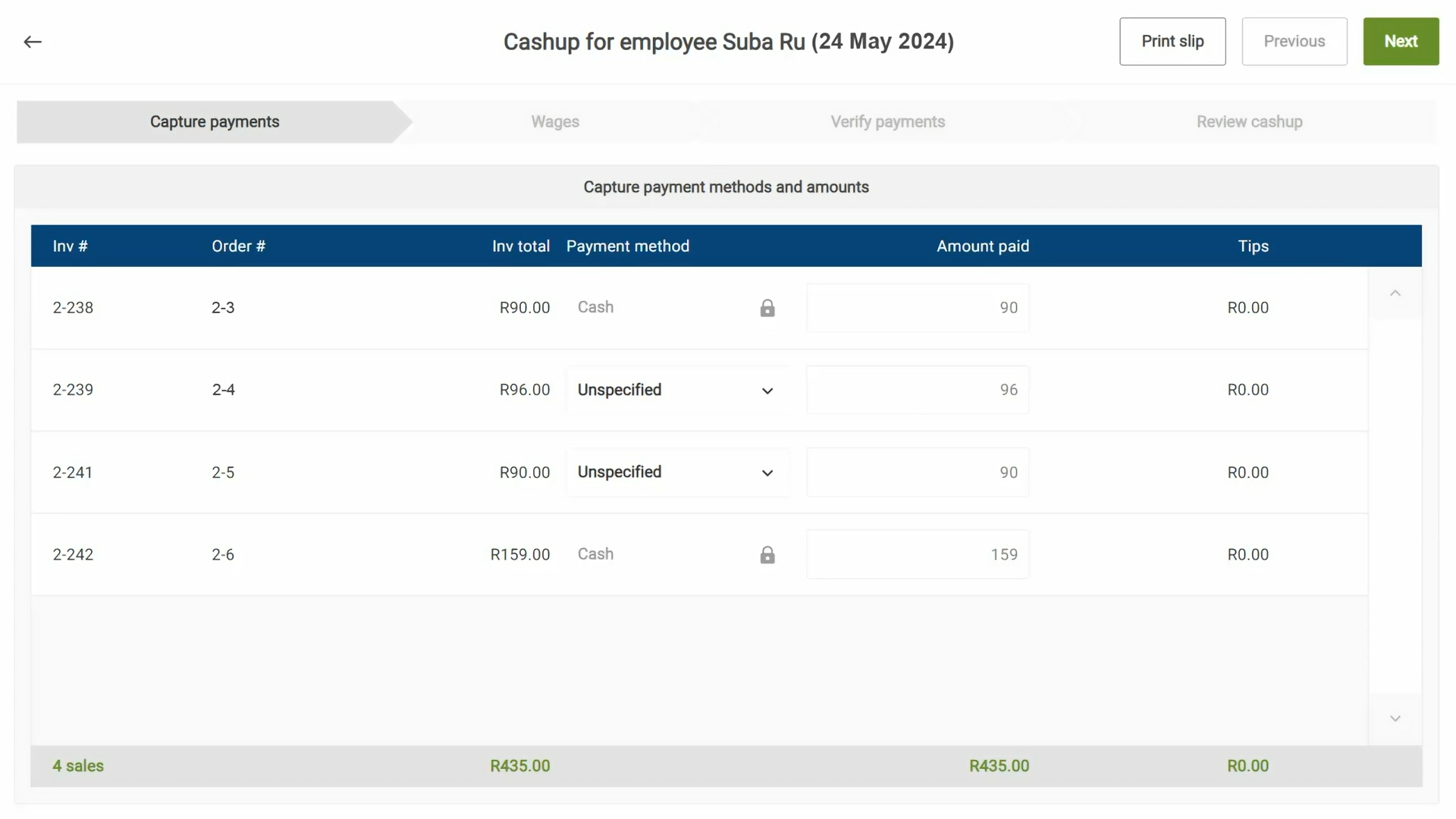
The Capture Payments screen lists all sales assigned to the employee.
- Paid sales – The payment method is locked and cannot be changed.
- Unpaid sales – The payment method is labeled Unspecified.
Tap Print Slip to generate a summary of all assigned sales. The employee can note on the slip how each order was paid before entering payments into CounterPOS.
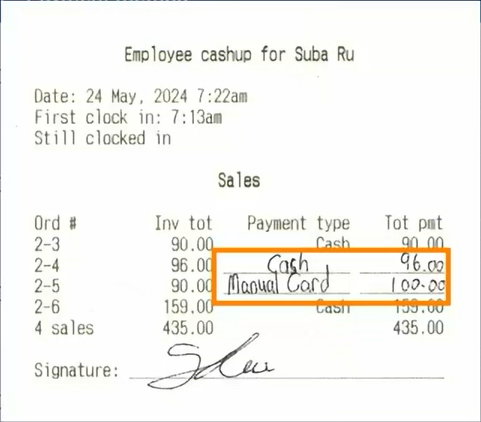
Tap the Payment Method for each unpaid sale and select the appropriate option (e.g., Cash or Manual Card Payment).
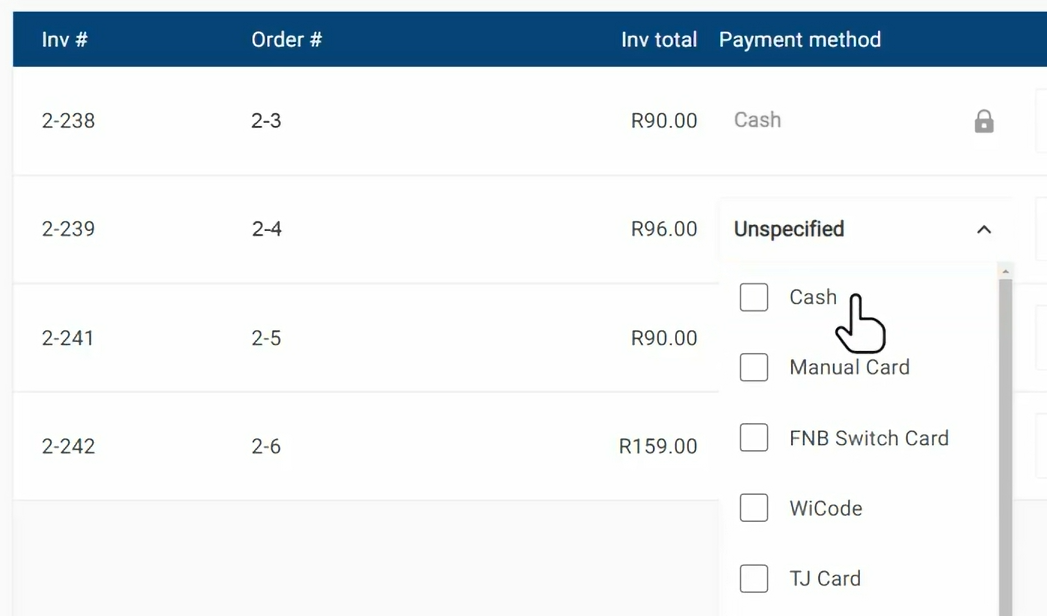
Enter the Amount Paid – By default, CounterPOS will suggest the invoice total. If there are any tips, how you capture them will differ depending on the payment method:
- Cash Payments – The driver keeps the tip, so only enter the sale total.
- Manual Card Payments – If the amount entered exceeds the invoice total, the difference is recorded as a tip.
Once all payments are recorded, tap Next to move on to the Wages tab.
| Note that you can tap any tab at any time to move between sections of the cash-up process. The final step, Review Cashup, will allow you to post the employee’s cash-up. |
Confirm Wages
Clock Out the Employee (If needed) – If the employee is still clocked in, tap Clock Out before proceeding. This ensures that CounterPOS calculates their total worked hours accurately.
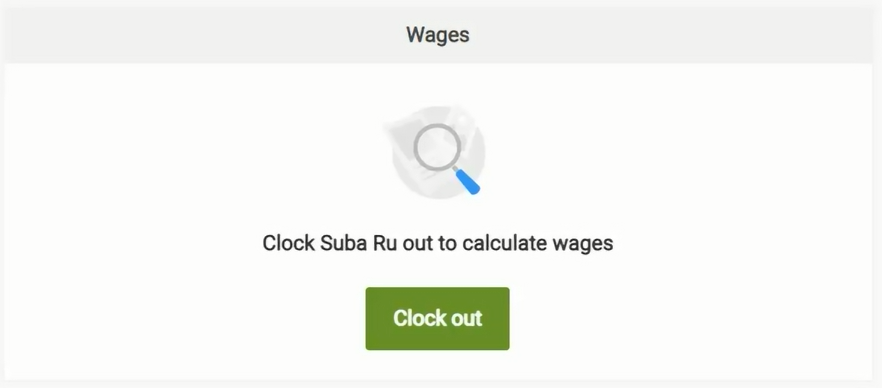
Review the employee Wages – The wages section displays:
- Hours Worked – Based on the employee’s clock-in and clock-out times.
- Additional Wage Payments – You can manually enter extra wage amounts, such as per-kilometer rates for drivers.

Confirm Total Wages – Once all wage amounts have been entered, the total will be displayed.
Verify non-cash payments
Review all non-cash payments (card, voucher, or online payments) captured in the Capture Payments step.
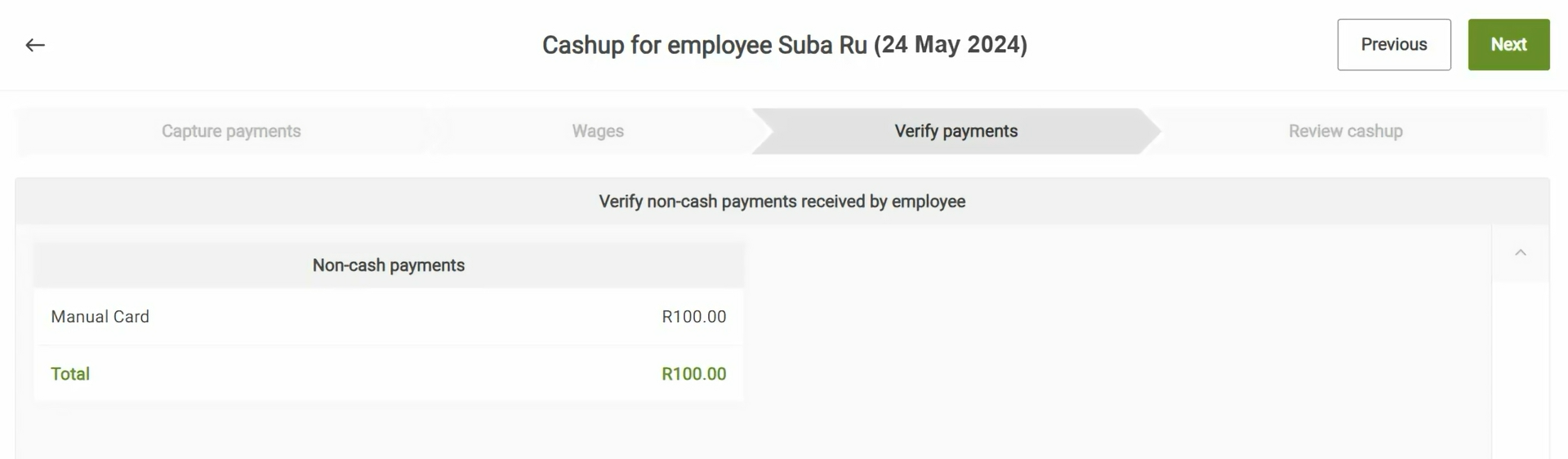
- Confirm Payment Details – Compare the recorded amounts with any slips or records the employee provides.
- Make Corrections if Needed – If any payment was entered incorrectly, navigate back to the Capture Payments tab to adjust it.
- Include Tips in Non-Cash Payments – Ensure that the total recorded payment includes any tips given to the employee.
Tap Next to proceed to the final review.
Review the cashup summary
The final Review Cashup screen summarizes the employee’s cashup details:
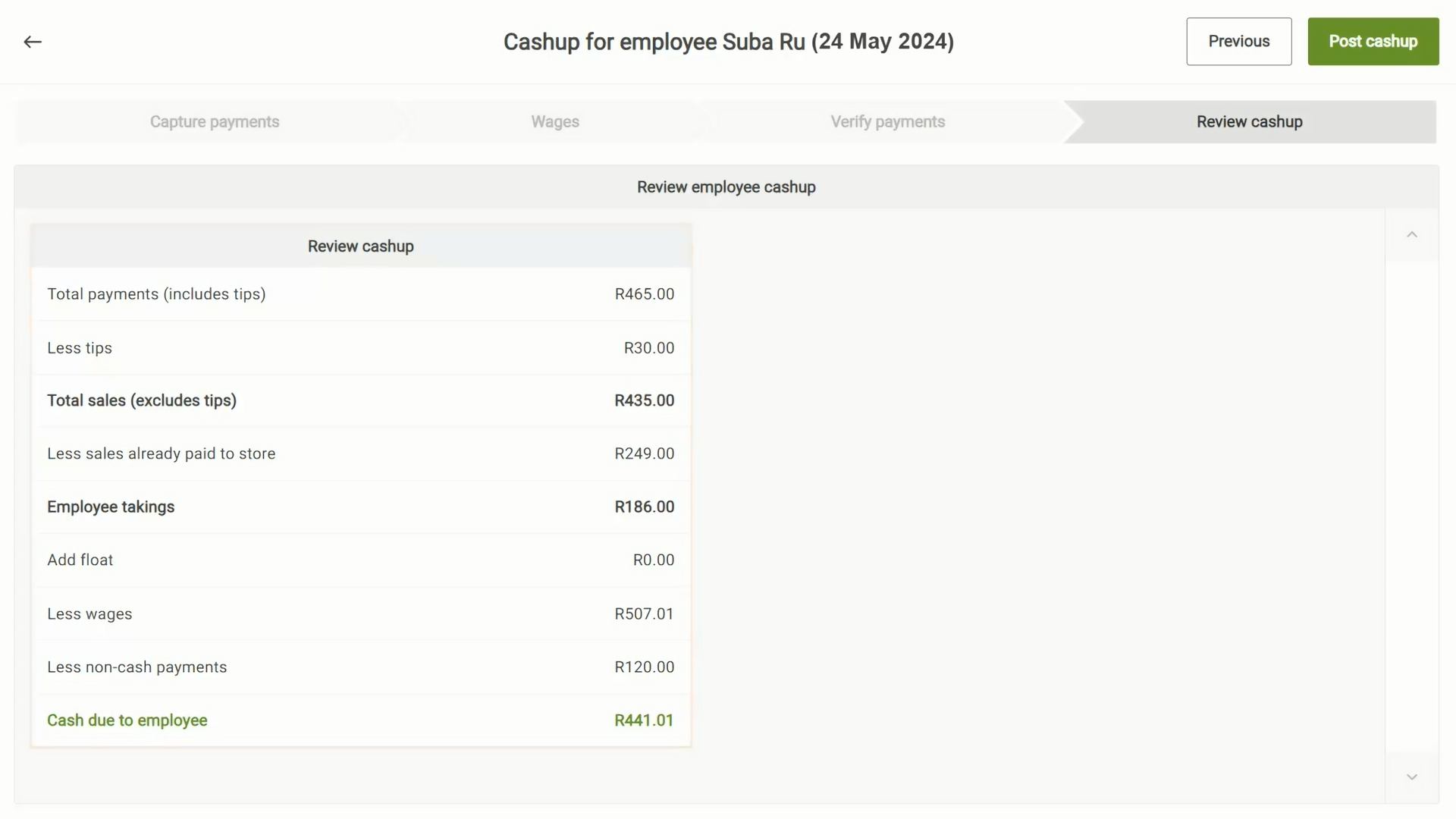
- Total Sales – The total value of all payments assigned to the employee, minus any tips received from non-cash payments.
- Sales Already Paid to Store – Payments from table or delivery transactions that were handled by the employee but were paid directly to a cashier. These amounts do not need to be collected from the employee. This leaves the Employee Takings.
- Add float – Any change float issued to the employee.
- Less deductions including wages and non-cash payments such as card transactions.
- Final Cash Balance – Determines whether the employee owes cash to the store or if the store owes cash to the employee.
Post the employee cashup
Tap "Post Cashup" to proceed.
- Select the POS Shift – The recorded sales and payments will be allocated to the chosen shift, and any cash adjustments will be made to the selected POS terminal’s cash drawer.
- Cashier Acknowledgement – The cashier must tick the acknowledgment statements to confirm they have reviewed and verified the payments.
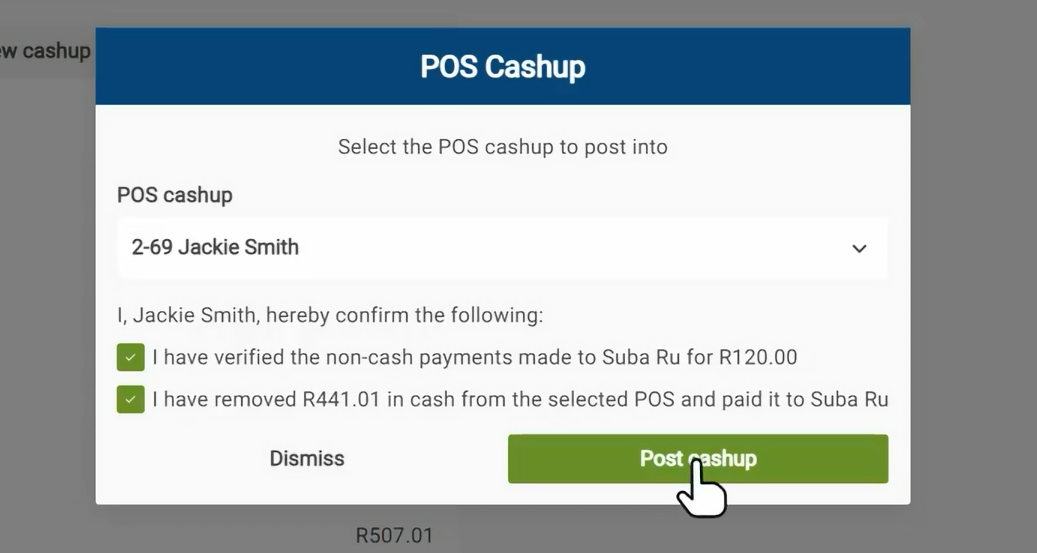
Tap "Post cashup" to finalize.
Once completed, CounterPOS will confirm the successful posting and print a receipt of the cashup.