
Recording and Managing Stock Takes
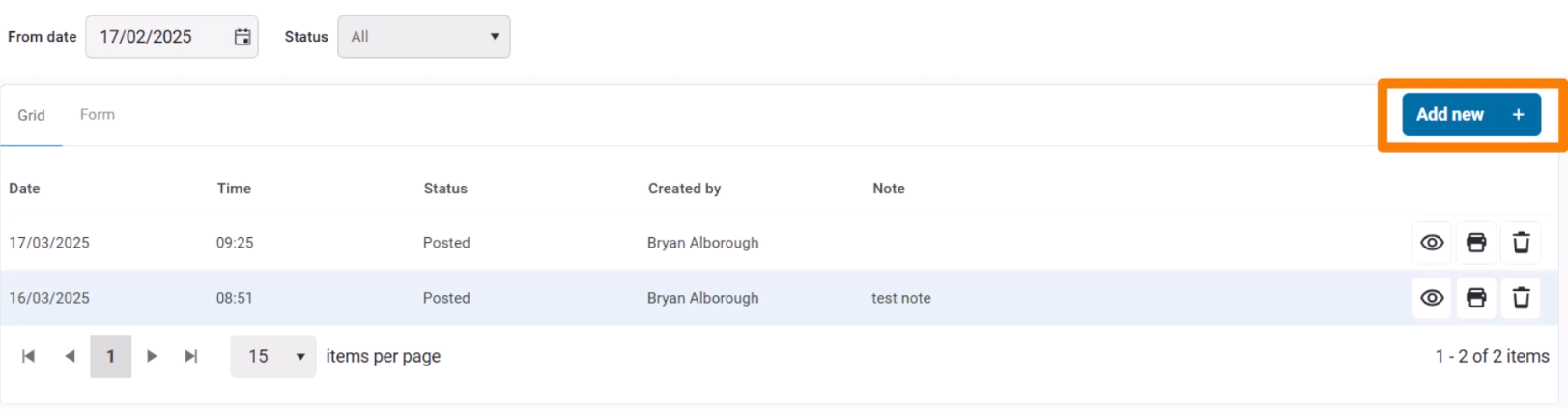
The Stock Takes page is used to record, view, and manage stock takes. It displays a list of all recorded stock takes from the selected From Date, including Draft and Archived stock takes.
Creating a New Stock Take
To record a new stock take:
- Click Add New.
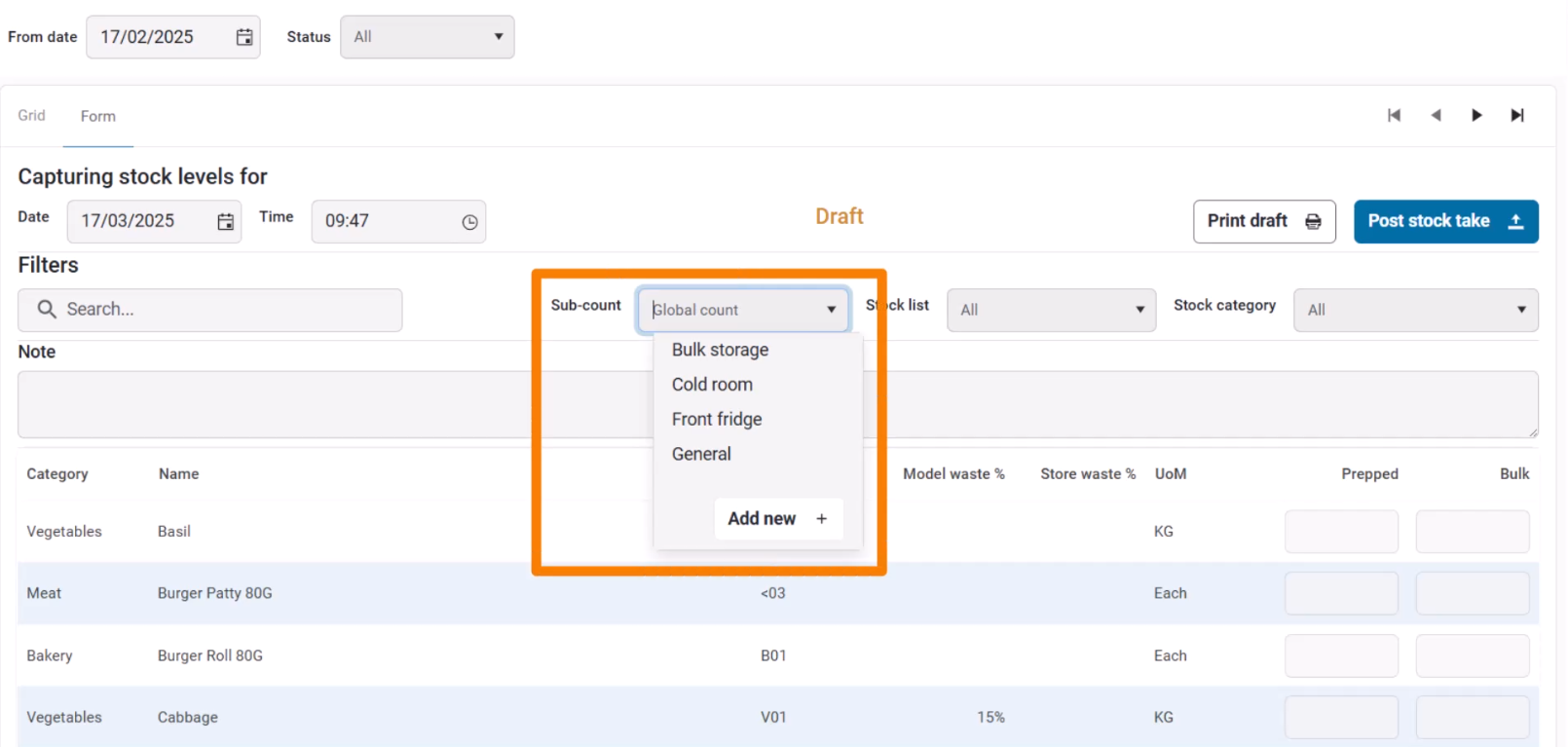
- Select a Sub-Count.
- Sub-counts break the stock take into sections.
- For example, a Cold Room sub-count can track frozen items separately from a Makeline sub-count.
- Click Add New to create a new sub-count if needed.
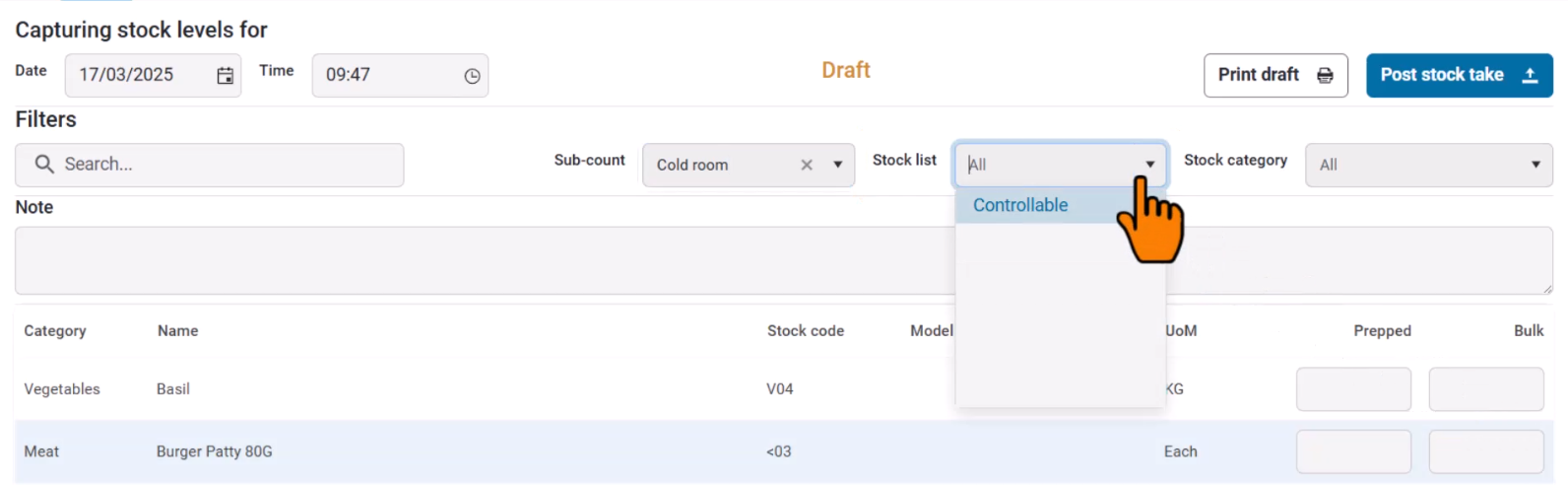
- Choose a Stock List.
- This determines which items are included in the stock take.
- In this example, we select Controllable.
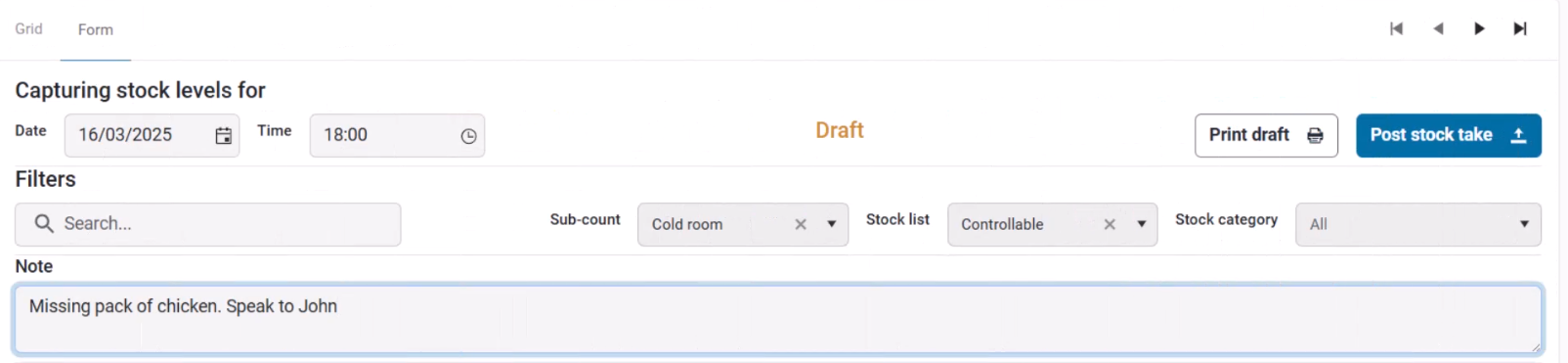
- Enter the Date and Time of the stock take.
- Add any Notes if necessary.
Entering Stock Quantities
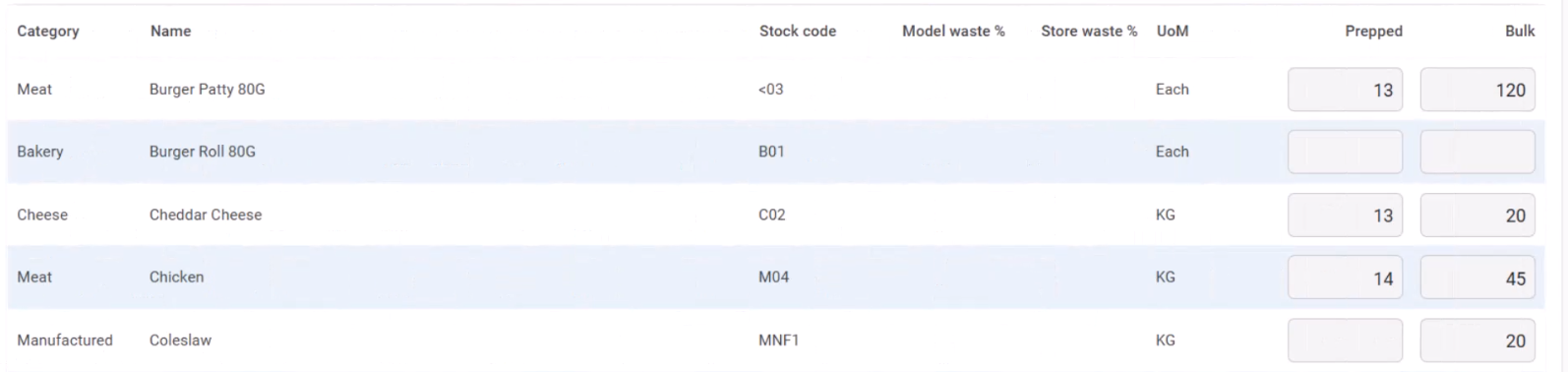
- Enter the Prepped and Bulk stock quantities for each item.
- Prepped stock includes items that have been processed, such as peeled vegetables or drained canned goods.
- Bulk stock refers to unprocessed stock.
- The system applies wastage calculations to bulk stock where applicable.
- Ensure the Unit of Measure is correct to avoid reporting errors.
Saving and Posting the Stock Take
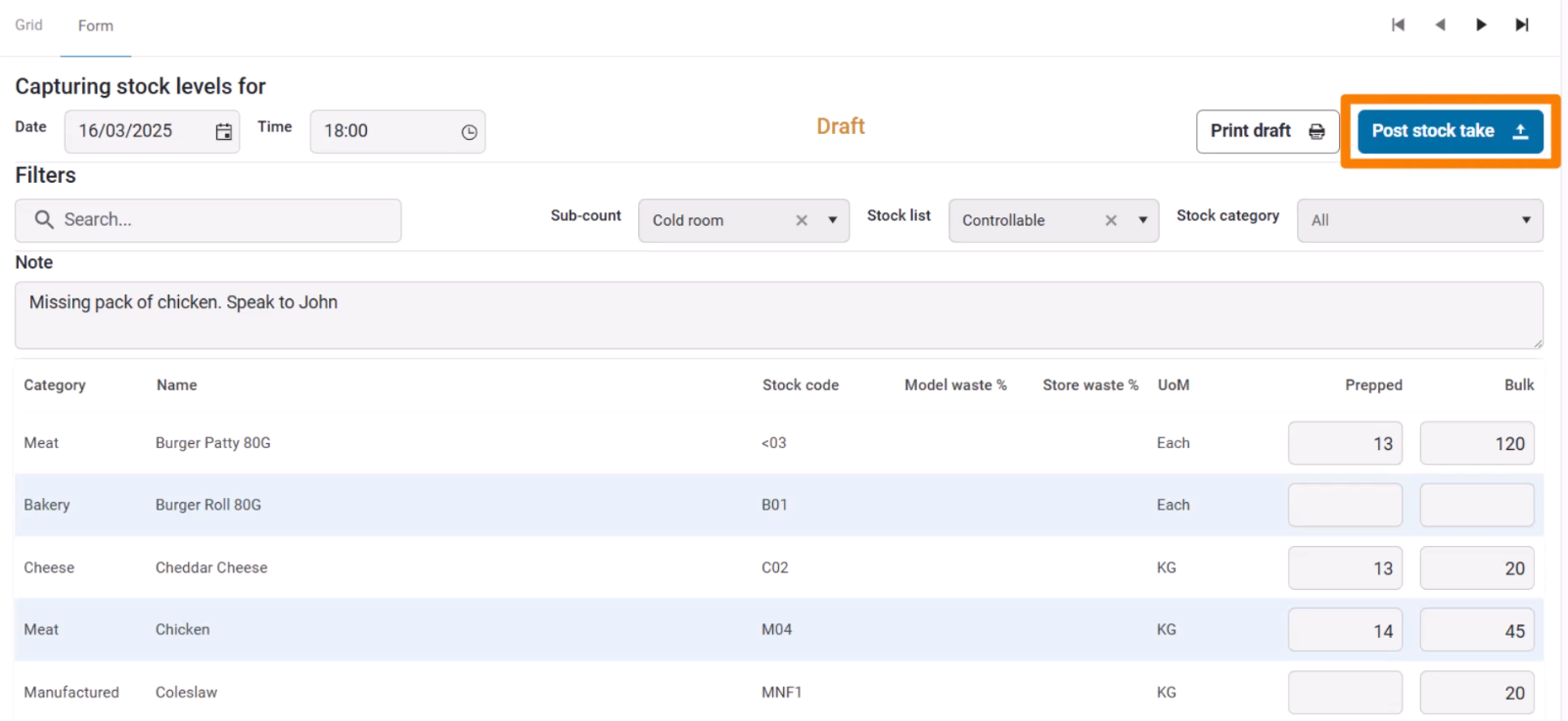
- Stock takes remain in Draft mode until posted.
- You can leave the page and return later to continue capturing figures.
- Click Print Draft to print a draft copy.
- Once all sub-counts are recorded, click Post Stock Take to finalize the stock take.
- Important: A posted stock take cannot be edited.
Managing Stock Takes
Once posted, the status updates to Posted. You can then:
- View the stock take.
- Print the stock take report.
- Archive the stock take (if you have the required permissions).
