
Adding and editing customers
Customers are linked to sales either by selecting a Collect or Delivery sale, or by tapping the Customer button on the sales screen.
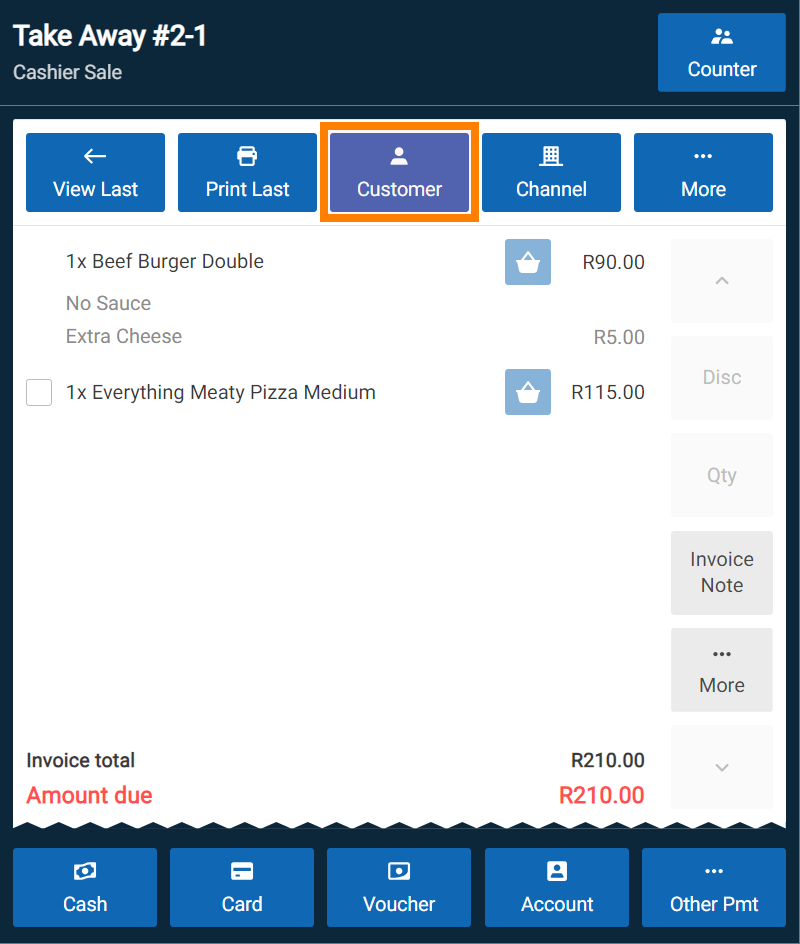
Start by searching for their phone number to check if they are already registered. Note that CounterPOS requires at least the first three characters of a name or number to begin a search.
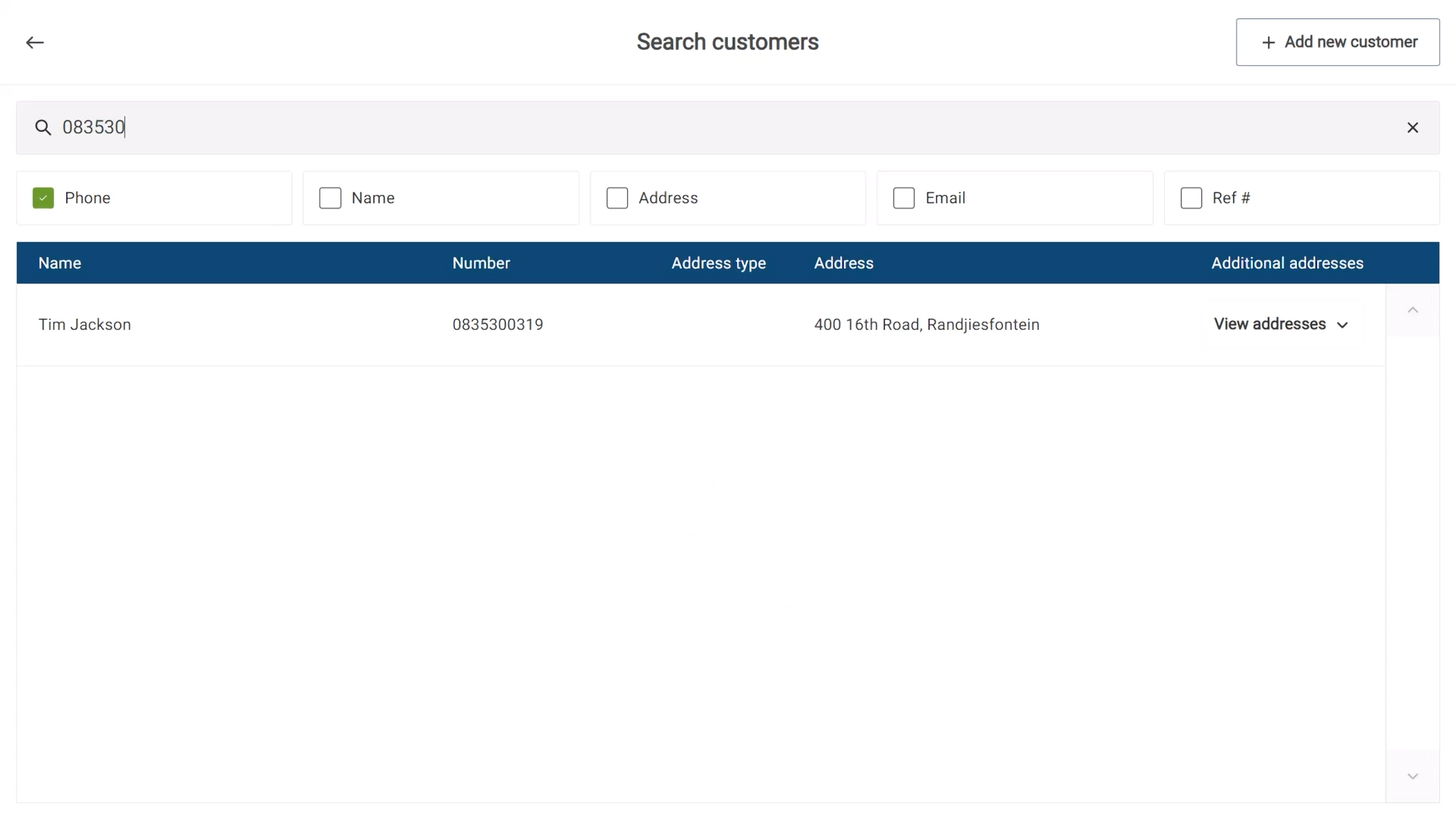
If they are a new customer, select Add New Customer and enter their details.

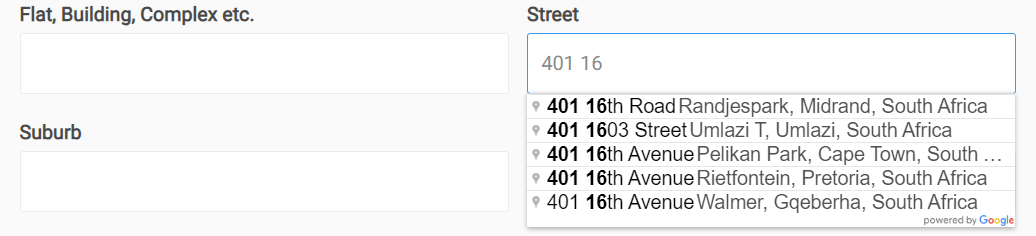
For delivery orders, an address is required. If Google Maps integration is enabled, selecting an address from the dropdown list ensures accurate GPS coordinates, which are needed for distance-based delivery fees. If no integration is available, enter the address manually.
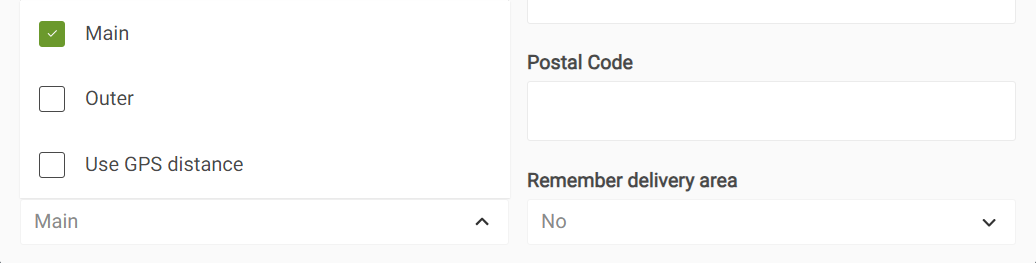
If an address is manually added, or to override the GPS distance, you can select from pre-set delivery areas using the Delivery area drop-down.
For collect sales, only a phone number and name are required. Additional details, including addresses, can be added later for future orders. You can also include customer notes, such as special instructions, which will appear on the invoice and kitchen display.
Once saved, the customer’s details will be linked to the order and displayed on the invoice header.