Using alternative currency and exchange rates in CounterPOS
Setting Rates
To set the exchange rate for a POS device, open up CounterPOS.
The exchange rate needs to be set on each POS device.
The exchange rate cannot be changed for a currently open shift.If you change the rate while a shift is active, the new rate will only take effect with the NEXT shift.
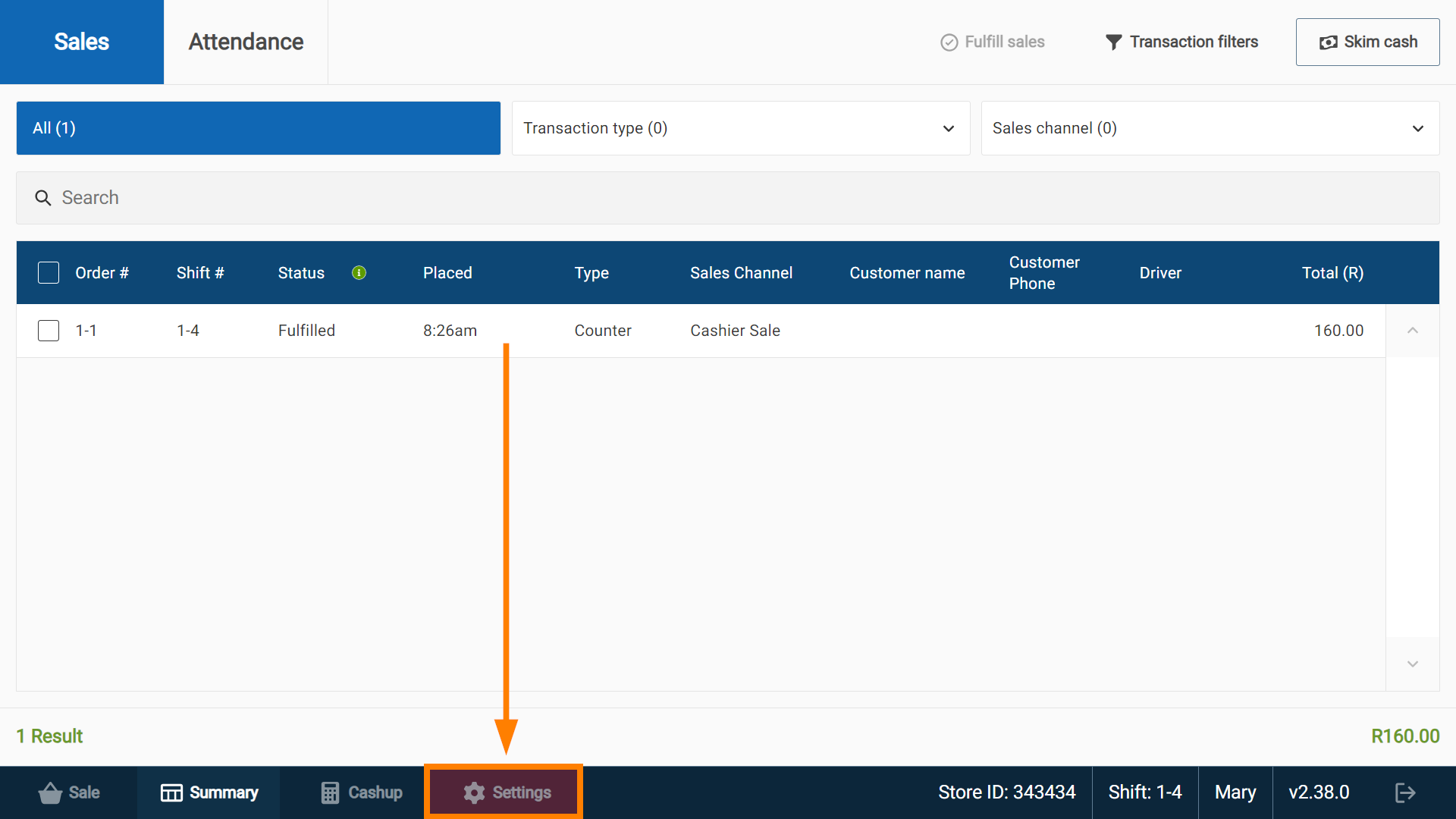
Tap Settings.
Tap Payments.
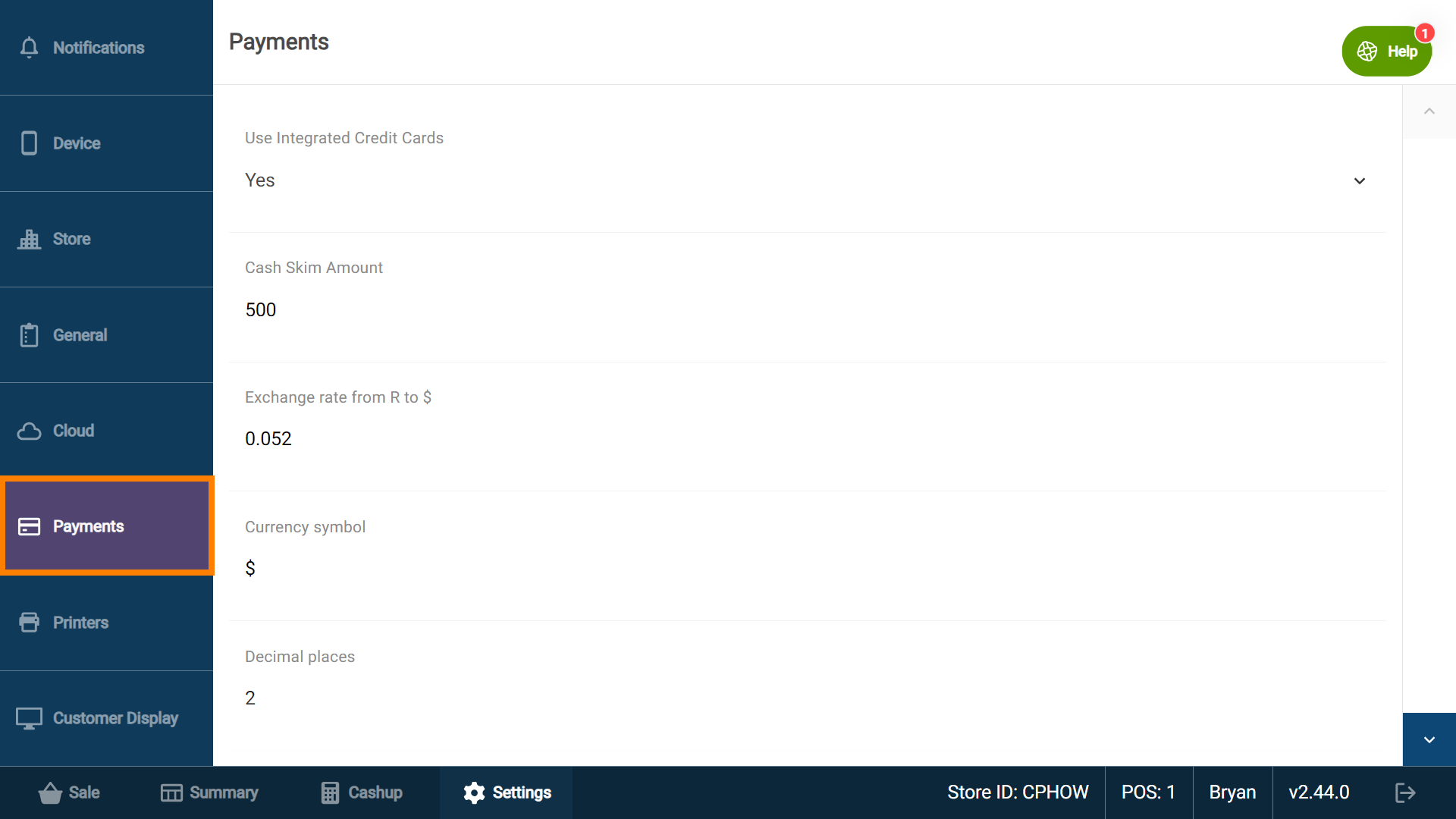
Scroll down to the field called "Exchange Rate" and set the current exchange rate between your primary currency, and that of your additional currency.
Set the alternative currency symbol, and the number of decimal places to use.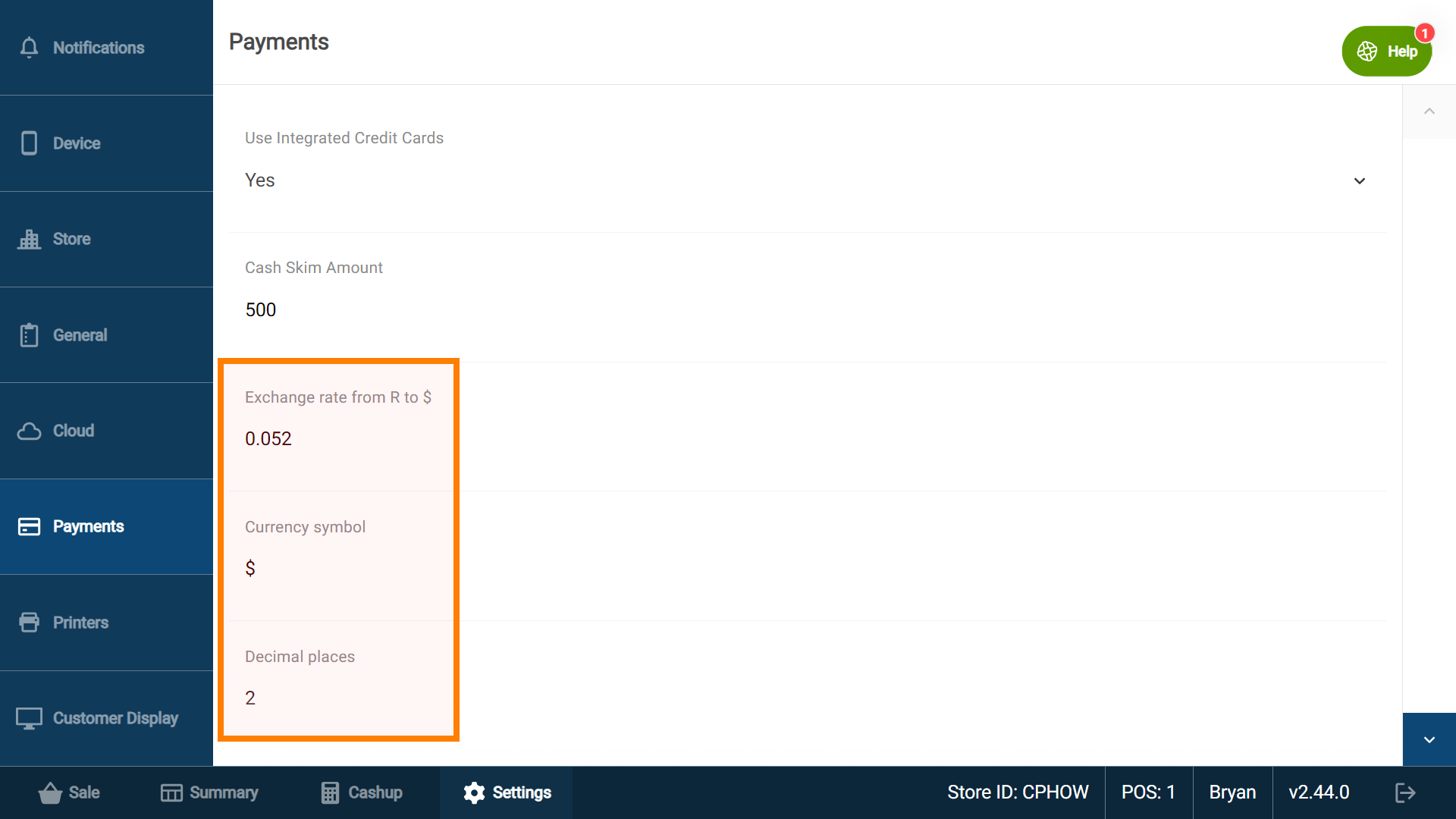

Using Exchange Rates in Sale
As you ring up the items of a sale, you will see the Exchanged amount due figure in the alternative currency underneath the primary Amount due figure.
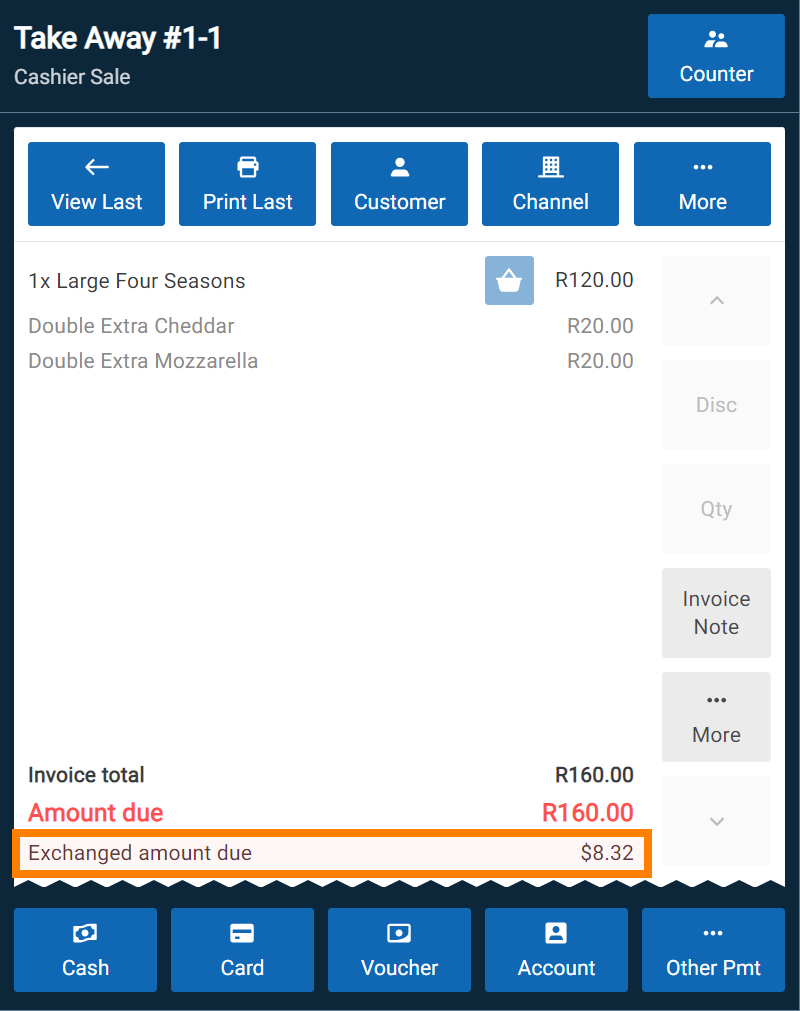
Tap Cash to save the cash sale. You will see a field to capture either the primary currency, or the alternative currency. The amounts will be auto filled and will automatically adjust according to your set exchange rate.

Cashup
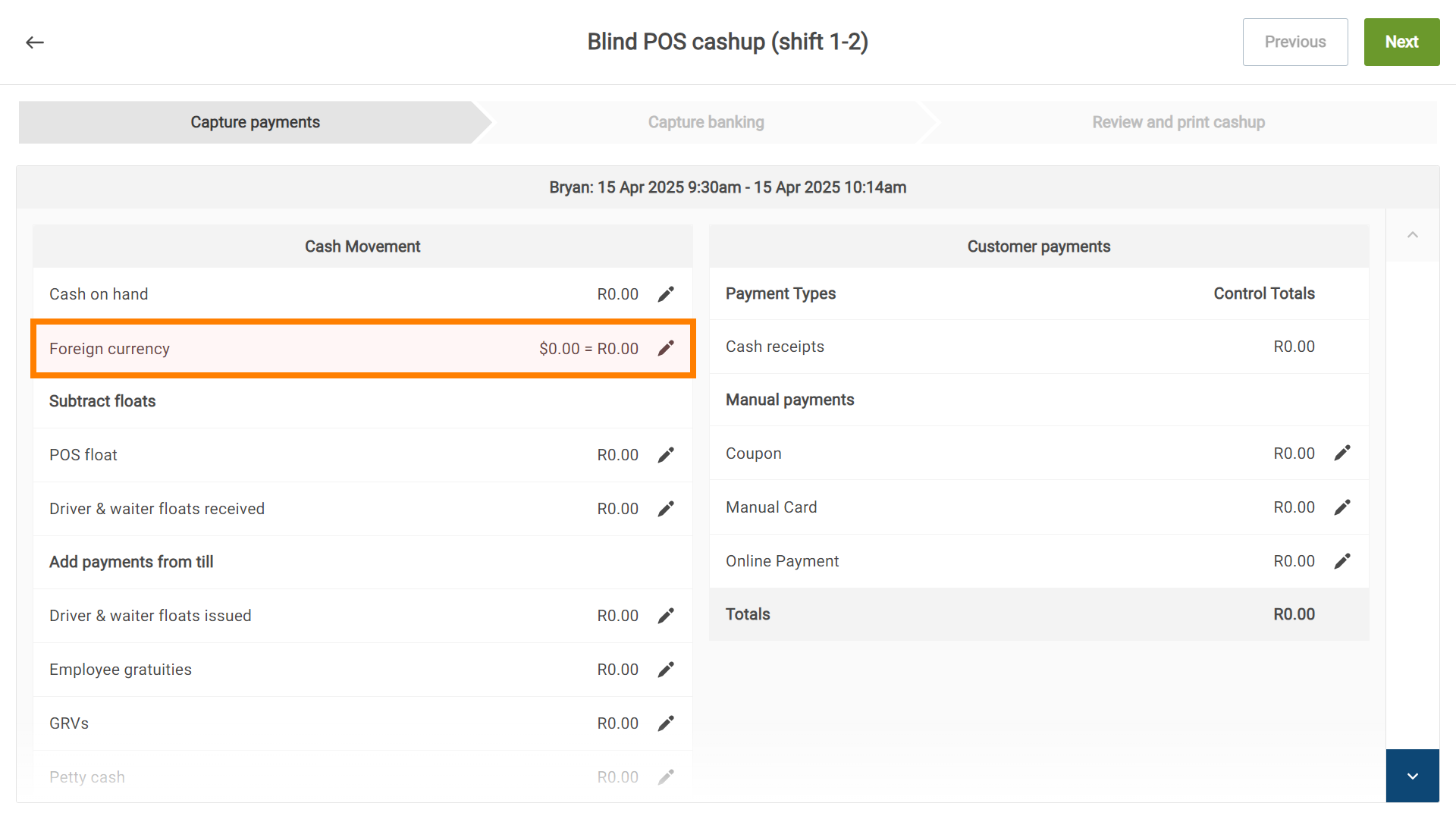
On the Cashup page, any of the alternative currency must be captured under the "Cash Movement" section, in the Foreign currency field.