Exporting Reports
Export your reports in different formats like PDF, Excel, or Word to share, edit, or analyze them outside the system.
You can save any report generated in the Portal into different formats to use outside of the system. To export a report, click the Save button at the top of the report screen after running a report, and choose your preferred format:
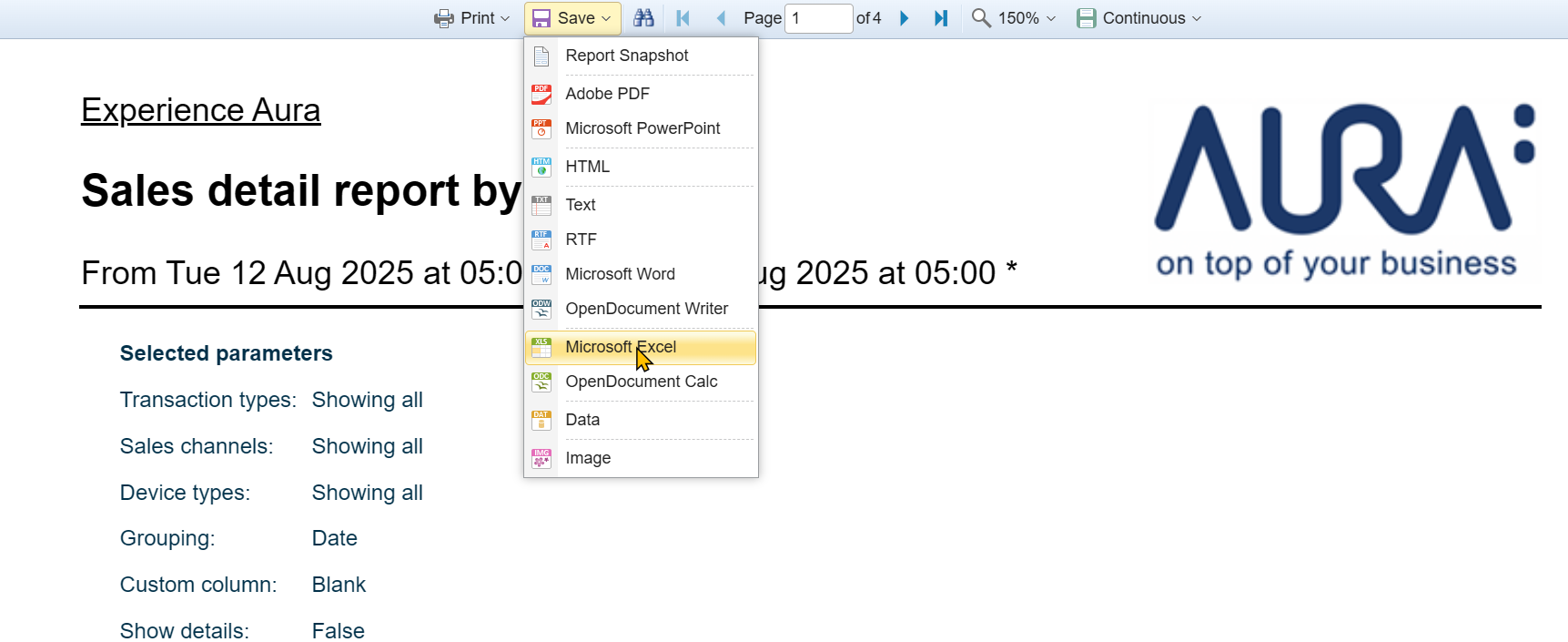
- Report Snapshot – Saves the report in its original format for viewing later in the system.
- Adobe PDF – Creates a PDF version for easy sharing and printing.
- Microsoft PowerPoint – Exports as slides for presentations.
- HTML – Opens in a web browser.
- Text – Saves as a plain text file without formatting.
- RTF – Rich Text Format, compatible with most word processors.
- Microsoft Word – Creates a Word document for editing.
- OpenDocument Writer – Saves in an open-source word processor format.
- Microsoft Excel – Exports the report to a spreadsheet for data analysis.
- OpenDocument Calc – Spreadsheet format for open-source software.
- Data – Exports raw data for further processing.
- Image – Saves the report as an image file.
Choose the format that best suits how you plan to use or share the report.
Note:
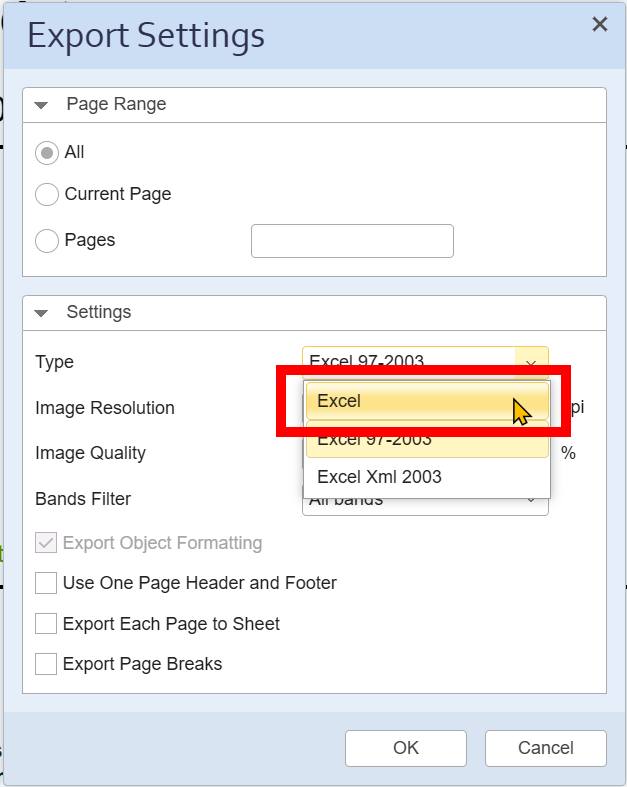
When exporting a report, the default format is Excel 97–2003. Some columns may download as “images” rather than text in this format.
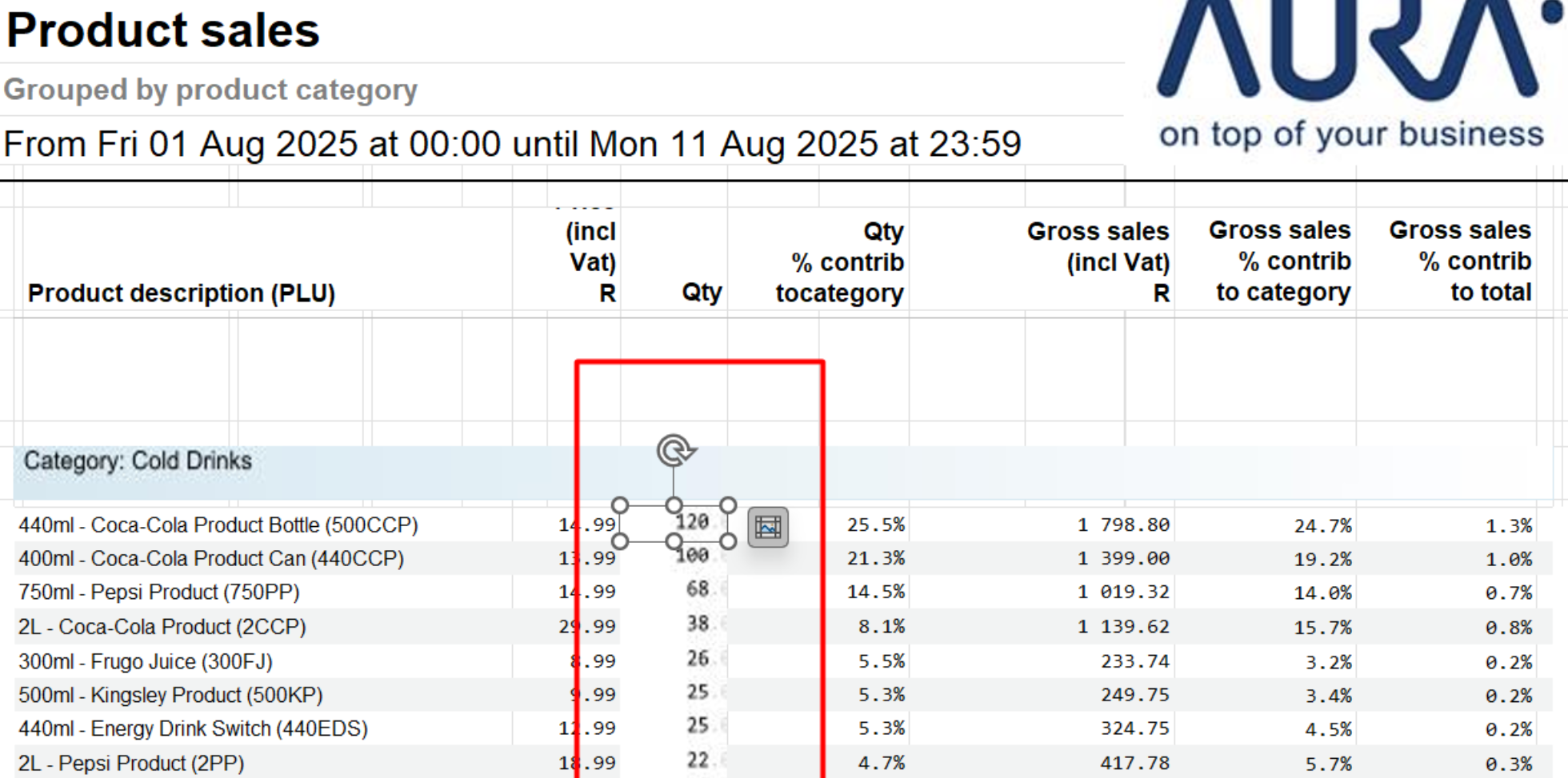
If this happens, take the following steps:
1. Click Settings in the Excel export options:
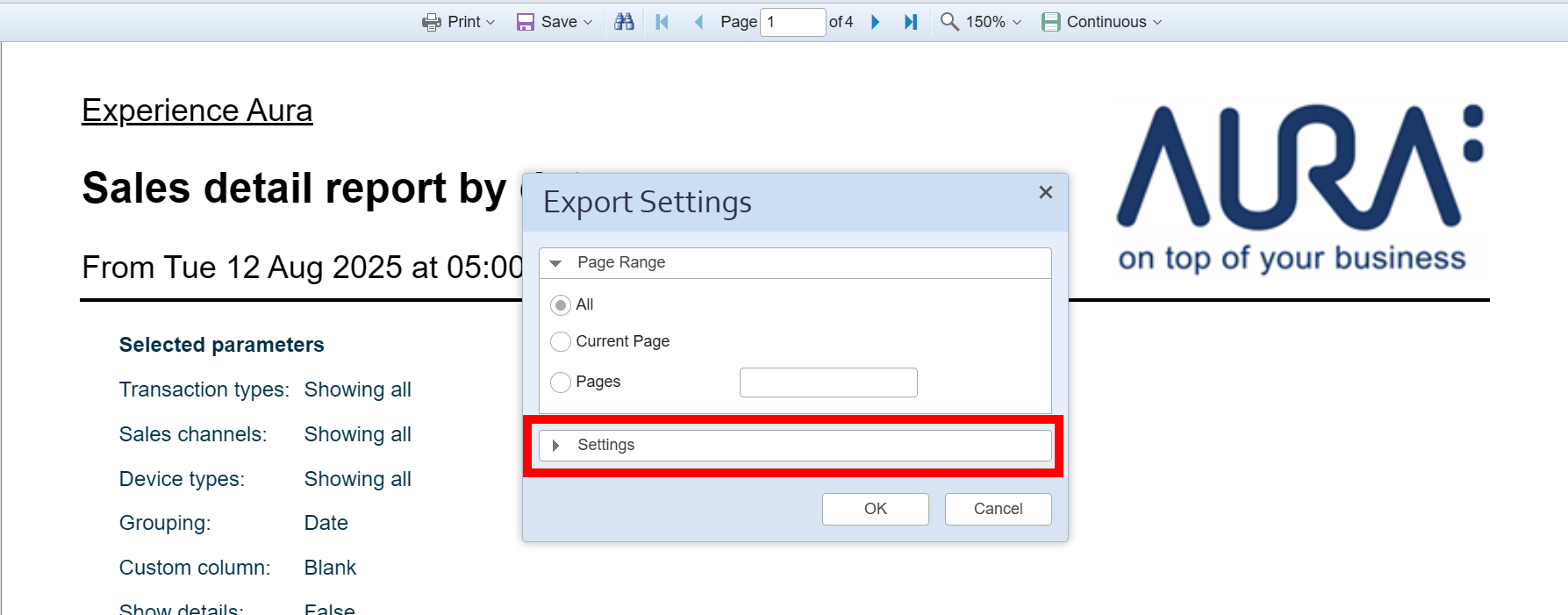
2. Set the export Type from Excel 97-2000 to just Excel and click OK.