Processing integrated card payments in CounterPOS
Integrated card payments allow CounterPOS to communicate directly with your credit card machine, eliminating manual entry, reducing errors, and streamlining the cash-up process. This guide explains how to process an integrated card payment.
Manual vs. Integrated Card Payments
- Manual Card Payment – You must manually enter the sale amount into the card machine.
- Integrated Card Payment – The card machine automatically displays the sale amount, ready for the customer to pay.
For this article, we will use Transaction Junction as our example.
Processing an Integrated Card Payment
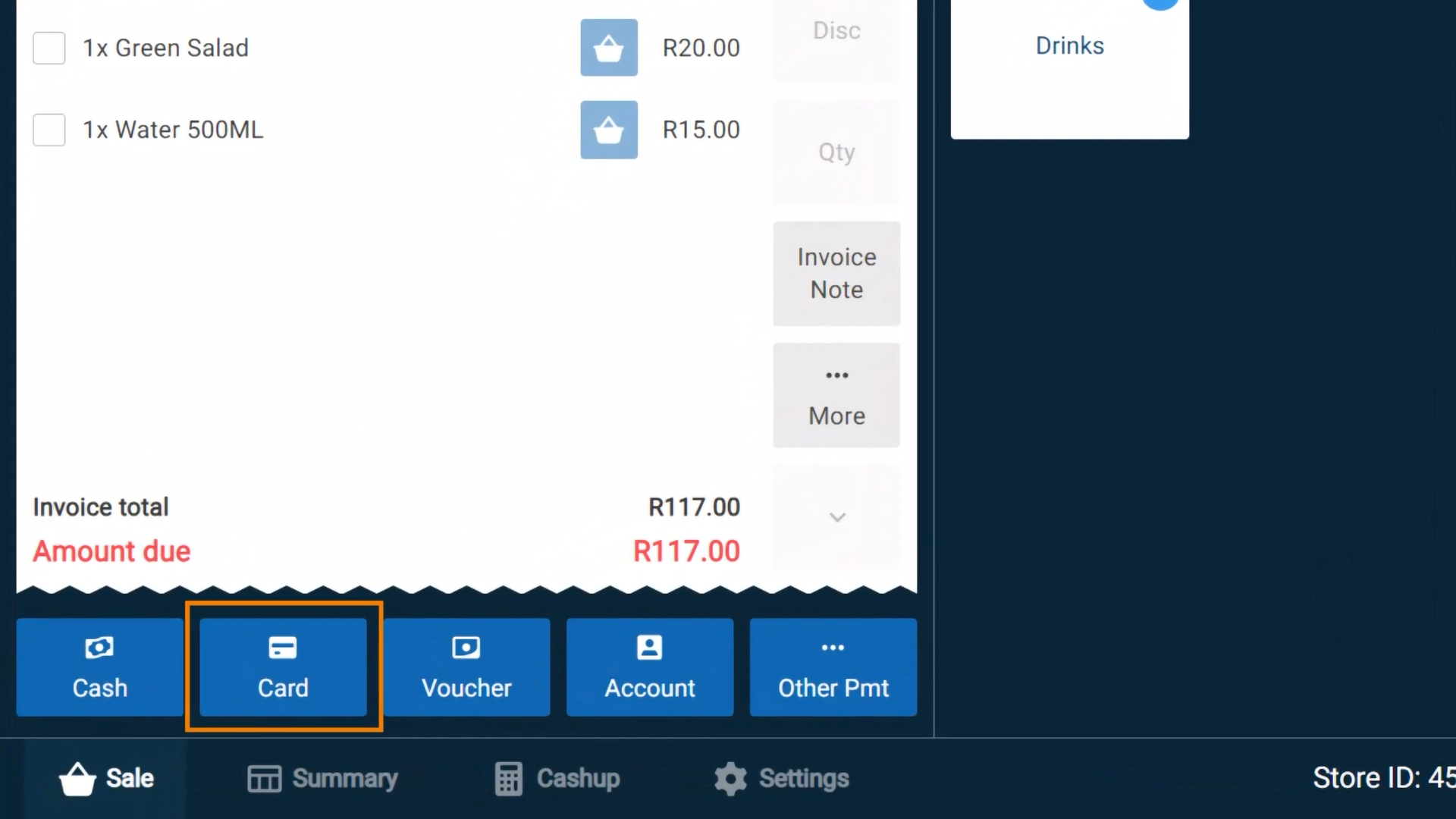
- Start a Sale – Ring up the customer’s items as usual.
- Select the "Card" Payment Option – This opens the Integrated Card Payment window.
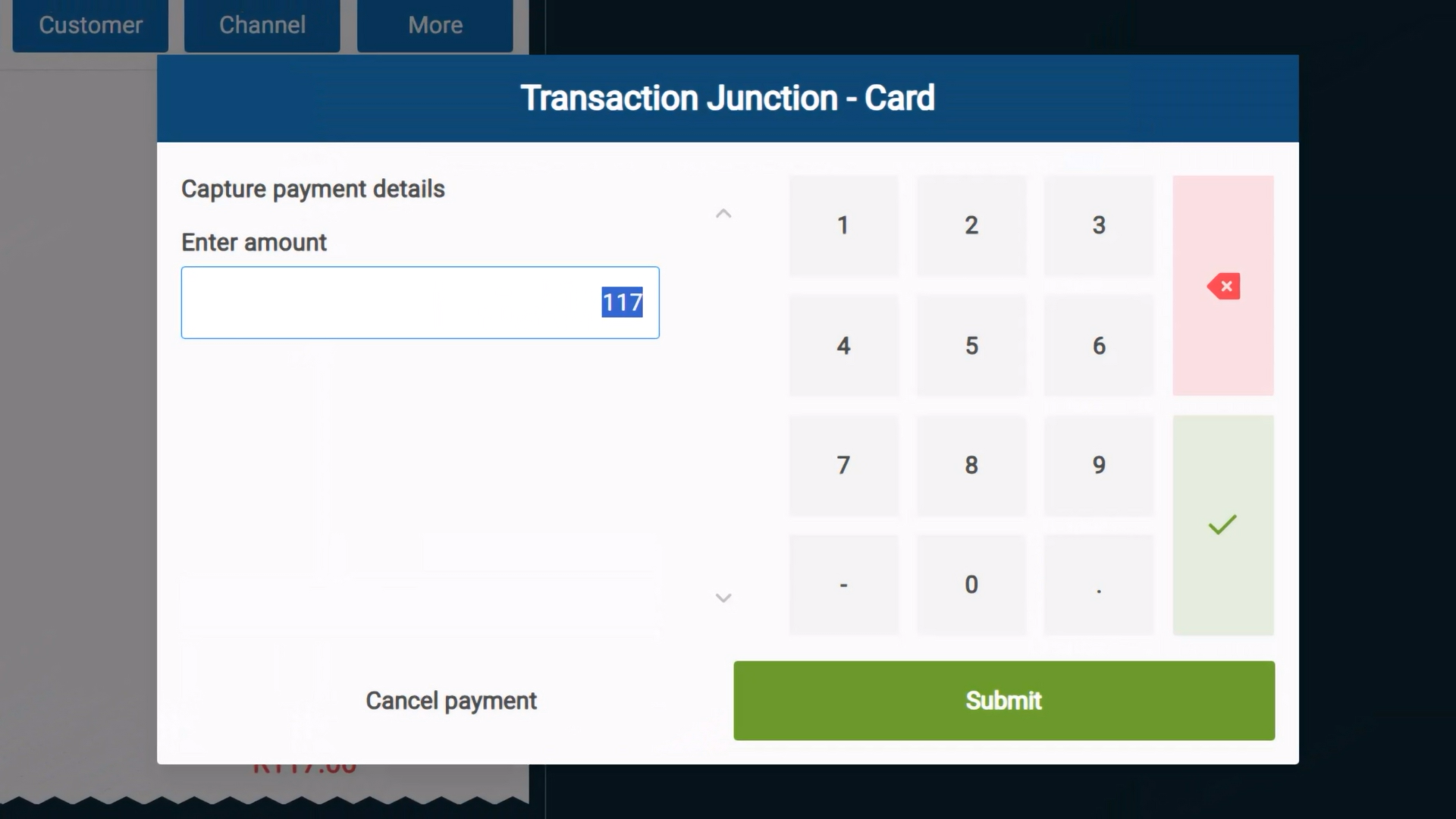
- Verify the Payment Window – The title bar should display the name of the integrated payment provider (e.g., Transaction Junction - Card).
- Confirm the Amount – The sale amount is automatically entered. If the customer wishes to add a tip, enter the total amount manually. The difference will be recorded as a gratuity in the shift’s cash-up report.
- Submit the Payment – Select Submit or the Green Tick button.
- Process the Card Payment – The payment terminal will prompt the customer to swipe or tap their card.
- Complete the Sale – Once the transaction is approved, CounterPOS updates automatically and starts a new sale.