
The Aura online portal user interface
The NextGen Aura Online Portal UI has some top-level elements that will be consistent on any page that the user interacts with once they log in.
The NextGen Aura Online Portal UI has some top-level elements that will be consistent on any page that the user interacts with once they log in.
The portal’s landing page appears as below:
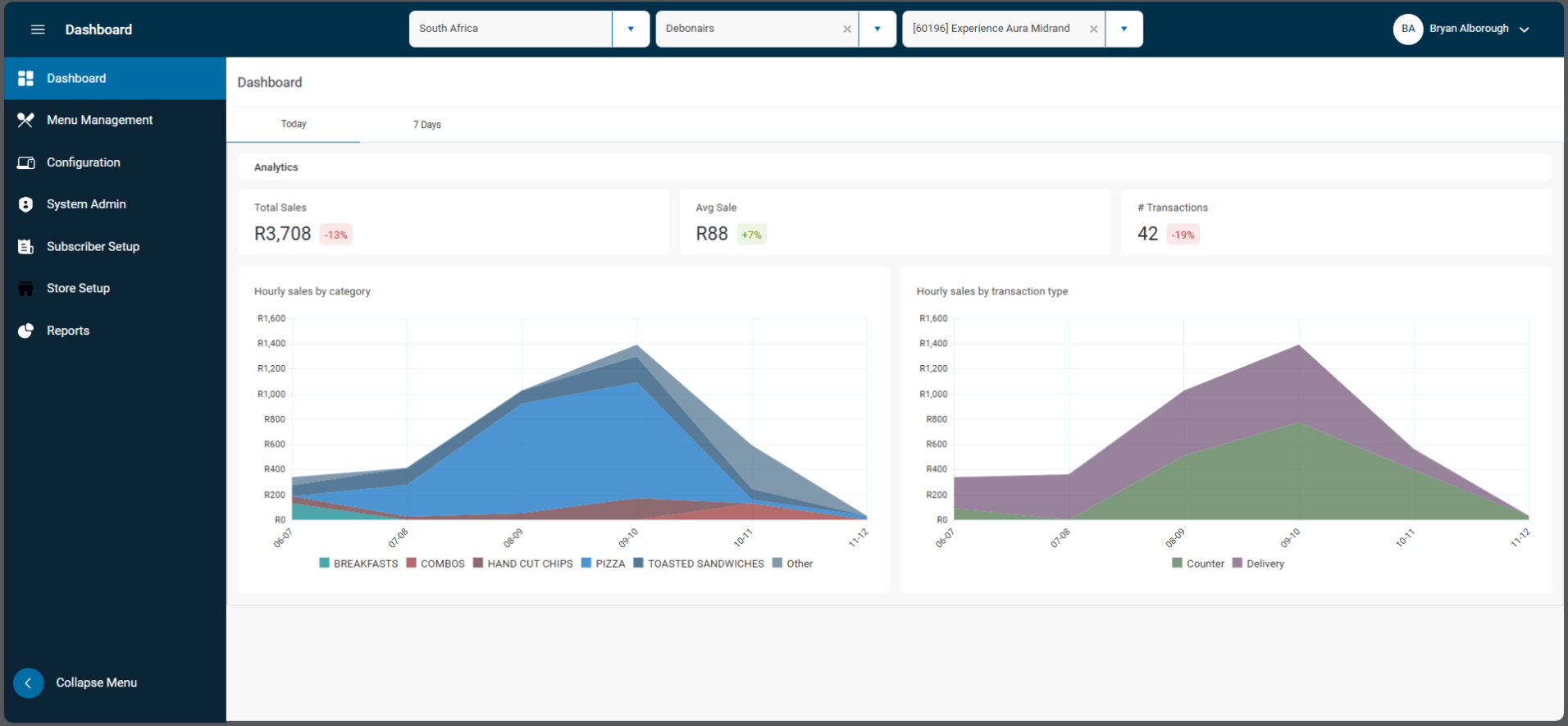
This is the Dashboard page. Along the top of the screen is the Top Bar element and to the left is the collapsible Navigation Menu. Let’s examine these elements in detail.
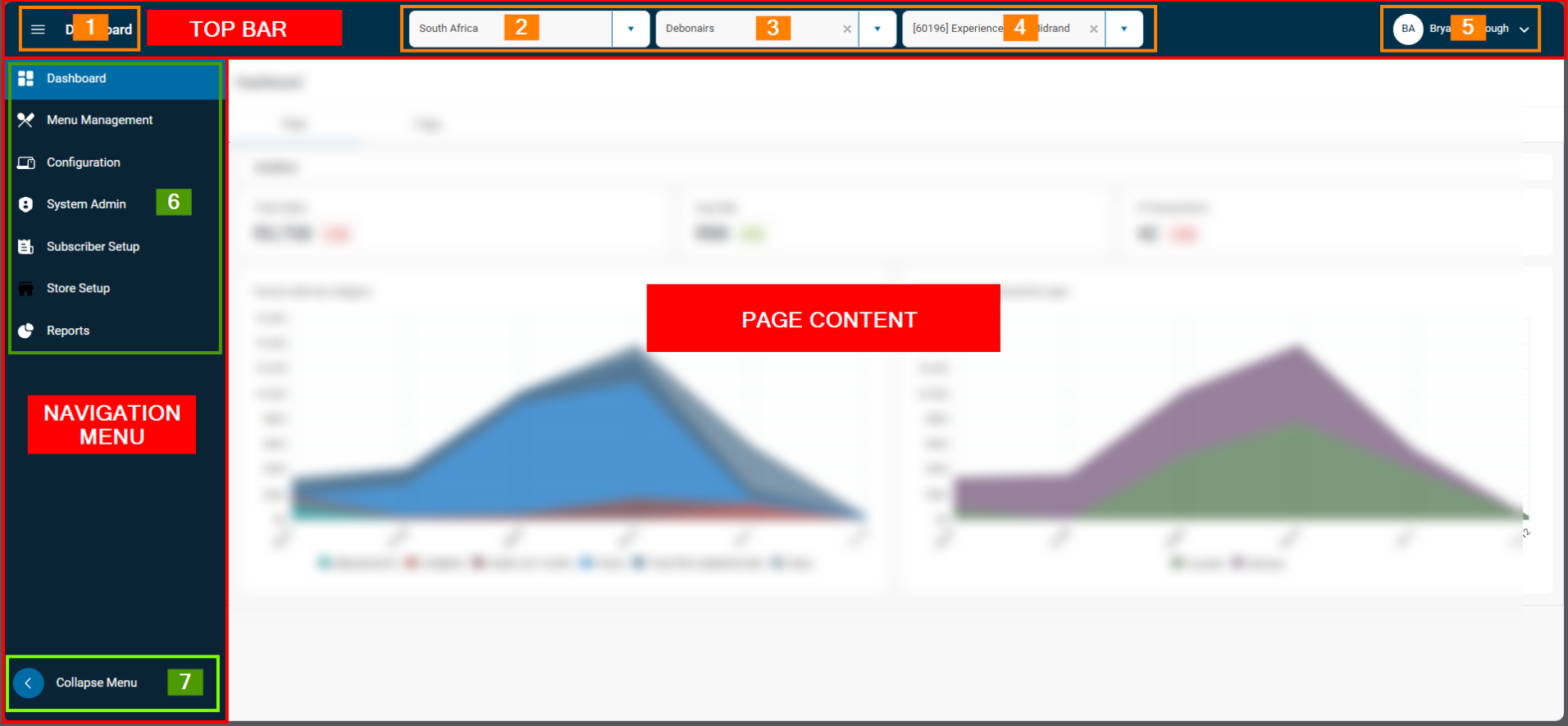
Top Bar
- Menu and Page Title. Clicking the hamburger menu icon will return you to the top-level navigation menu.
- Country Selector. This menu lets you select the “Country”, which refers to the highest-level grouping for stores. This is typically at country level, though may contain larger companies. This will filter the dataset on your current page to view data or settings that apply to that entire group.
- Brand Selector. This menu lets you select the “Brand”, which refers to the intermediate-level grouping for stores, usually the brands within a group. This will filter the dataset on your current page to view data or settings that apply to that entire group.
- Store Selector. This menu lets you select the individual stores available within the Brand/Country you have selected. Selecting the store lets you view and manage the store’s data and settings.
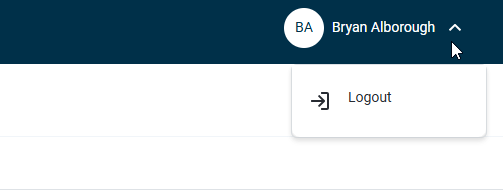
- User Info/Logout This shows you which user is currently logged in. You can click the name to view the My Profile settings and permissions page. Clicking the drop-down arrow will reveal the Logout option:
Navigation Menu
Navigation Menu Categories. These are the categories for features within the Portal. Depending on your level of access, some of these categories may not be visible. The top-level categories are always available by clicking the hamburger menu icon at the top of the menu.
- Dashboard takes you to the main Dashboard page.
- Menu Management is for the Portal’s menu-related functions.
- Configuration is for important Store settings, POS Devices and other important POS elements are configured.
- System Admin is for functions relating to Users, permissions, Transaction details and more.
- Subscriber Setup is for configuration of Brands, Groups and Profiles and more.
- Store Setup is for local store features, such as the Menu Setup page.
- Reports provides a list of report options, each grouped into distinct categories.
- Collapse. This lets you collapse down the menu bar into a narrower column with only the navigation menu items visible.
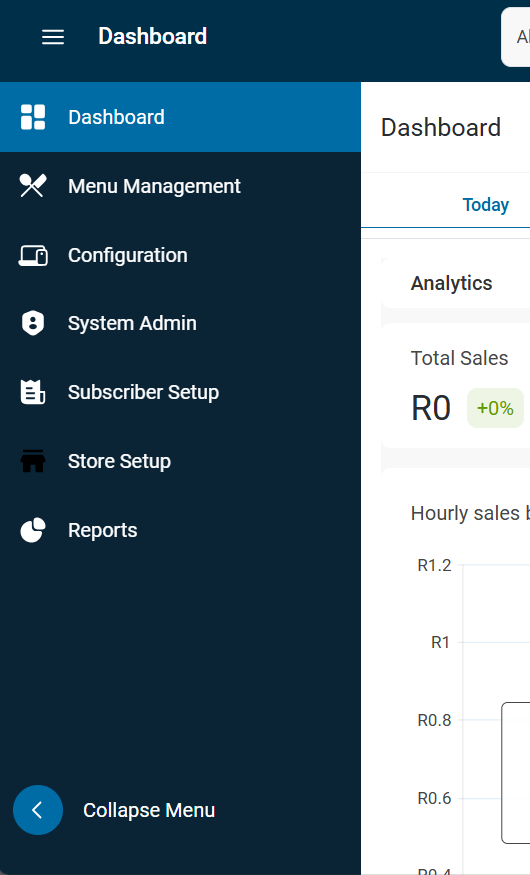
Sidebar expanded
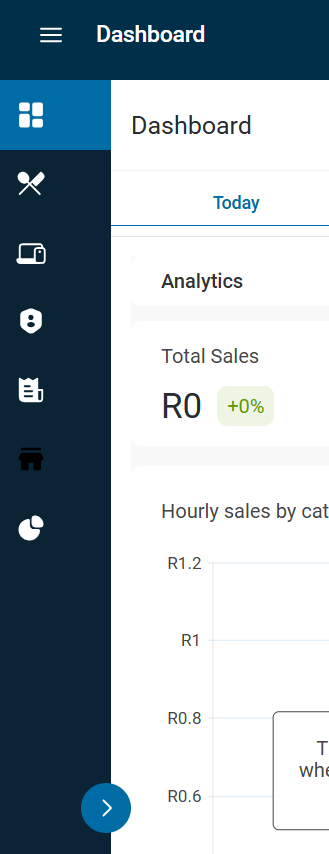
Sidebar collapsed