
Creating Menu Item Recipes
Step 1: Select a Menu Item to Add a Recipe
Locate the menu item you want to create a recipe for.
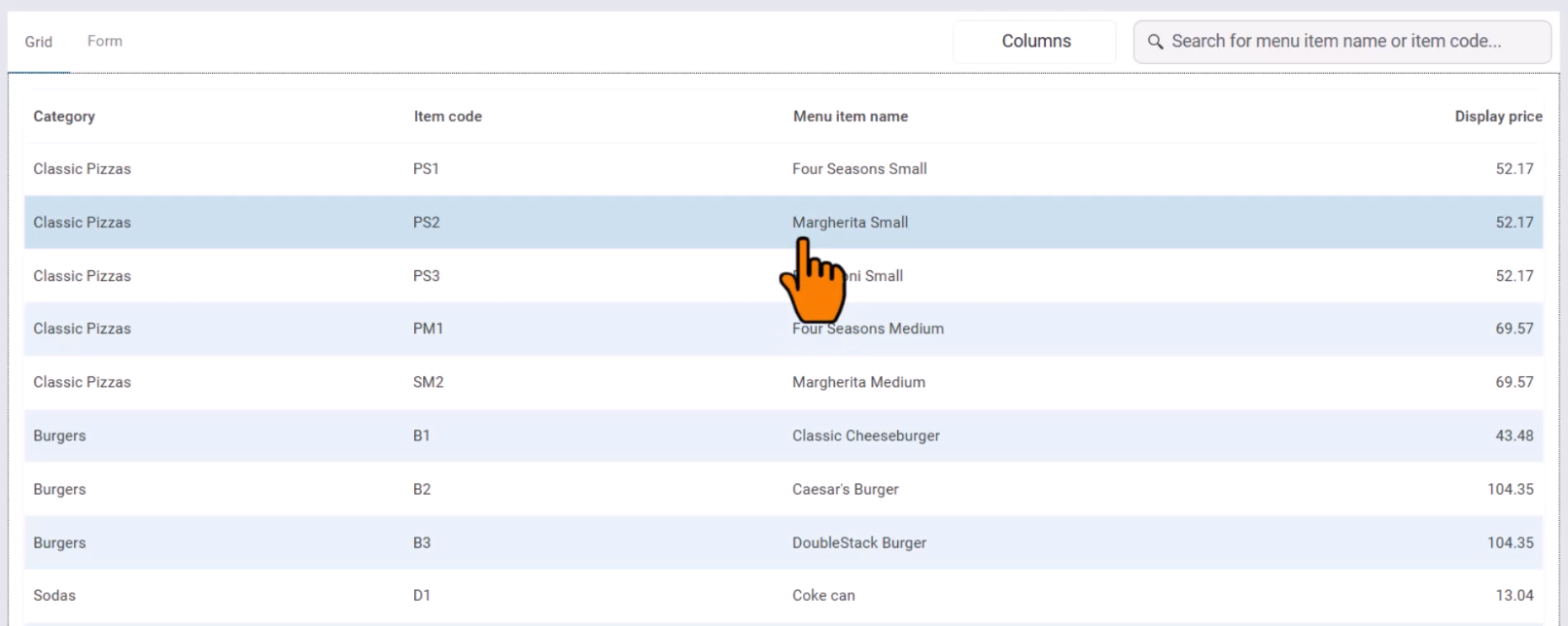
Click on the item to open the Recipe Form.
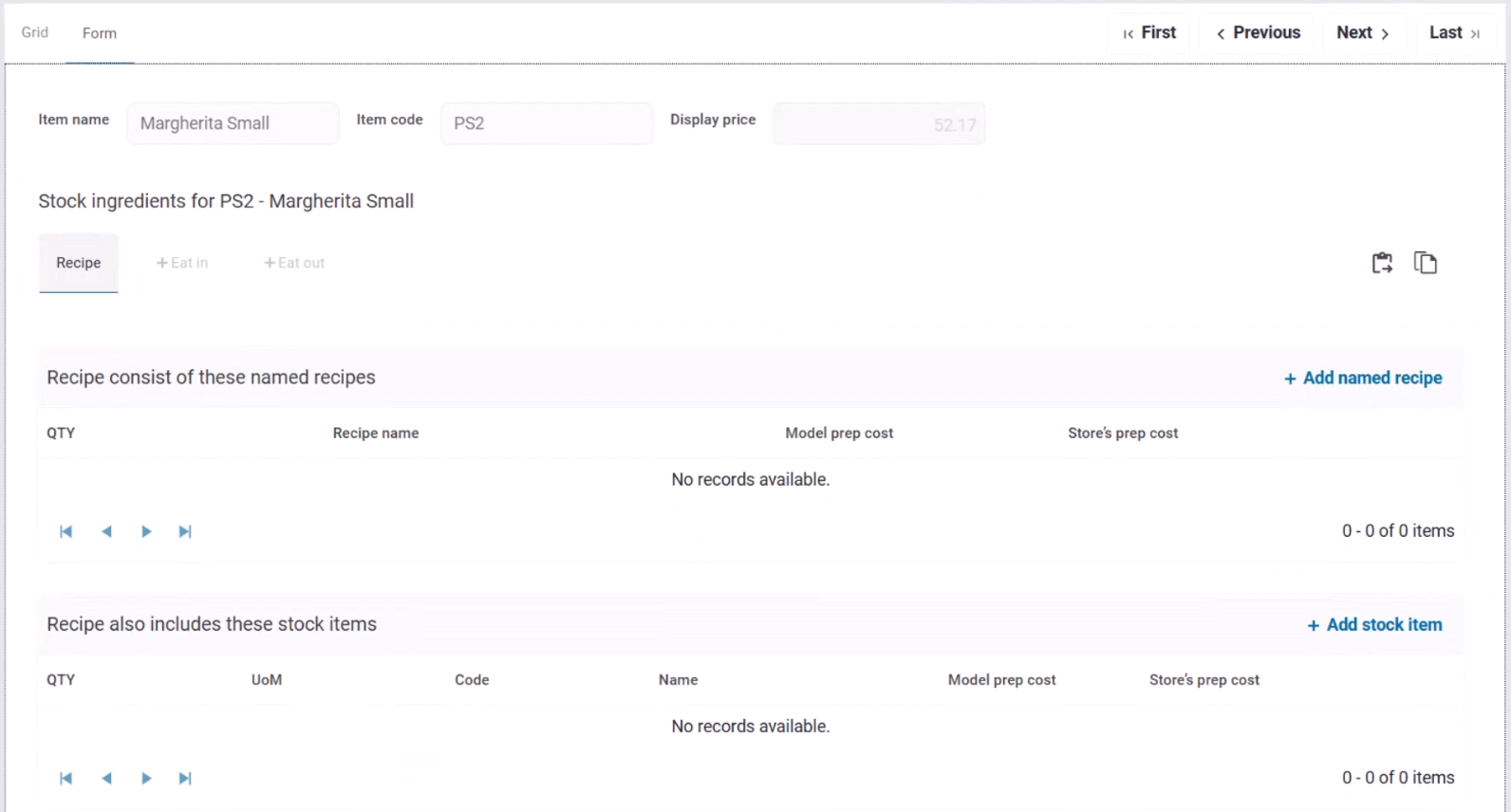
For this example, we’ll add a recipe to a Classic Margherita Pizza.
Step 2: Add Ingredients to the Recipe
The Recipe Form consists of two sections:
1. Add Named Recipes (Optional)
Named Recipes are reusable sub-recipe, or recipe components, that can be linked to menu or stock items. If a named recipe already exists (e.g., a Small Pizza Base), you can add it directly:

Click Add Named Recipe.
Select the appropriate named recipe from the window that appears. Set the Recipe multiplier to indicate how many times this recipe is used for this item.
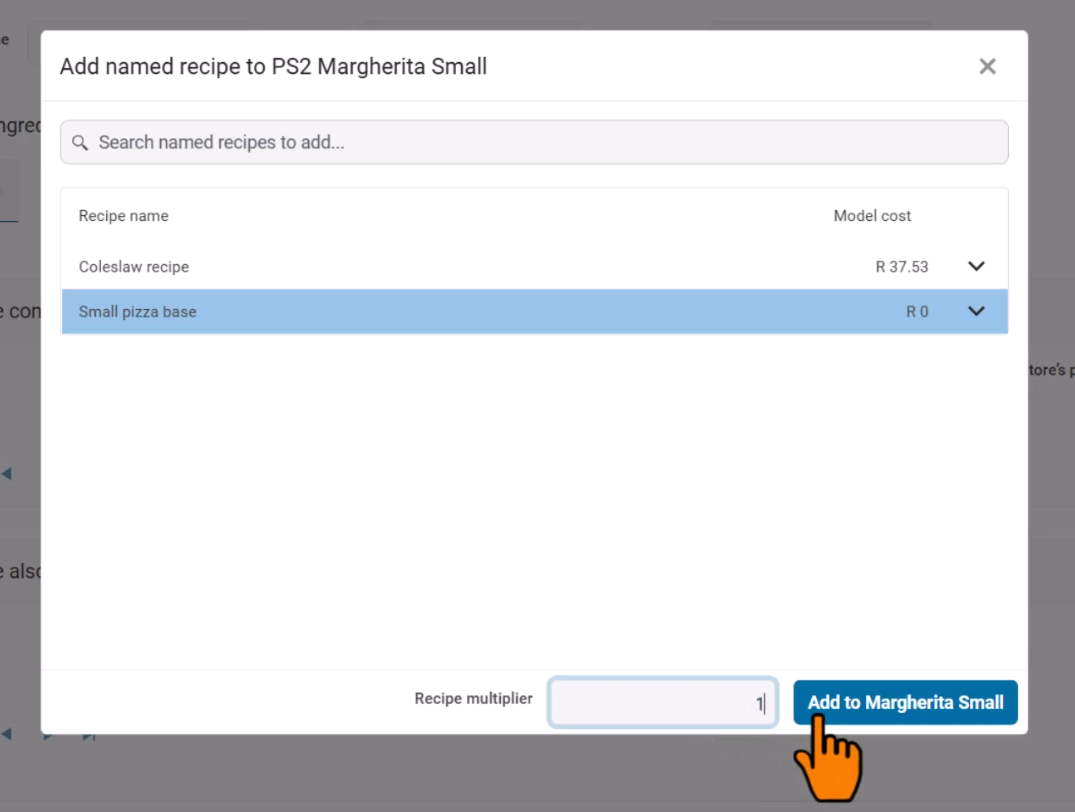
This avoids manually adding the same ingredients repeatedly.
2. Add Individual Stock Items
For stock item ingredients not included in a Named Recipe, add them individually:
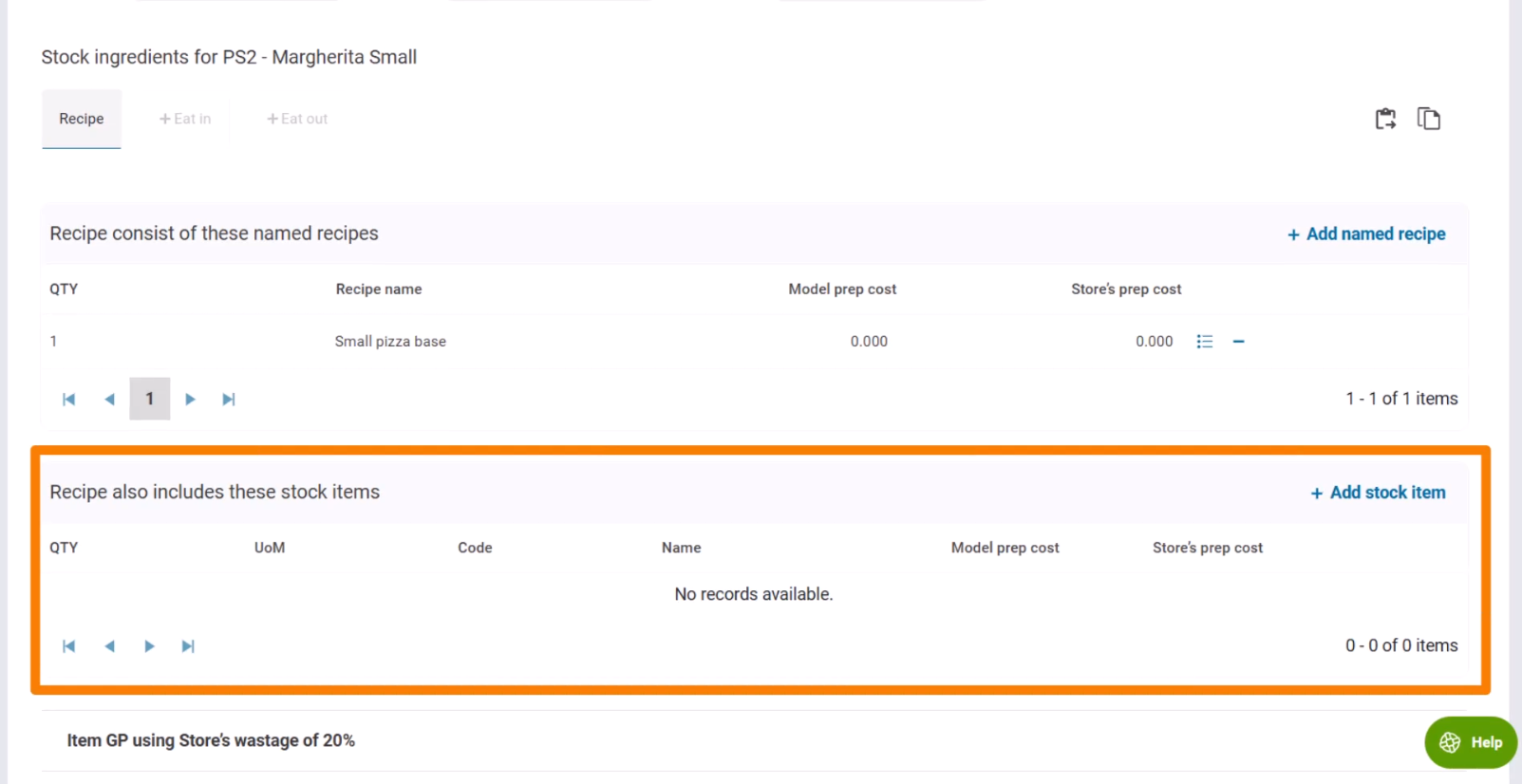

Search for the stock item (e.g., mozzarella, tomato sauce).
Enter the recipe quantity, ensuring it matches the Unit of Measure.
Click Add to Item.
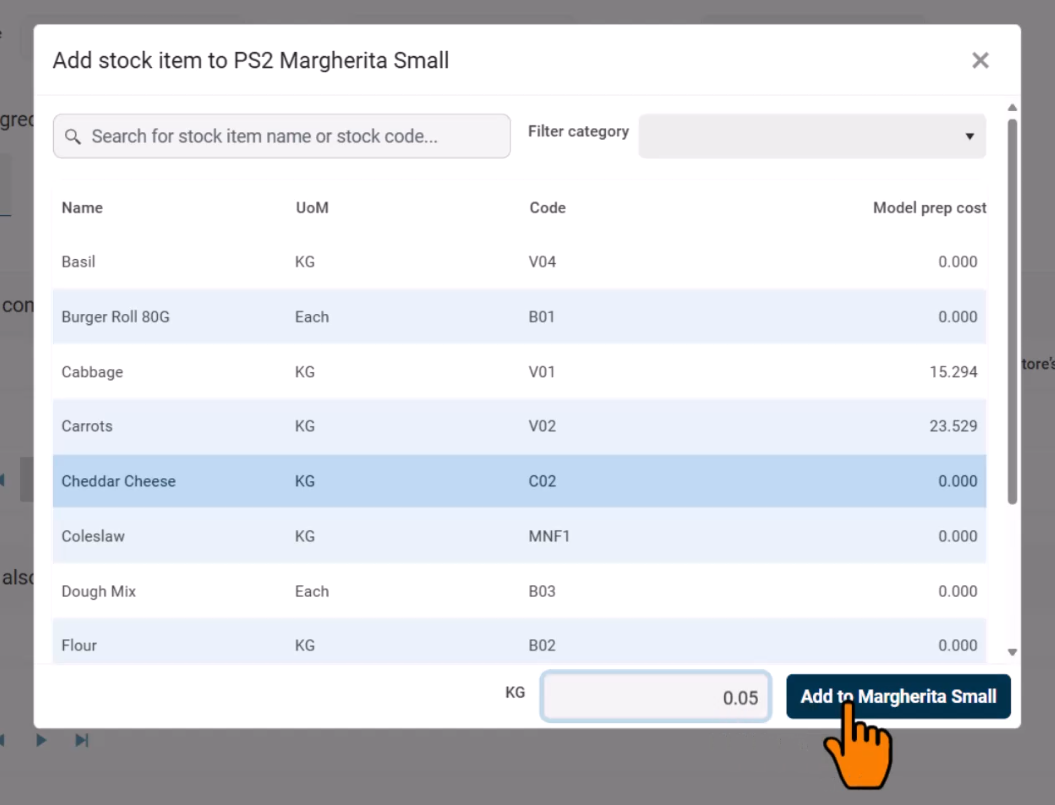
Repeat for all additional ingredients.
Copying and Pasting Recipes
At the top of the Recipe Form, you can:
- Copy a Recipe to the clipboard.
- Paste the Recipe to other menu items.
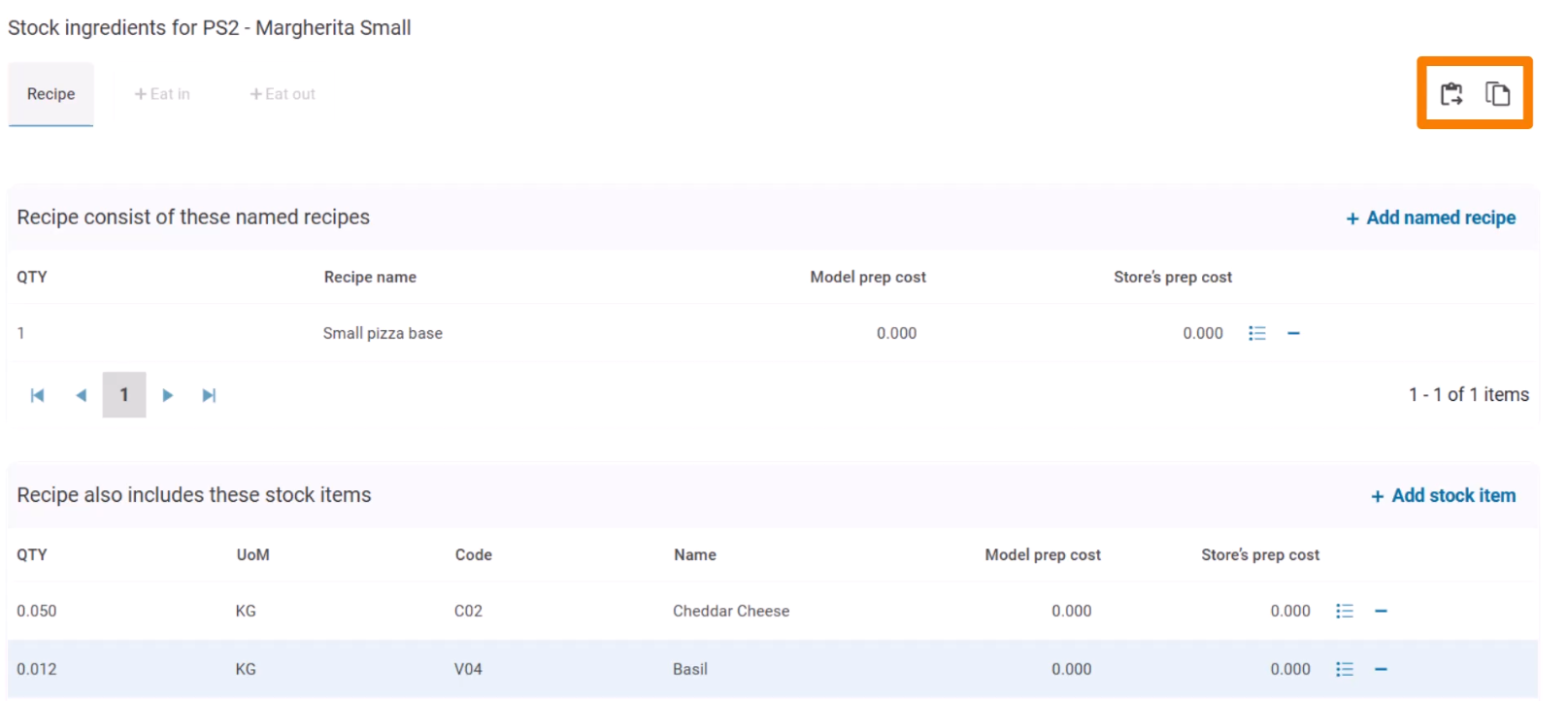
This is useful for items with similar ingredient structures.
Step 3: Set Eat-In and Eat-Out recipe additions
You can specify additional items based on Eat In or Eat Out settings:

For example, you can add packaging for Eat Out orders, and/or add sauces and serviettes for Eat In orders.
Step 4: Publish the Recipe
Once the recipe is complete, click Publish:
- Publish Immediately to apply changes right away.
- Schedule Recipe Changes to go live at a future date and time.