
Creating and Editing Menu Item Recipes
To add or edit a recipe for a menu item, navigate to the Recipe Management page. Before making any changes, ensure that the Recipe Revision is set to Draft. The Published revision is locked and cannot be edited. If a menu is being built for the first time, it will already be in Draft mode.
Creating a Menu Draft
To create a new draft, click Revision History.
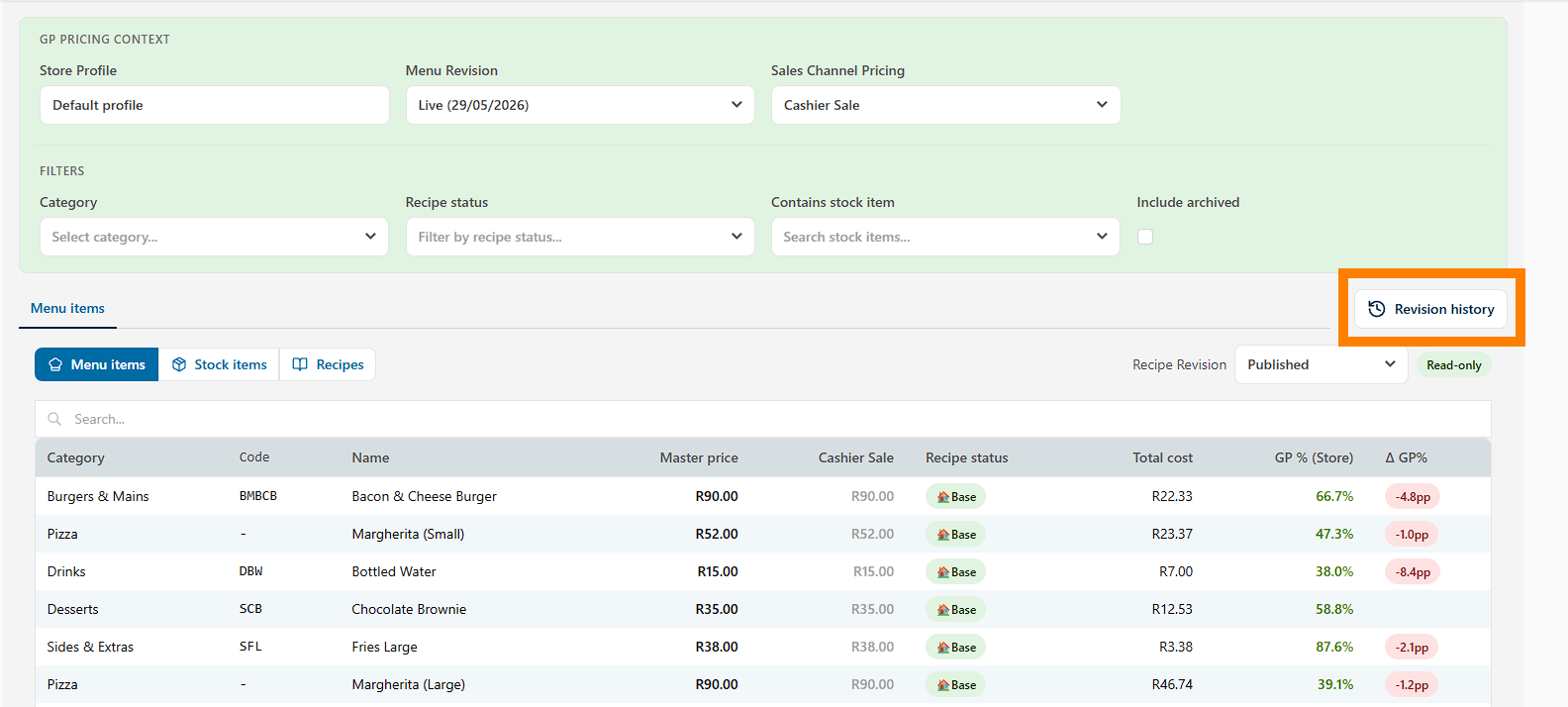
Select the recipe revision you want to create a copy of, and click Create Draft
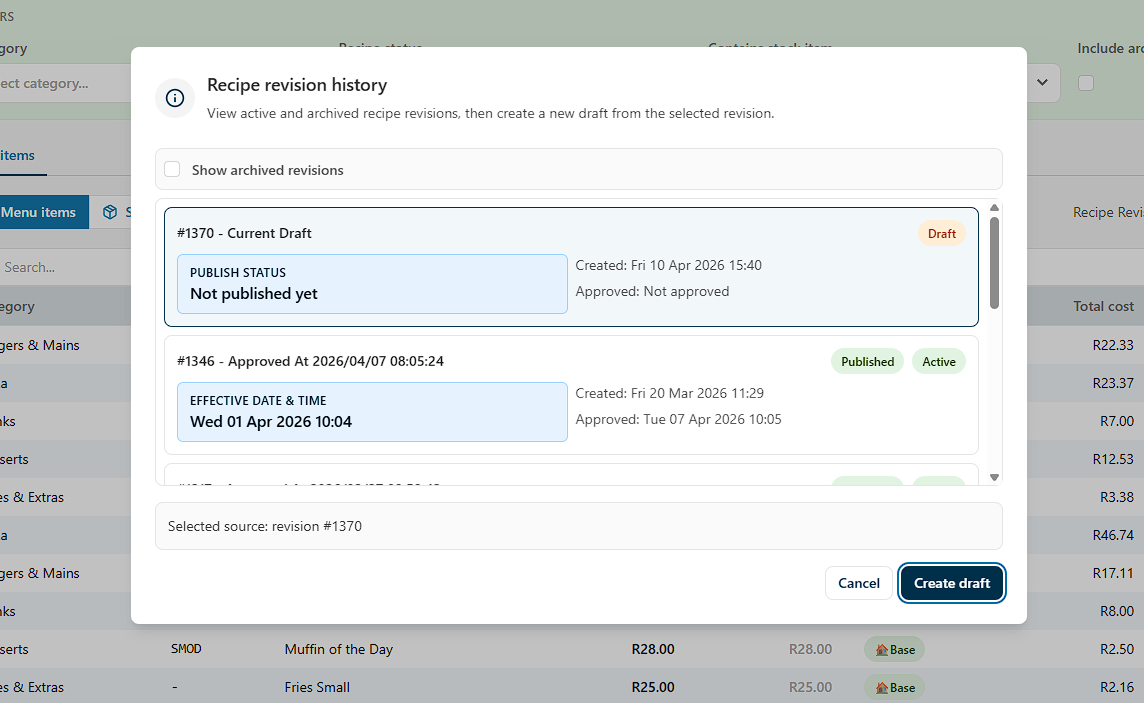
This will create a new draft that you can use to edit recipes.
Once in Draft mode, click the menu item whose recipe needs to be updated. This opens the Menu Item Recipe form.
The Menu Item Recipe Form
At the top of the form, basic information about the menu item is displayed, along with an option to switch between the Live and Draft versions of the recipe.
Adding Ingredients
Recipes are built using the Available Items panel, which lists all available stock items and existing recipes. To add ingredients, browse or search the panel and tick the items to be included in the recipe, then click Add Selected Items.
The selected stock items will appear in the Ingredients section, each with a default quantity of one. Go through each ingredient and set the correct quantity, taking into account the Unit of Measure for that item. As each quantity is updated, the total ingredient cost and the overall recipe cost will update automatically.
To remove an ingredient from the recipe, click the Unlink button next to it.
Base Recipe and Order-Type Variations
The default recipe is the Base Recipe, which is always applied for any sale of that menu item. In addition to the base recipe, it is possible to set additional recipe items that are deducted specifically when an order is tagged as either Eat In or Takeaway. This allows for order-type-specific ingredients to be accounted for, such as condiments for Eat In orders, or additional packaging and sachets for Takeaway orders.
Recipe Control Buttons
Several tools are available for managing recipes:
Show Usage displays all other items across the menu that use the selected recipe. Clear Recipe removes all ingredients from the current recipe. Copy Recipe copies the recipe to a clipboard, from where it can be pasted to another menu item. Scale Recipe multiplies all ingredient quantities by a given number — entering 2 doubles the recipe, while entering 0.5 halves it.
Saving and Reviewing
Changes are saved automatically as Draft, so there is no need to manually save before moving on. After finishing a recipe, navigate back to the Menu Items list to continue working on other items.
Back on the list, the updated recipe cost and GP percentages will be visible. These figures can be used to review costs and adjust prices to meet targets.