How to enable Optional Items
Some menu items are configured at brand level as “Optional” — meaning your brand has made them available for stores to activate, but they won’t appear on your menu unless you switch them on.
Which items are optional is determined by your brand; this article covers how to activate or deactivate them at store level.
Steps
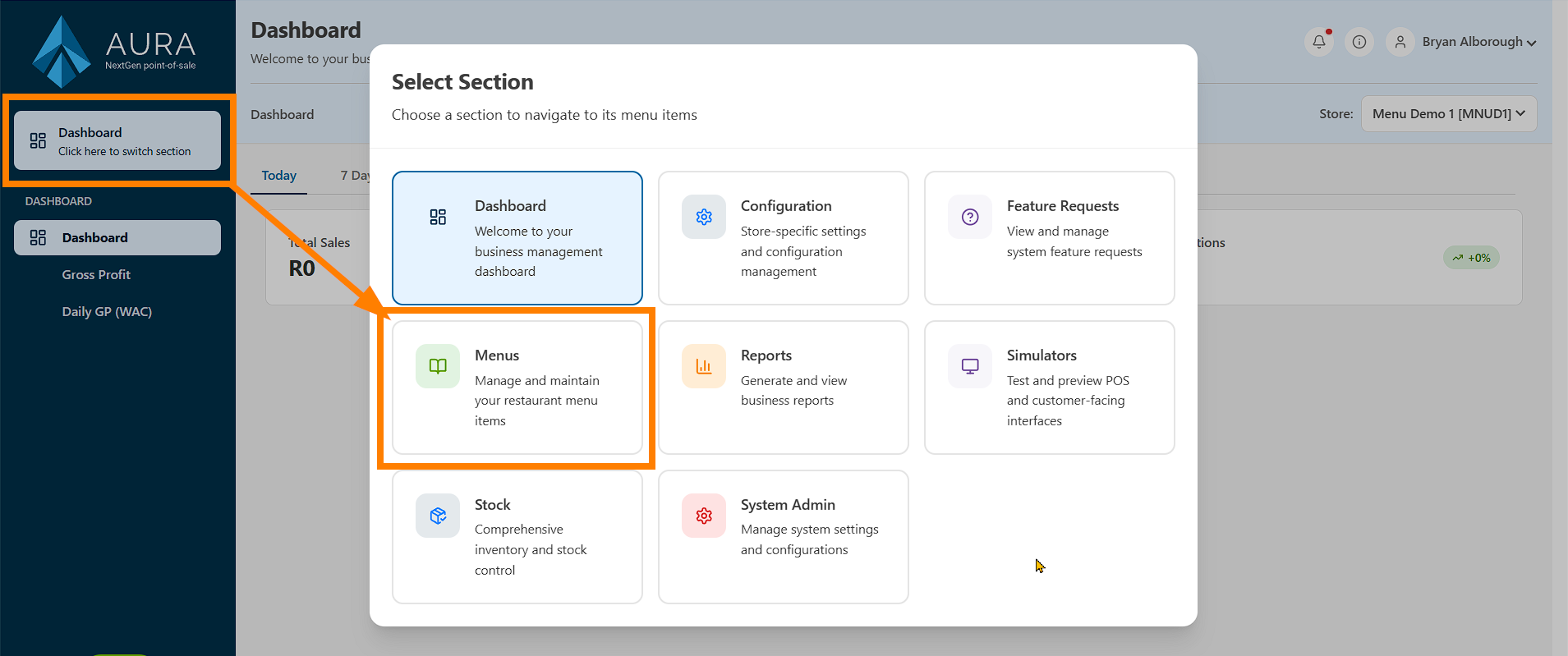
- From the Section menu in the Aura Online Portal, go to Menus Optional Items.
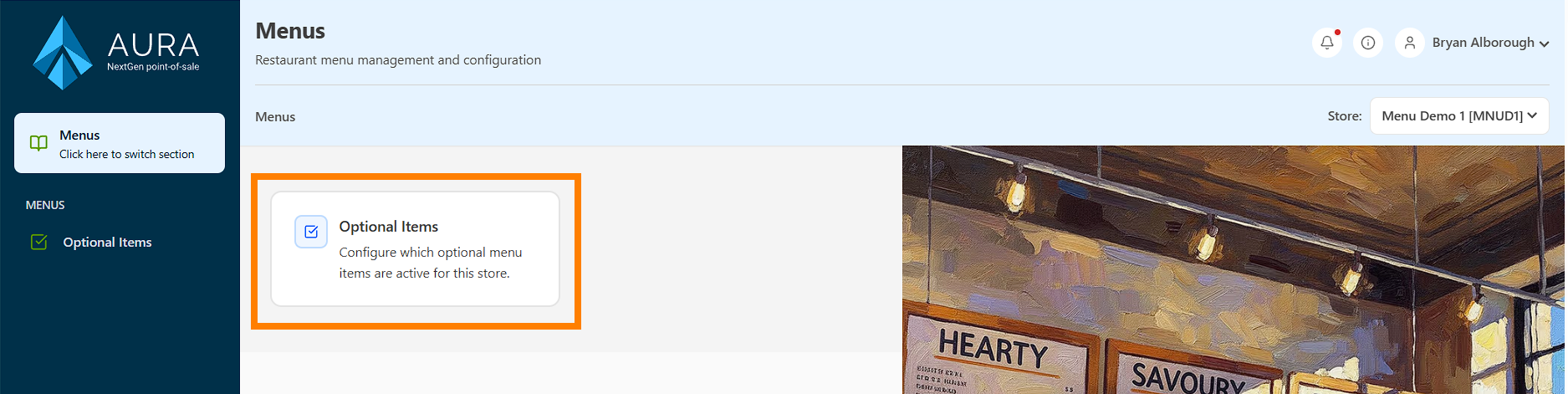
- Click Optional Items.
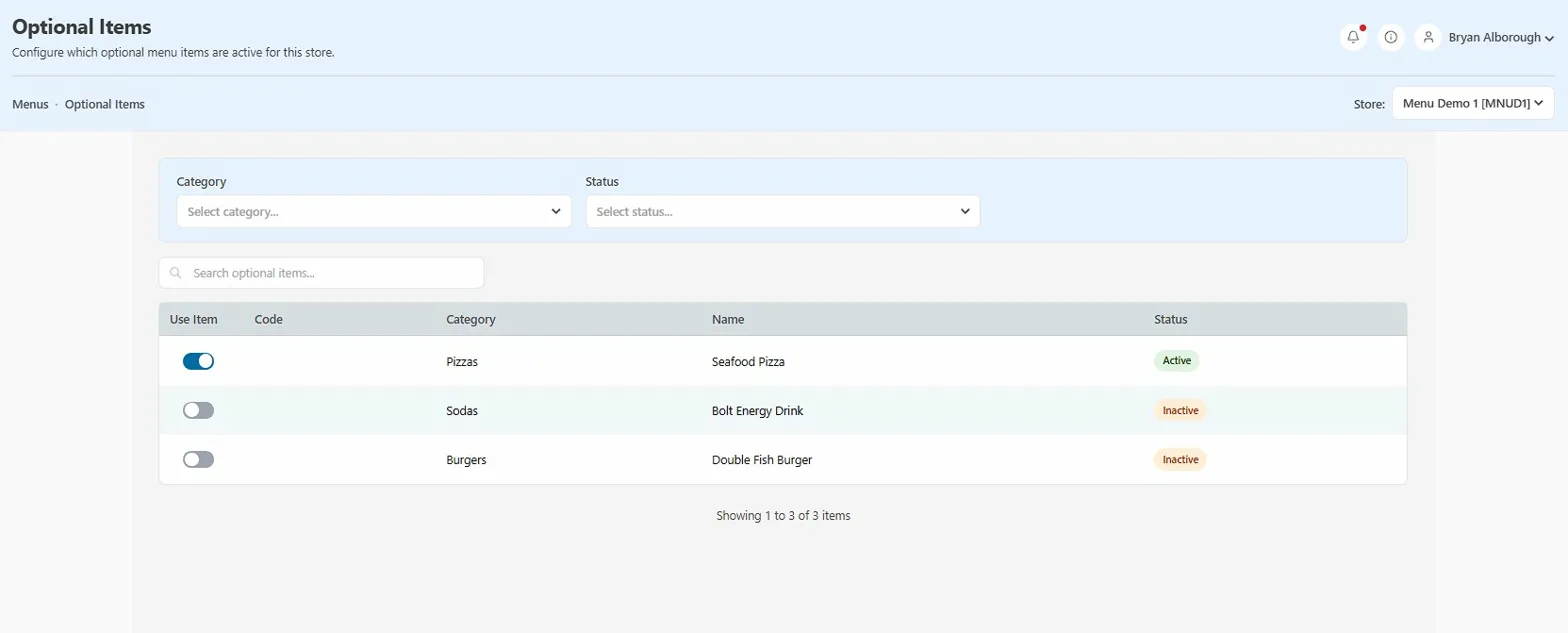
- The list shows all optional items available to your store, along with their category and current status.
- Find the item you want to enable. You can use the search bar or filter by Category or Status to narrow down the list.
- Click the toggle in the Use Item column to switch the item on (active) or off (inactive).