
Creating and Managing Brand Stock Items
Navigating to Brand Stock Items
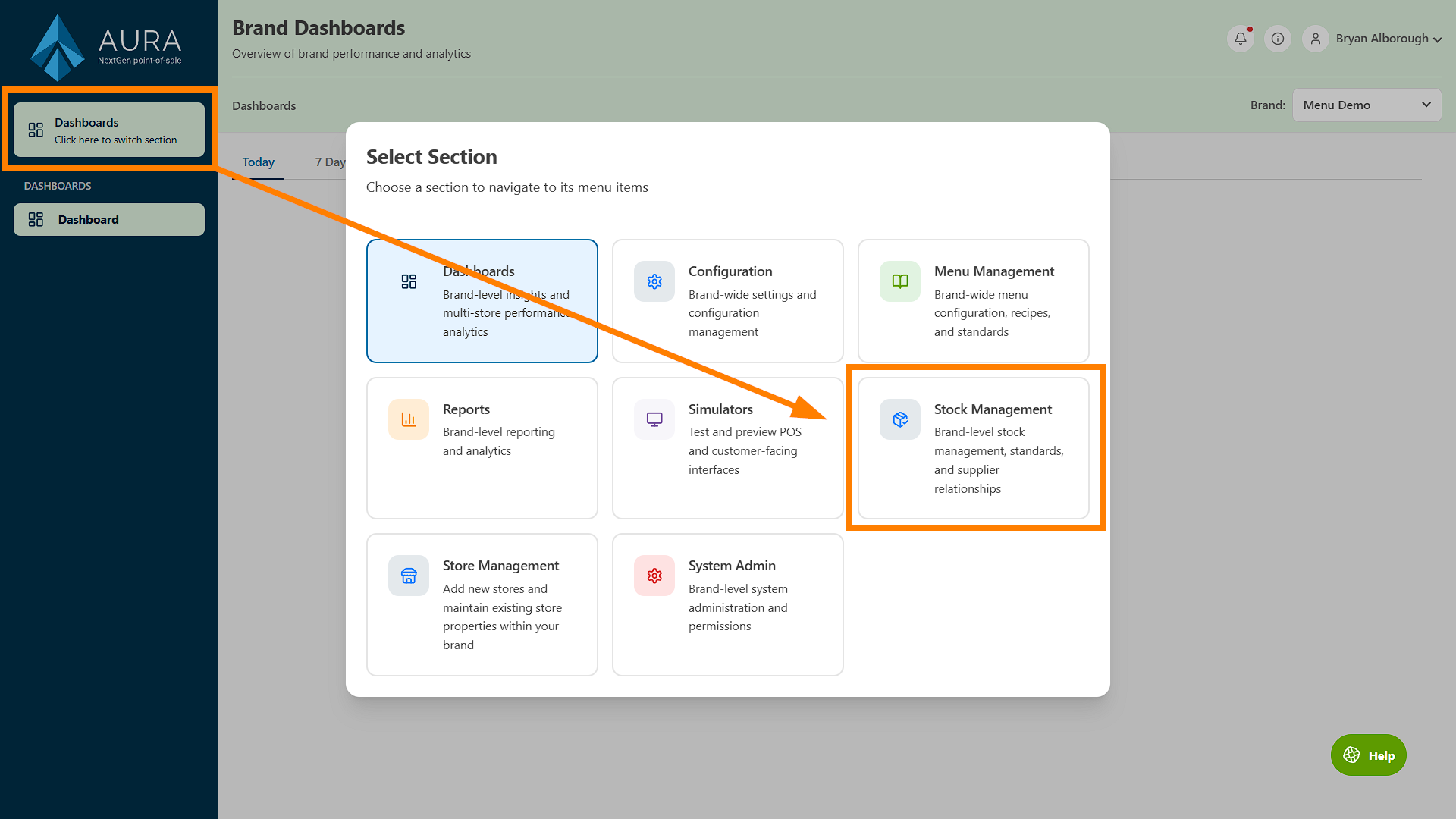
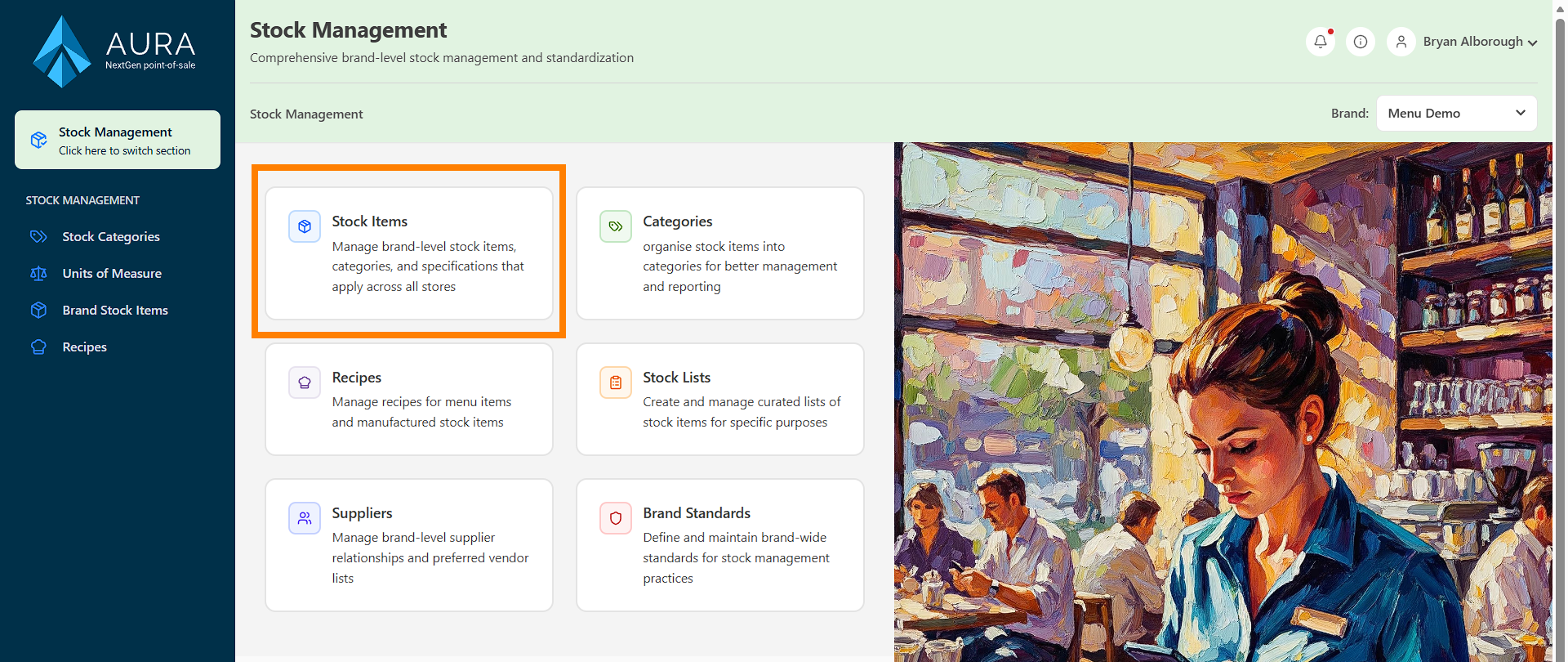
From the Brand level of the portal, switch sections and select Stock Management, then open Brand Stock Items.
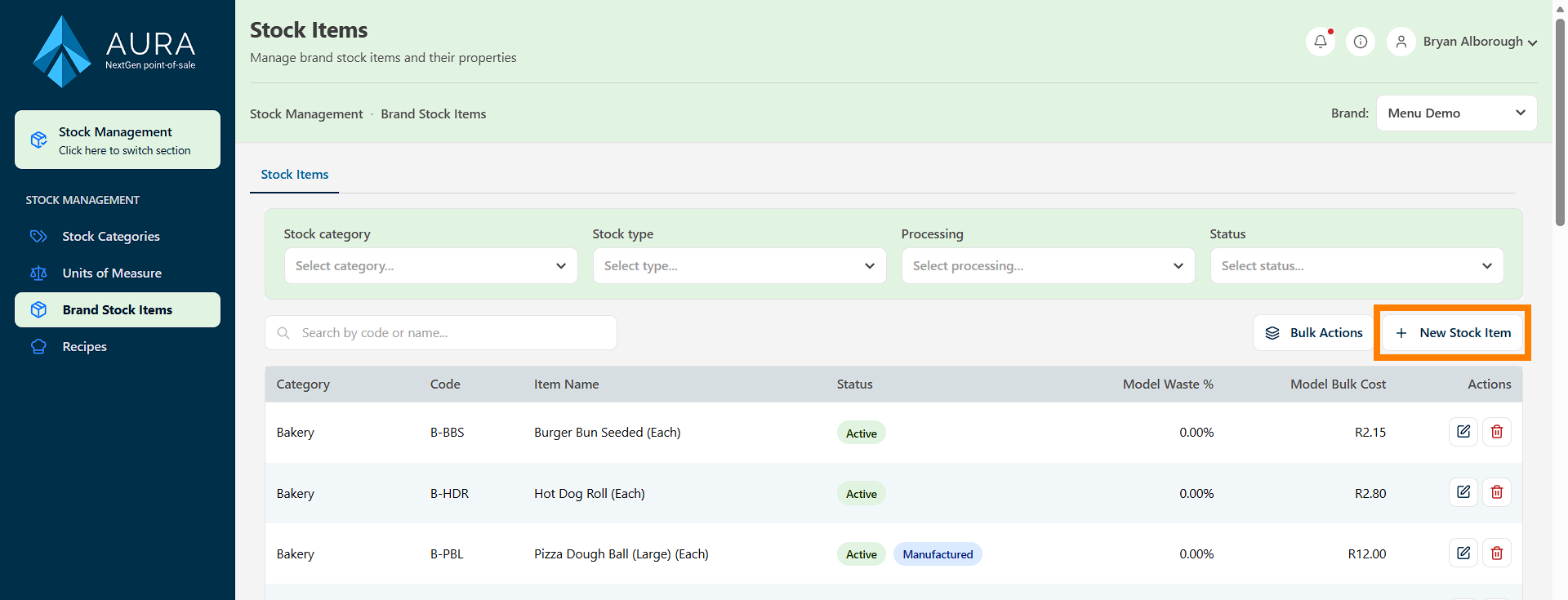
Any existing brand-level stock items will be listed here. To add a new item, click New Stock Item.
Creating a New Stock Item
Basic Details
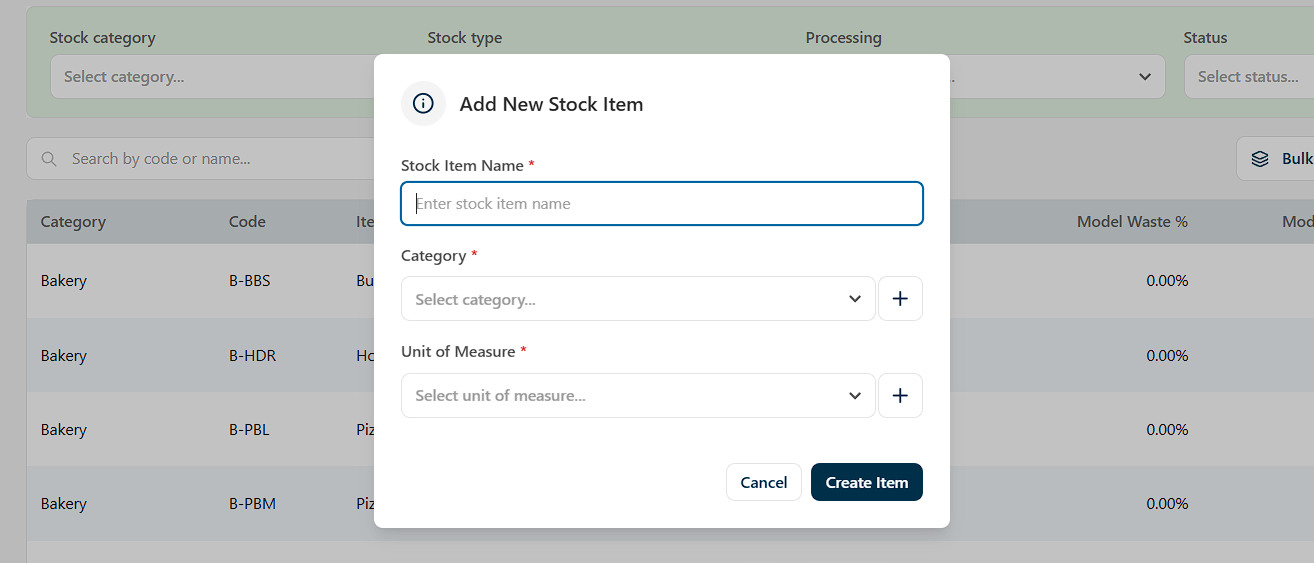
- Name – the name of the stock item
- Category – the category it belongs to
- Unit of Measure – the unit that will be used for purchasing, stock tracking, and recipes
If the required category or unit of measure does not yet exist, it can be added using the relevant Plus icon next to each field.
Important: The Unit of Measure is used across the entire system — for purchasing, stock tracking, and recipes. Choose a conventional, easy-to-measure unit such as Kilograms, Litres, or Each for discrete items. Avoid units that are difficult to measure consistently, such as boxes or punnets.
Once the basic details are complete, click Create Item. This opens the full item details form.
Item Details Form
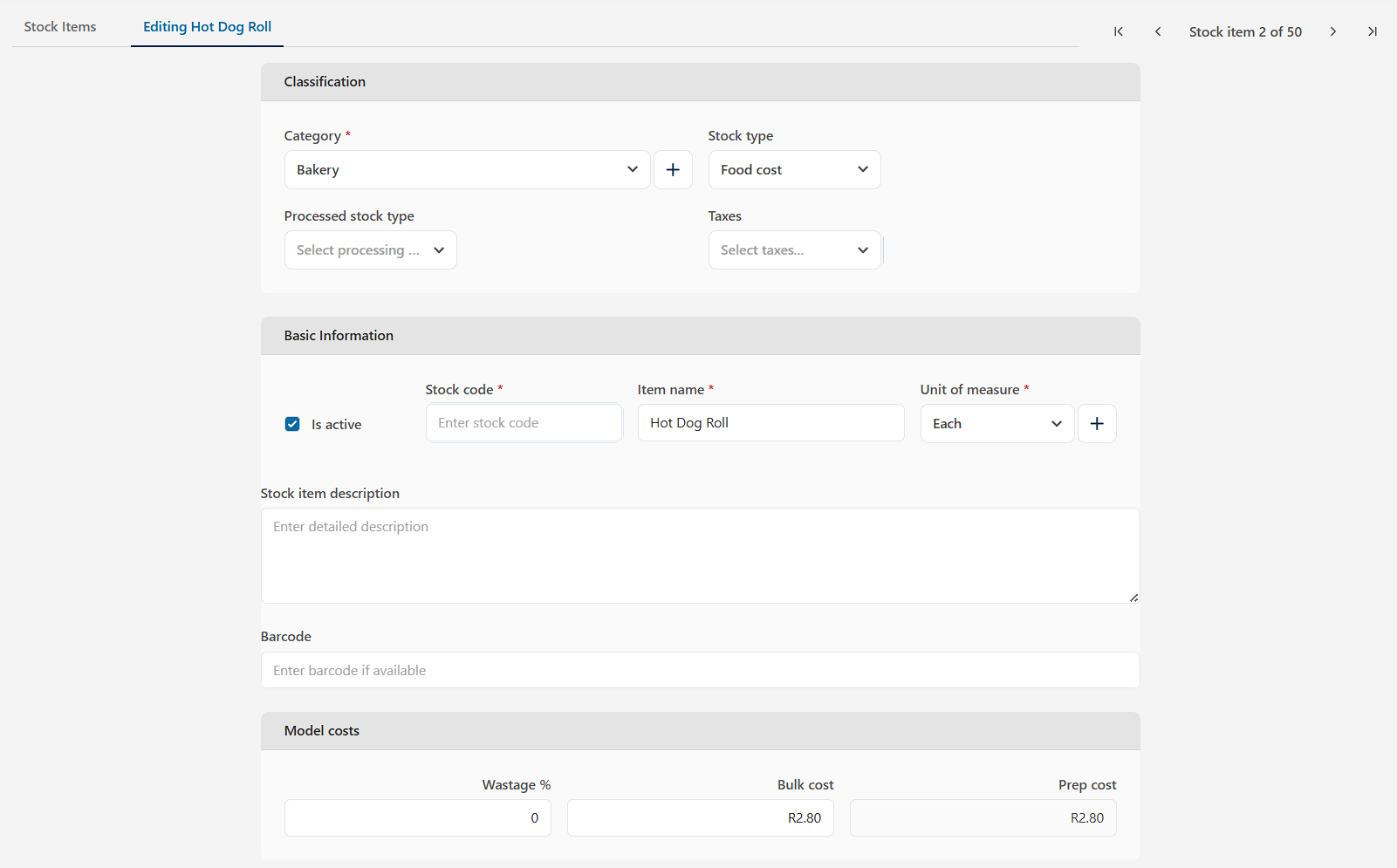
Stock Type and Tax
Set the Stock Type for the item:
- Food Cost – for items that count towards food costs
- Non-Food Cost – for other expense items
Then set any applicable taxes, such as VAT, if relevant.
Processed and Apportionable Items
There is an option to indicate whether the item is a processed food item — meaning it is manufactured in-house — or whether it can be apportioned into smaller units.
Stock Code and Description
- Stock Code – used for reference and reporting purposes
- Description – an optional field for additional context
Barcode
If barcode scanning is in use, a barcode value can be entered here.
Model Cost and Wastage
The final fields are Model Cost and Wastage.
Wastage refers to the portion of an item that is lost or removed during preparation. For example, when a pineapple is peeled, cored, and chopped, approximately 30% of its weight is removed. Setting the wastage to 30 tells the system to account for this loss.
Because of wastage, the unit cost per kilogram will differ between the bulk (unprepped) state and the prepped state. The system calculates this difference automatically using the wastage percentage when the bulk cost is entered.
Model Costs serve as a target benchmark. Stores can compare their own actual costs against the model cost to check whether they are meeting their costing target.
Returning to the Stock List
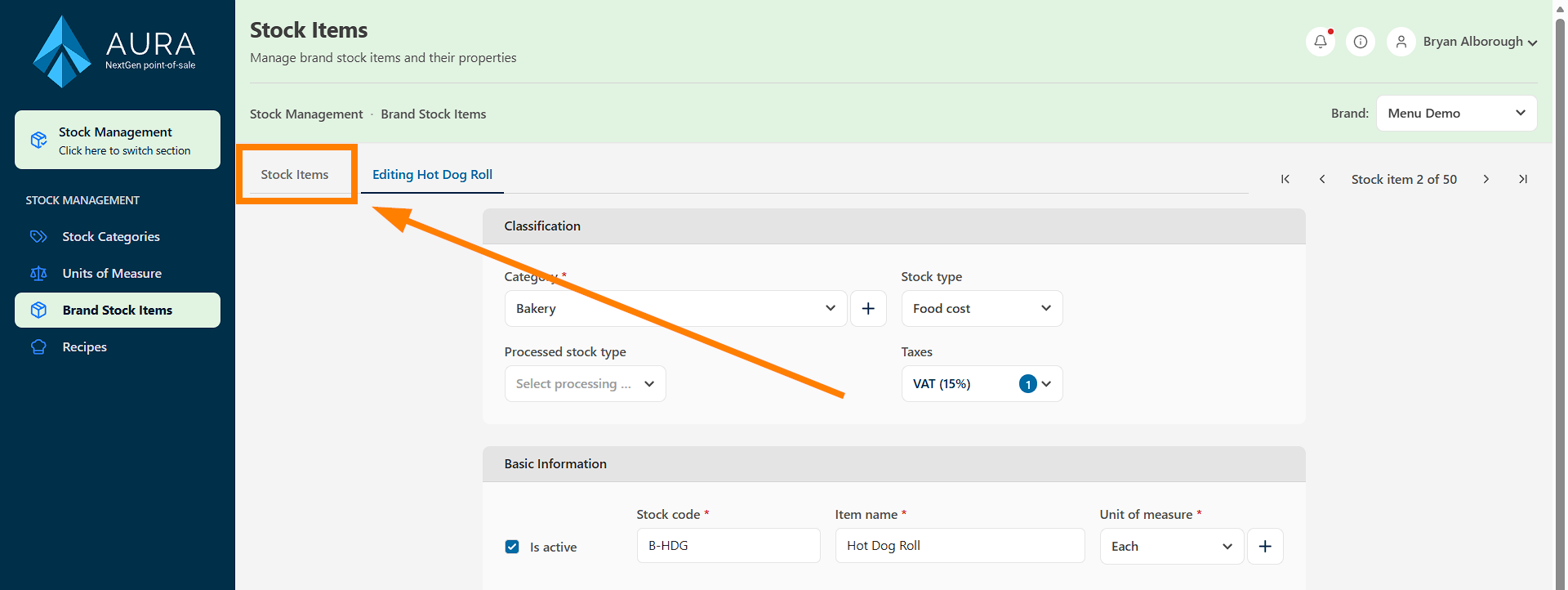
Once all items have been added, they can be used to create recipes for menu items, and stores can use them to record stock activity.
Bulk Actions
Once the stock list grows large, Bulk Actions can be used to update many stock items at once. Uses include updating Tax Rates across multiple items.
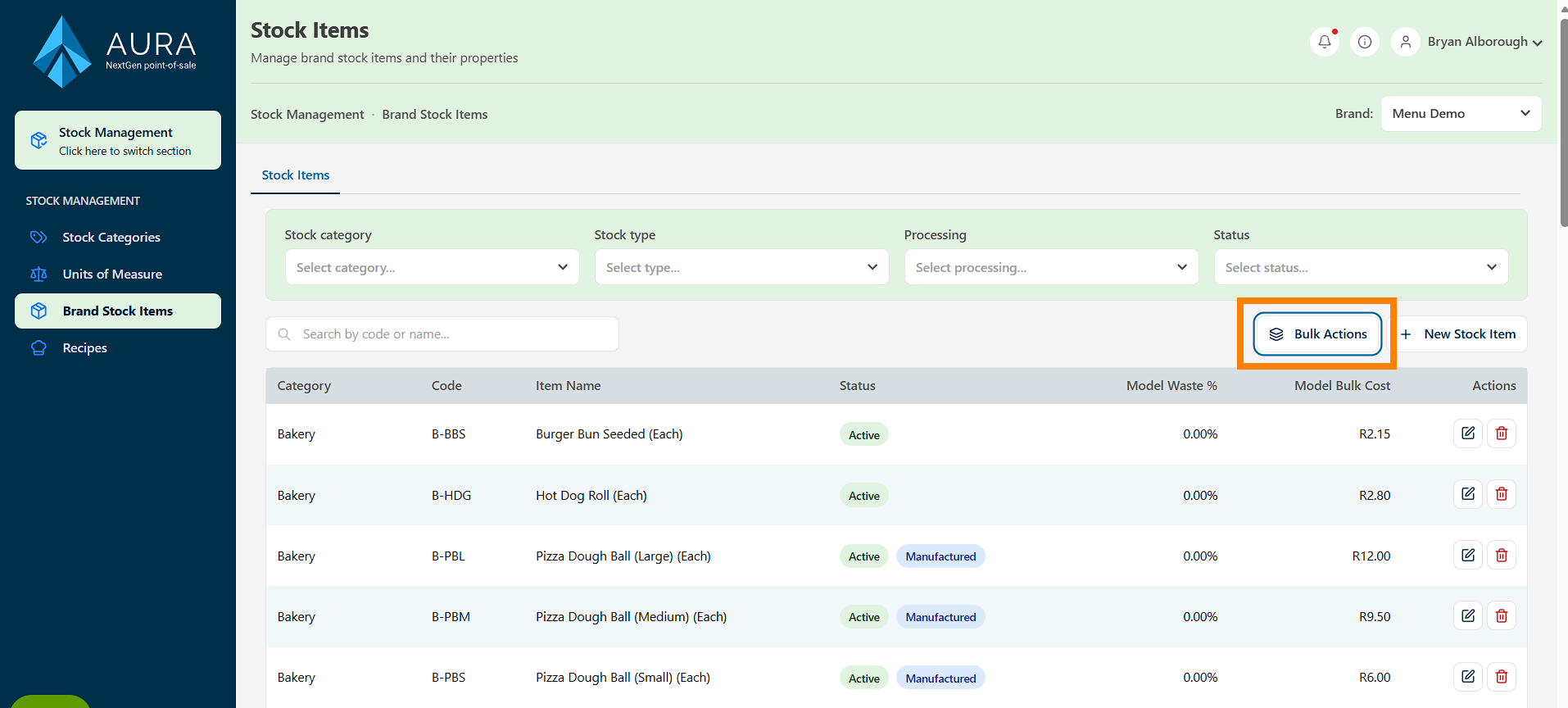
To use Bulk Actions:
- Select the items to update.
- Click Next.
- Choose the action to apply.
- Review the confirmation screen showing the changes to be committed.
- Click Apply Changes.