Capturing manual returns and auto credits
Stock Returns refer to stock that is returned to a supplier due to being damaged or unusable, or when the quantity delivered differs from the order. In the Aura Portal, stock returns are processed directly from the Stock Purchases page.
Types of Stock Credits
There are two main ways to log stock returns:
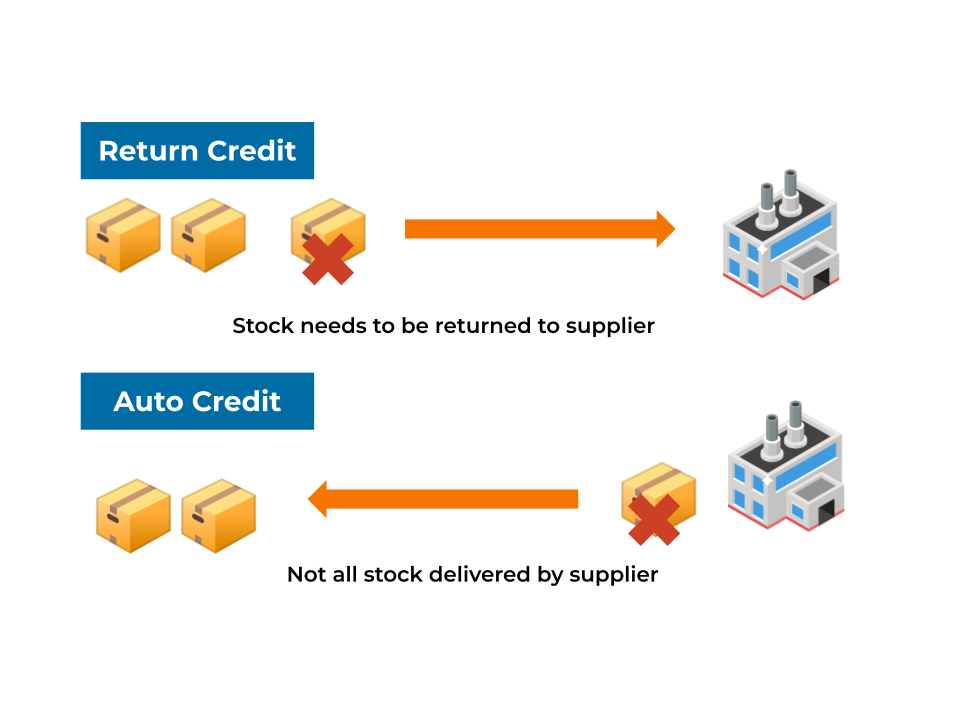
- Return Credits – Stock sent back to a supplier because it is damaged or unusable.
- Auto Credits – Used when the received quantity differs from the GRV (Goods Received Voucher) quantity, typically due to partial delivery by the supplier.
Logging a Return Credit
Use the following steps to record a return:
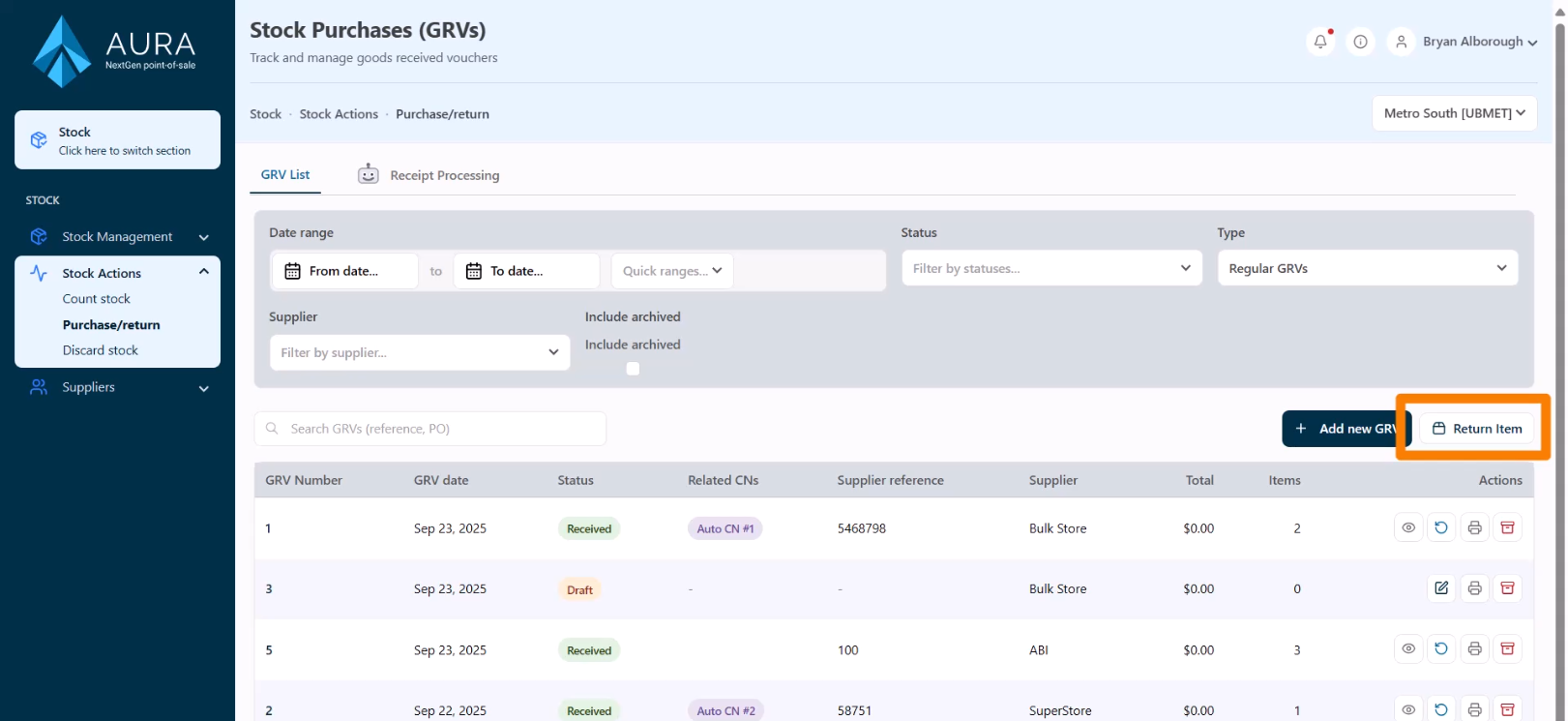
- On the Stock Purchases page, click Return Item.
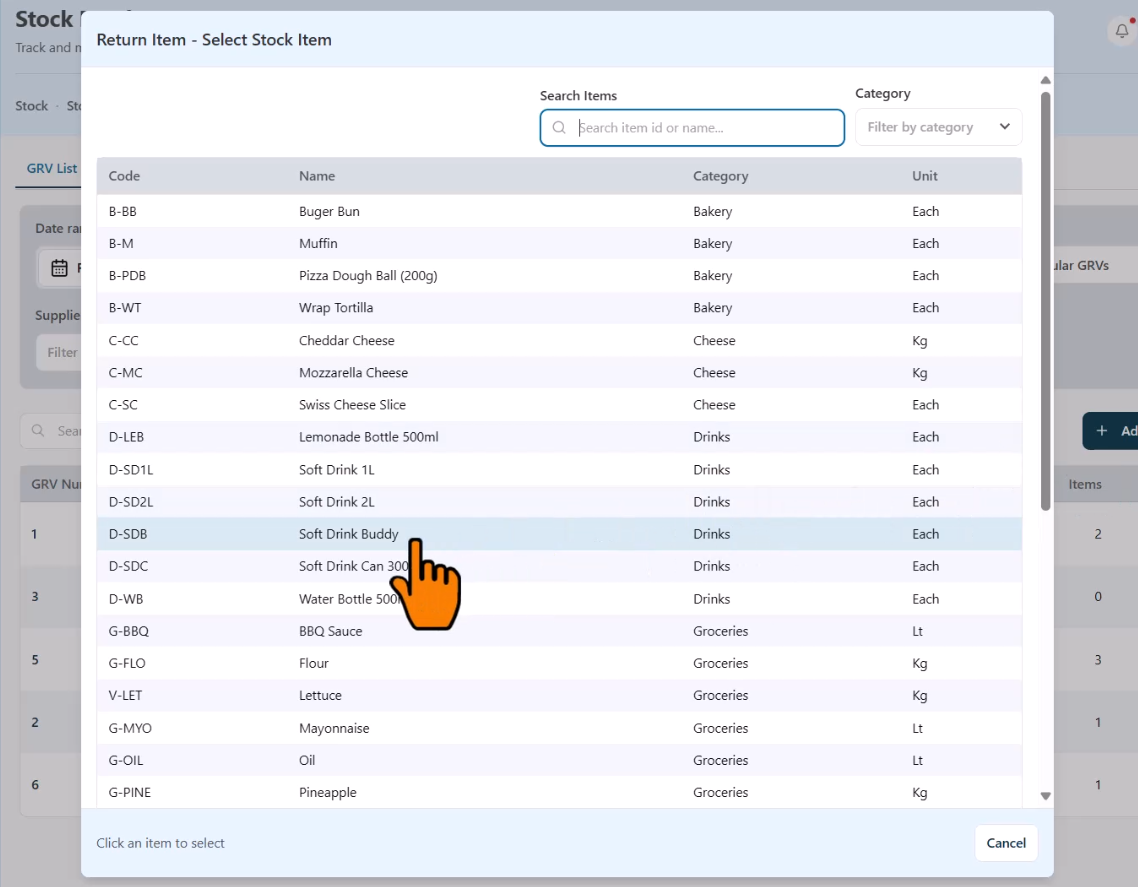
- Search for and select the item to return.
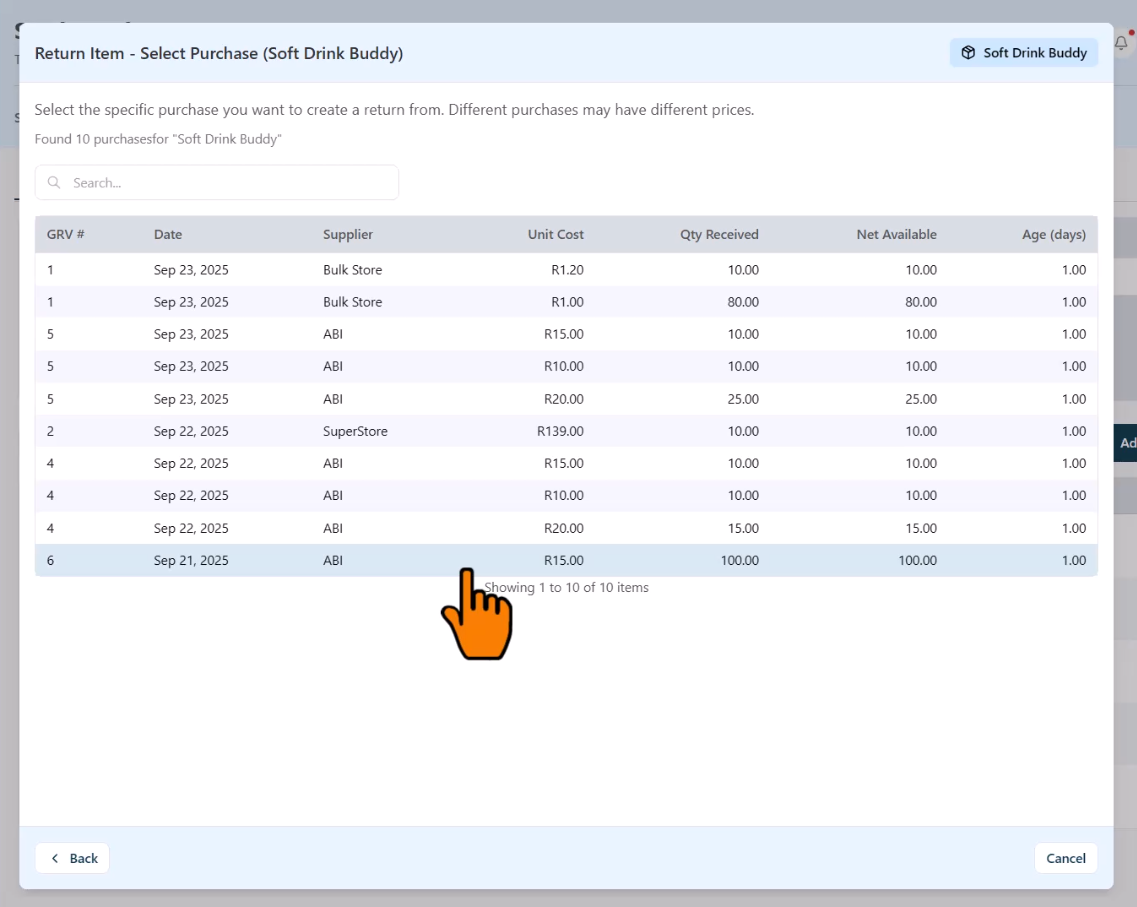
- Choose the relevant GRV containing the item.
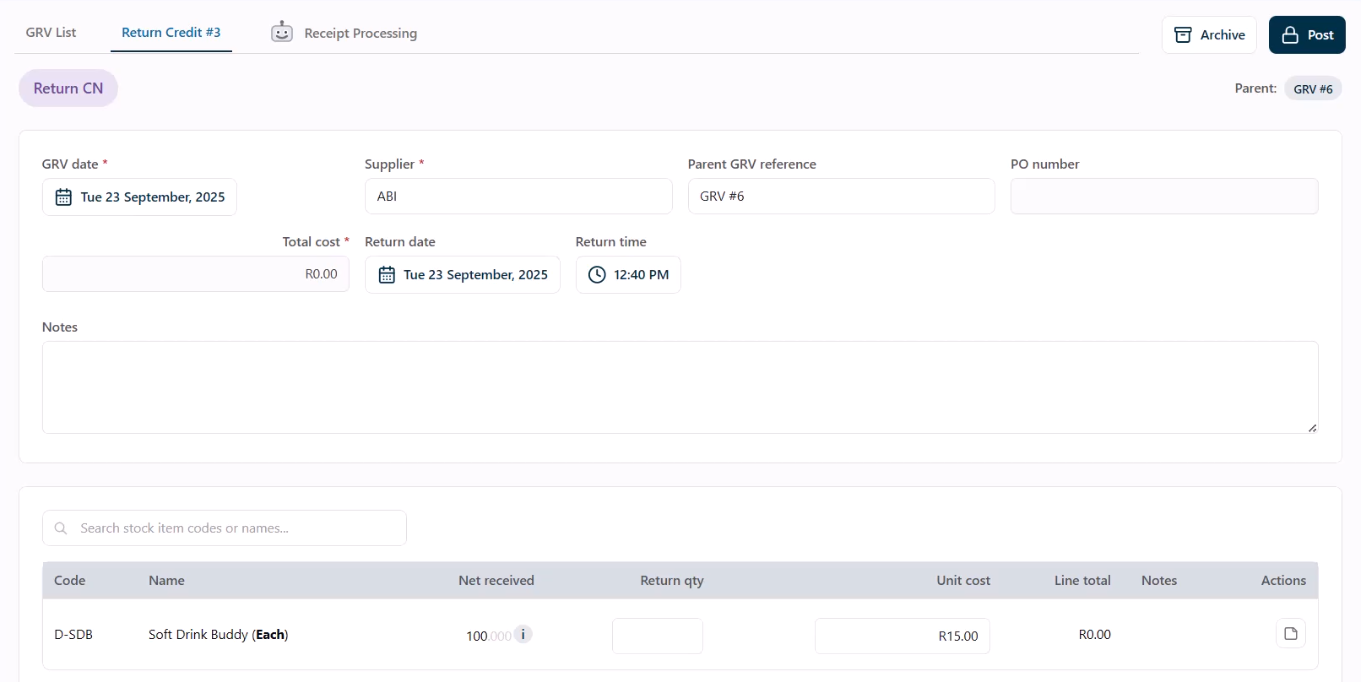
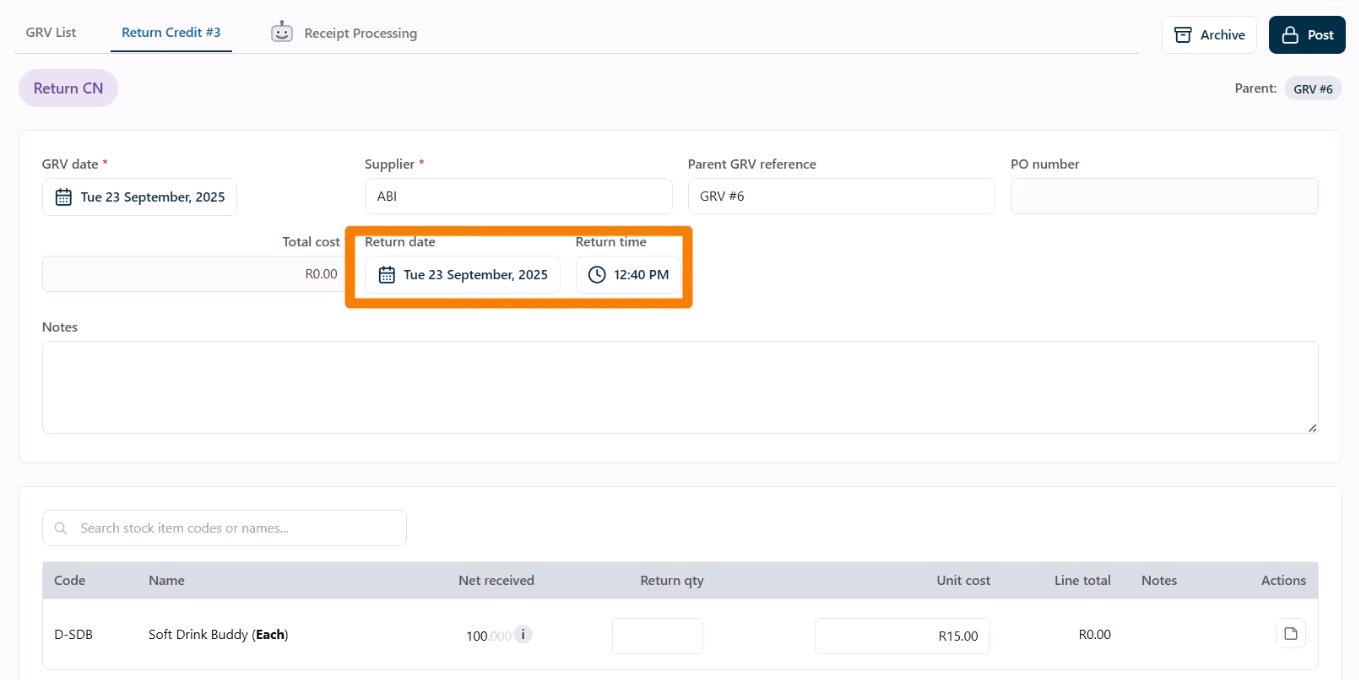
- This opens the Return Credit Form. Note that the GRV details are pre-filled.
Record the Return Date and Time (when the stock leaves the store). - Optional: Add Notes for reference.
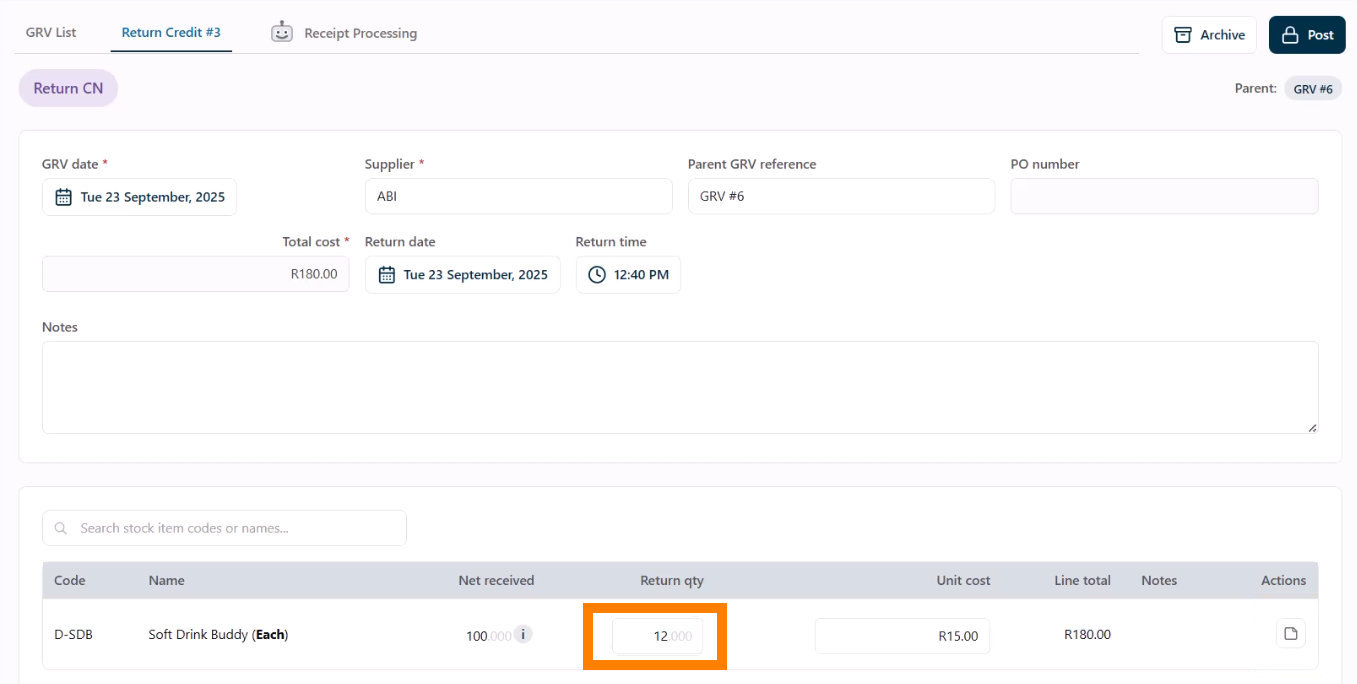
- Next, capture the quantity of stock being returned. Optional: Item-specific notes can also be added.
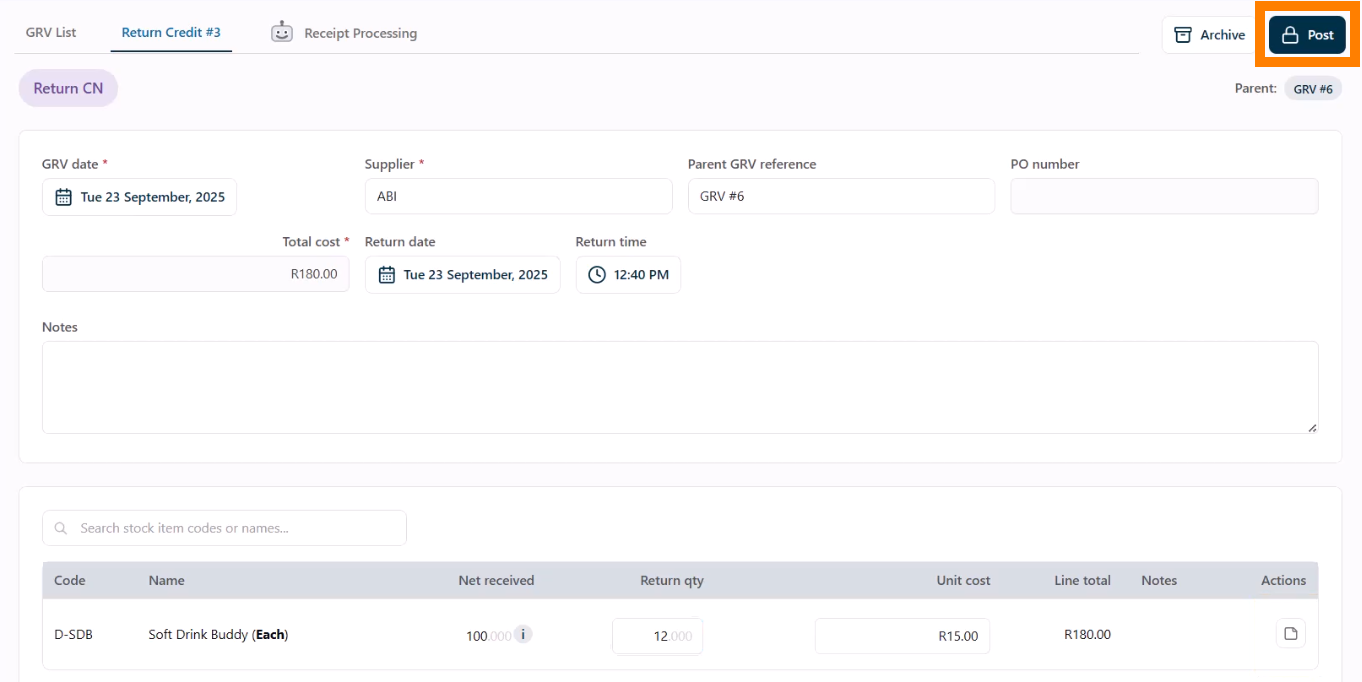
- Click Post to finalize the return.
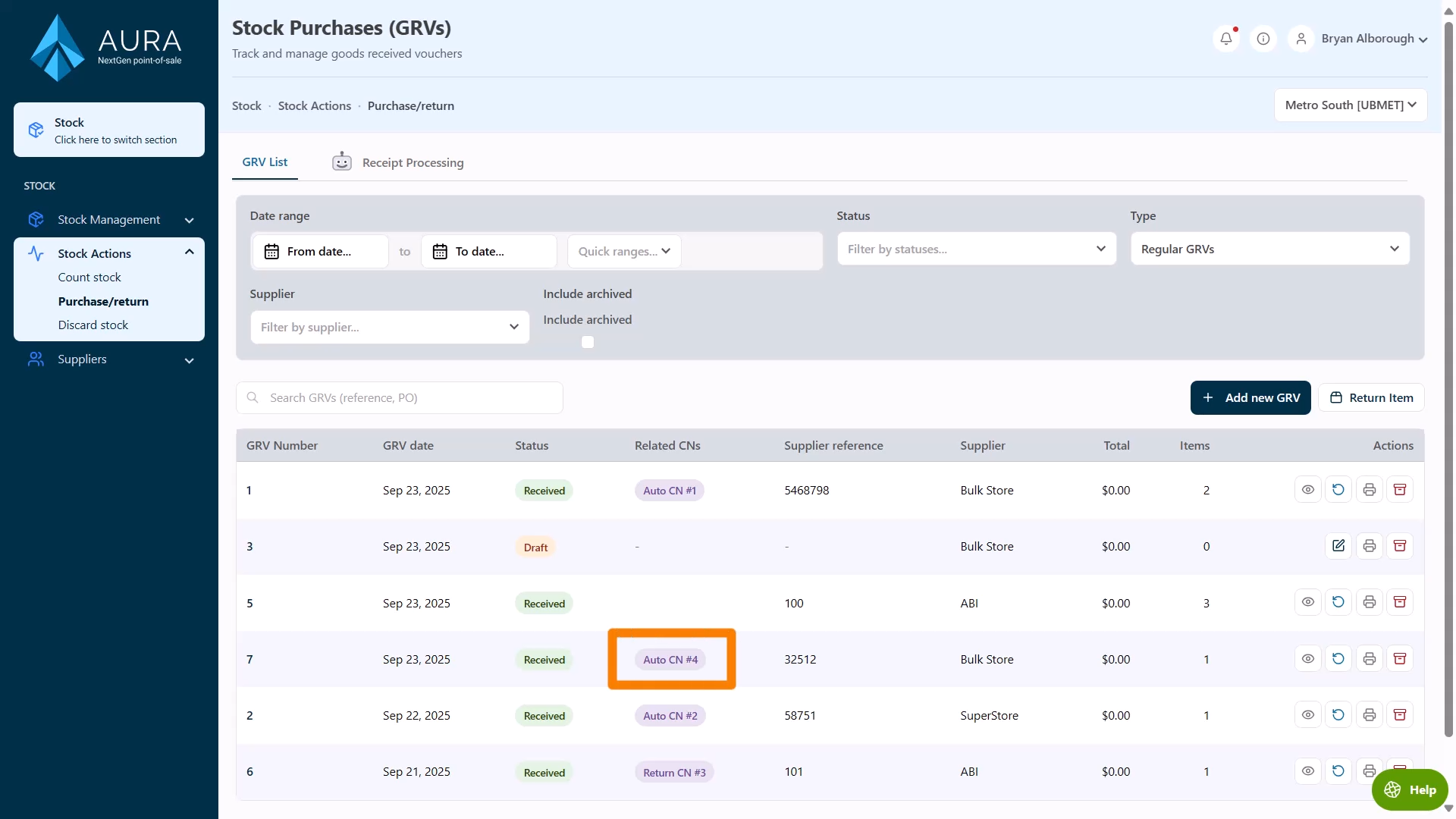
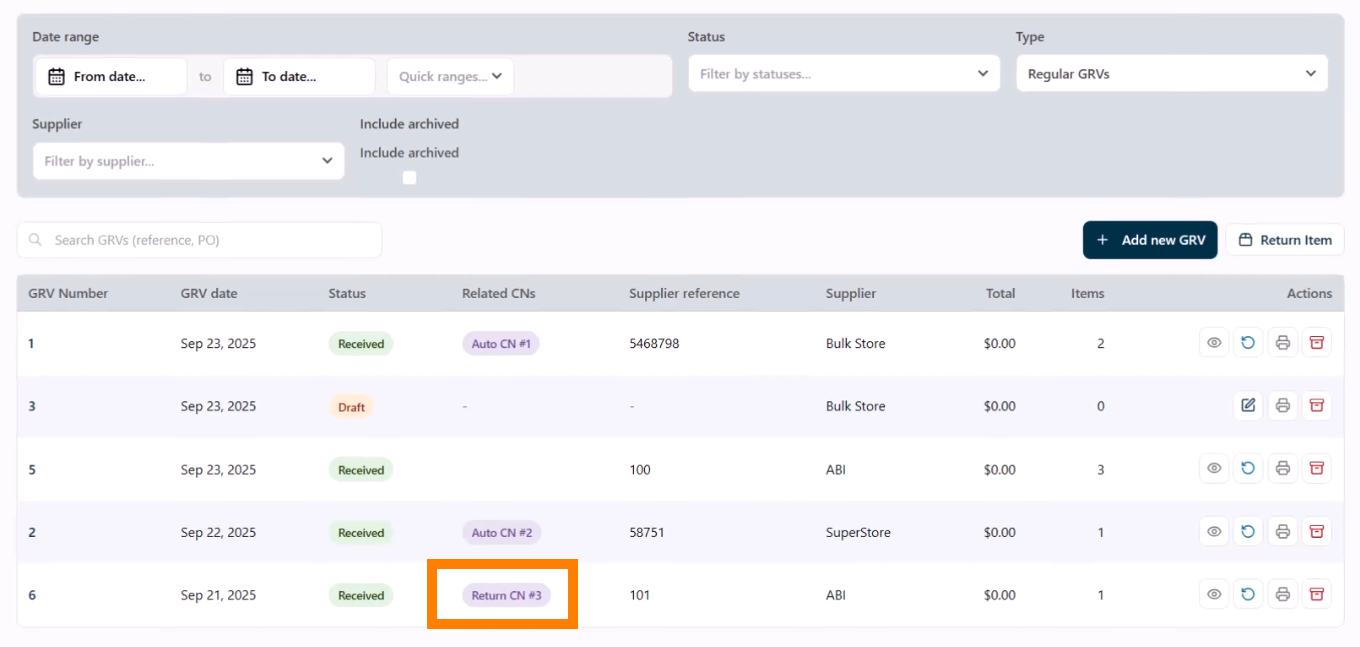
- Back in the GRV List, the GRV will now display a label indicating a related credit note. Click this label to view the credit note.
Recording an Auto Credit
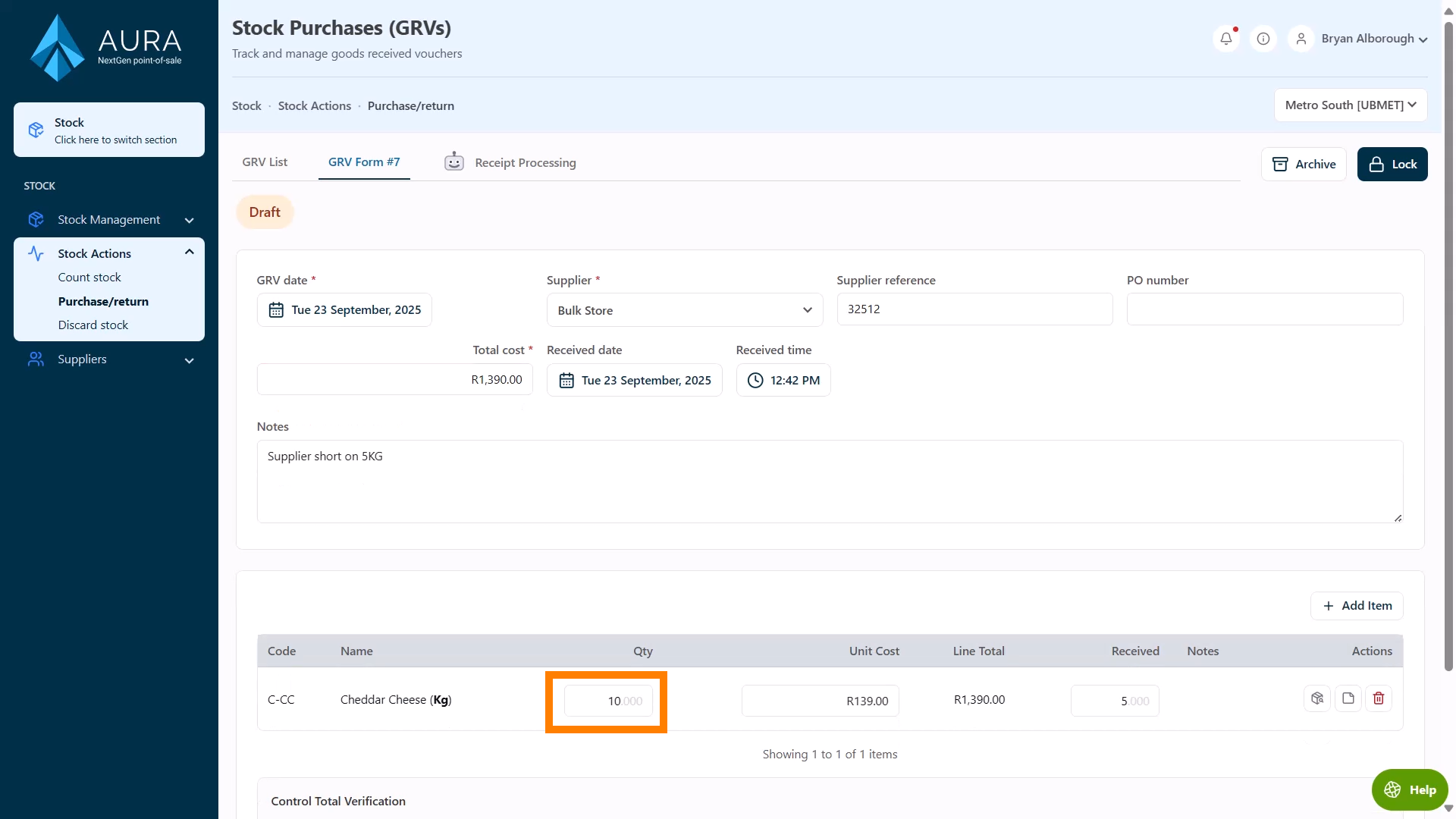
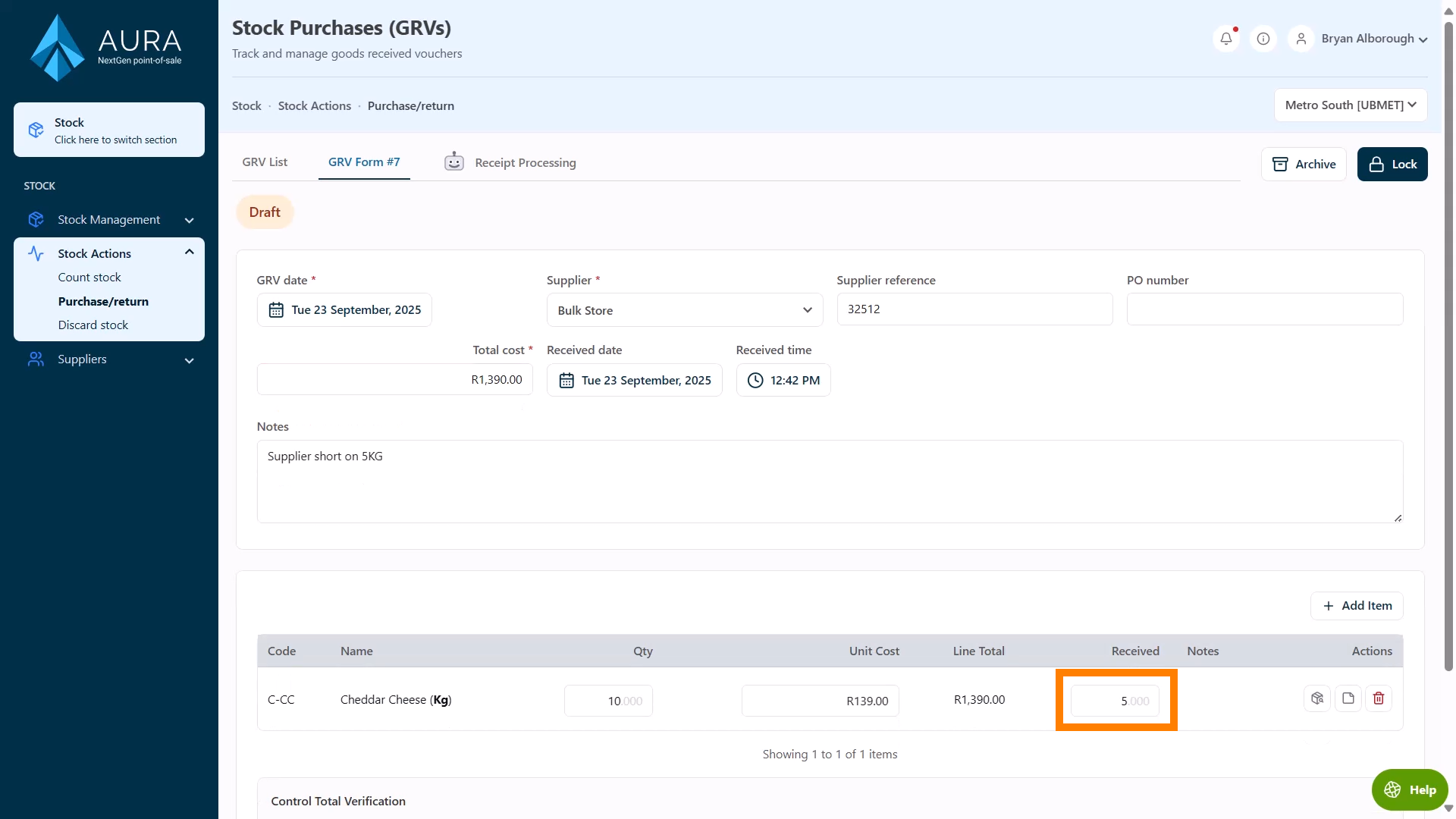
Auto Credits are used when the supplier cannot fulfill the full order but the GRV has been issued and payment made for the full quantity. For example, say you ordered 10 kg of cheddar cheese, but only 5 kg was delivered. This can be accounted for with an auto-credit.
Auto Credit Notes are created by noting the discrepancy between the GRV and the delivery amount when recording the purchase:
- Create the purchase entry with the GRV quantity (what was ordered).
- Indicate the Received amount (what was actually delivered).
- Once posted, the GRV will show an Auto Credit tag in the GRV list to highlight the discrepancy.