Importing ESO Format Sales
Aura allows you to import sales data using the ESO export format. This will let you use Aura’s stock management and reporting backend while using another sales source.
Prerequisites
Before you begin an import, ensure the following:
- Active Store and Brand: You must have an existing active store and brand configured in Aura Next-Gen.
- Menu Configuration: All menu items sold via ESO POS must be created in Aura, complete with their respective stock items and recipes.
How to Access the Import Sales Page
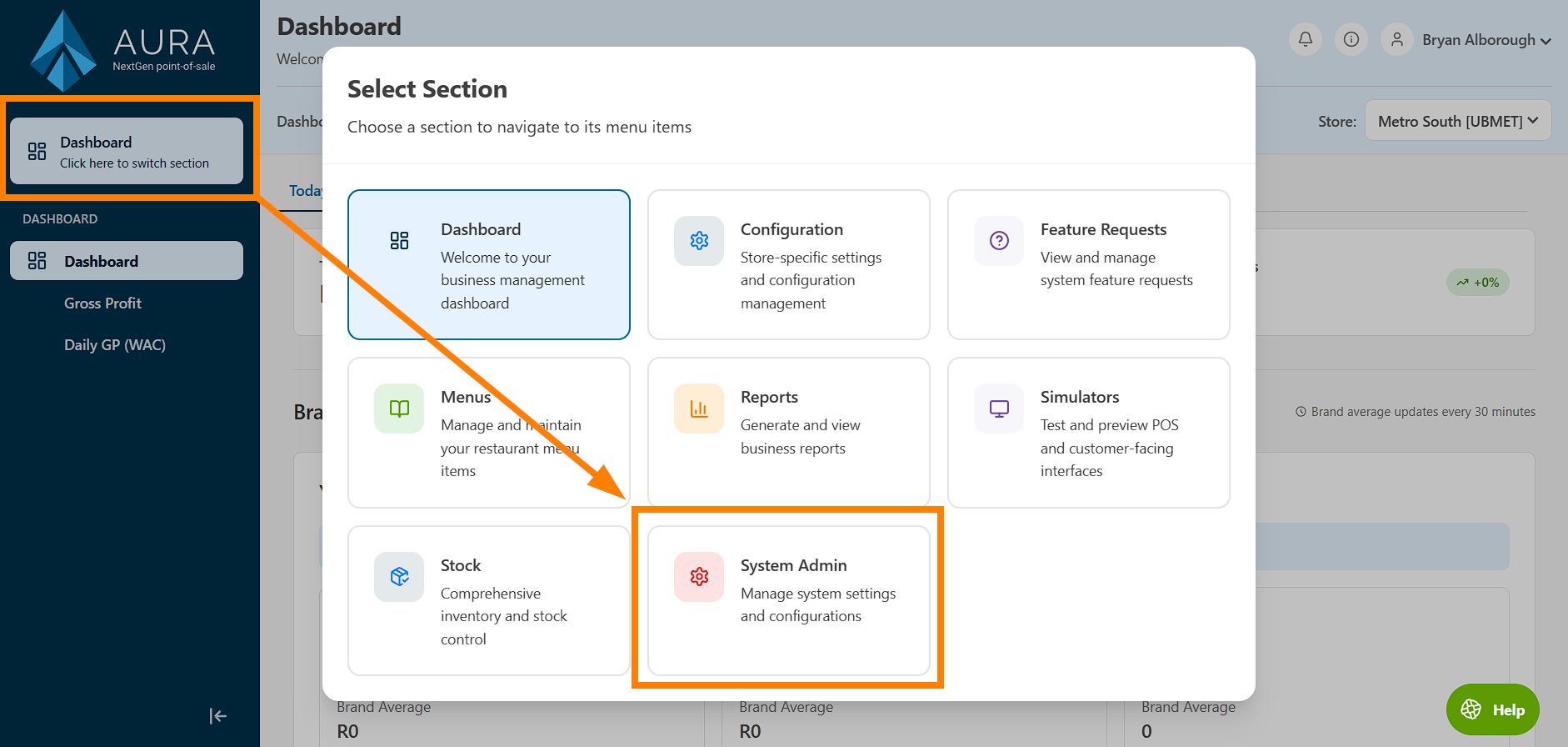
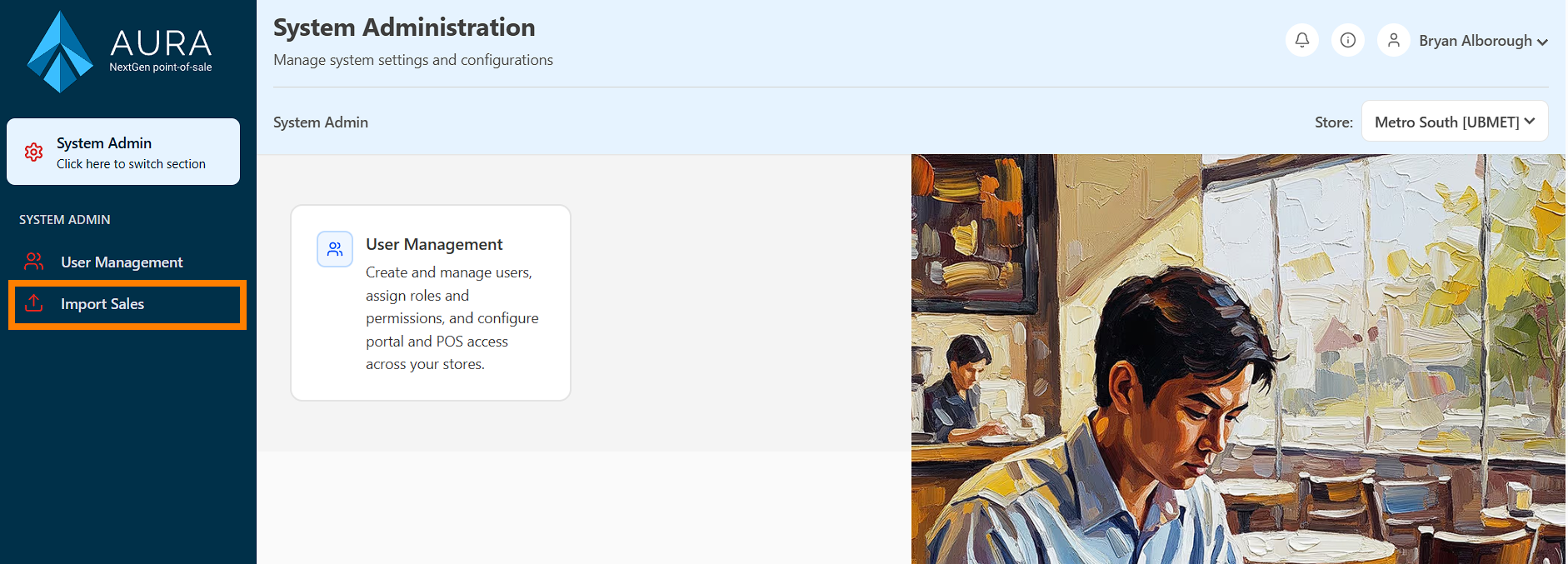
From the Sections Menu, click System Admin, then Import Sales
The Import Process
On the Import Sales page, you'll see the import button, and the correct steps to follow to import properly:
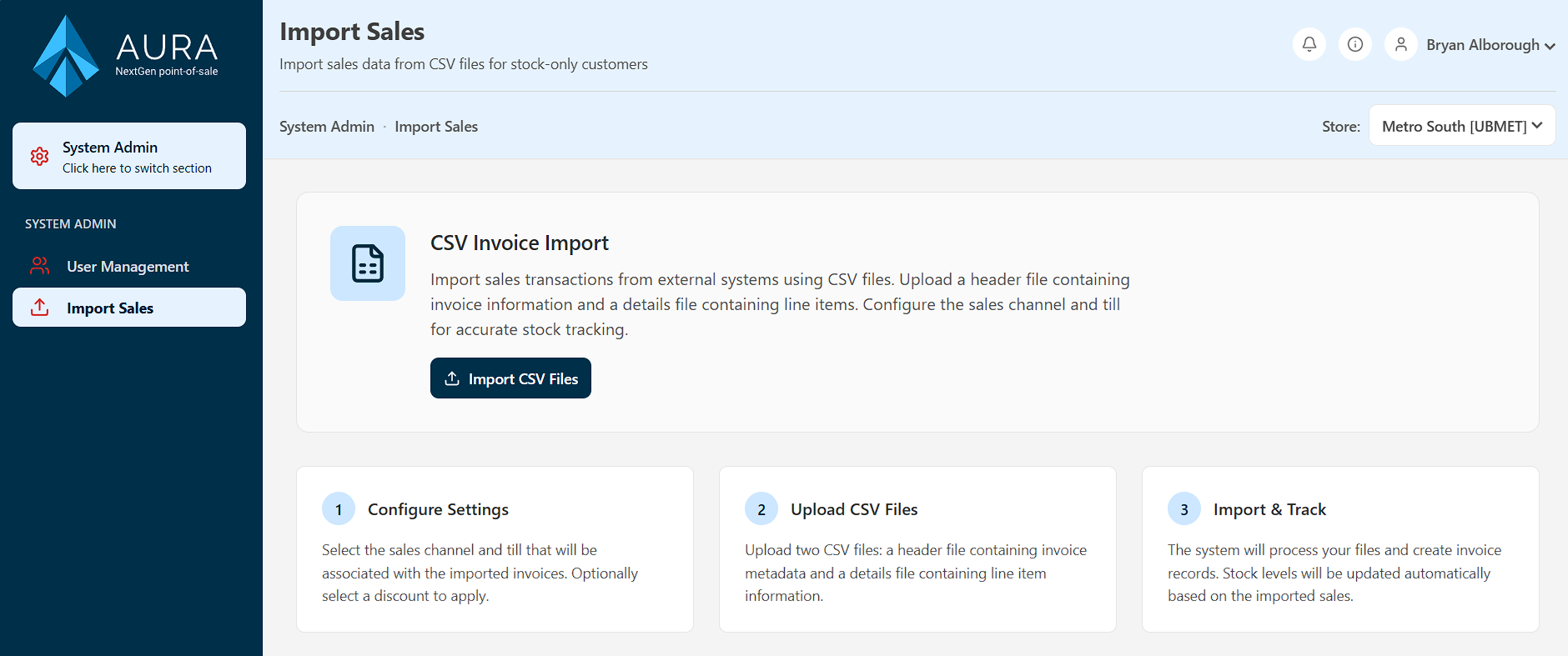
- Configure Settings: Select the specific sales channel and till (POS device) that will be associated with these invoices. You can also select a default discount code to apply.
- Upload ESO Files: Upload your ESO format files.
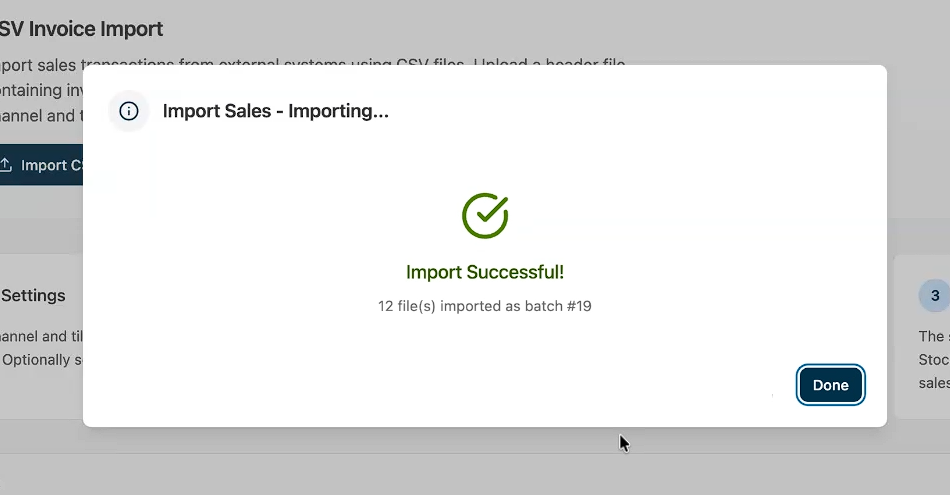
- Import & Track: The system processes the files, creates invoice records, and automatically updates your stock levels based on the imported sales.
Import Configuration
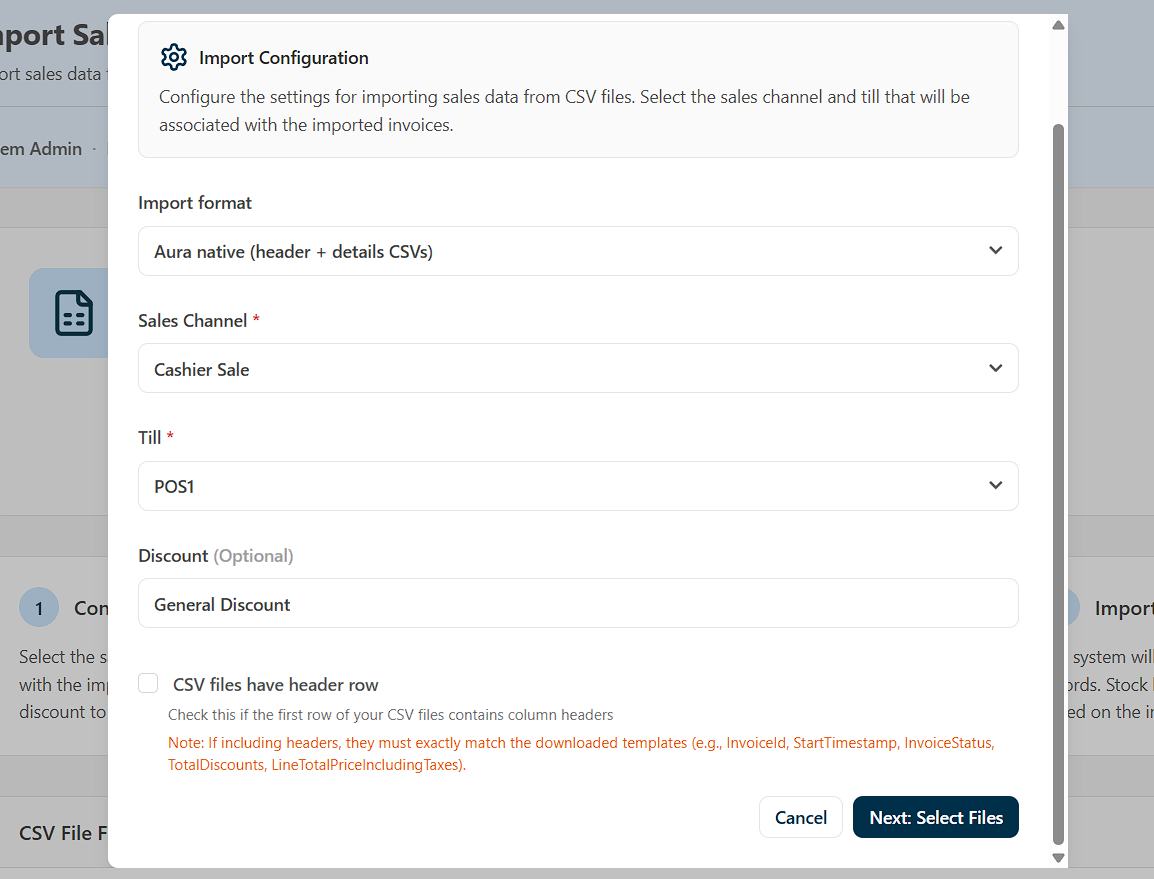
Click Import Sales. You will be presented with options to set for this upload:
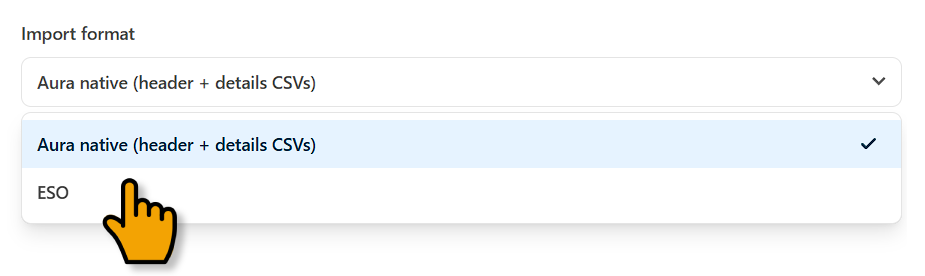
Change the Import Format from Aura Native to ESO:
- Sales channel: Set the sales channel these sales should belong to. The 'default' channel is Cashier Sale.
- Till: Set the POS device (till) to associate with these sales.
- Discount: Set a discount to use for any indicated discounts in the data.
Click Next: Select Files
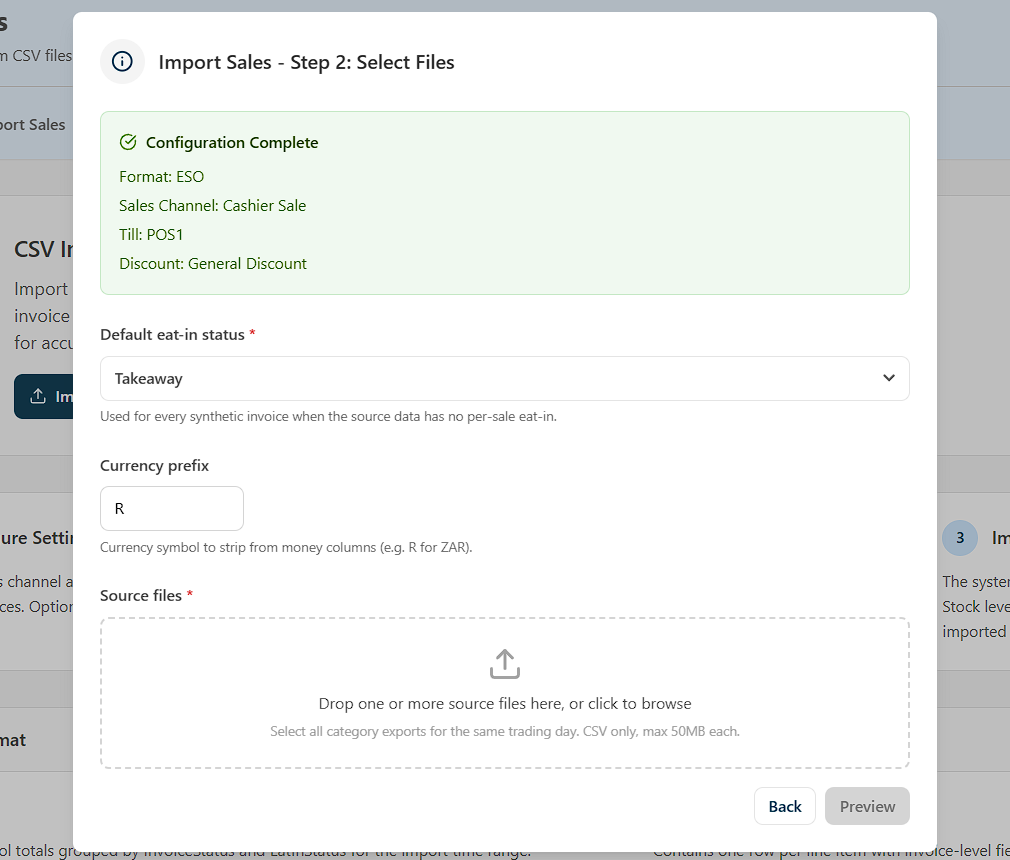
Set your Default eat-in status, which can be Takeaway or Eat in.
Set your Currency Prefix
Once you've selected your files, click Preview.
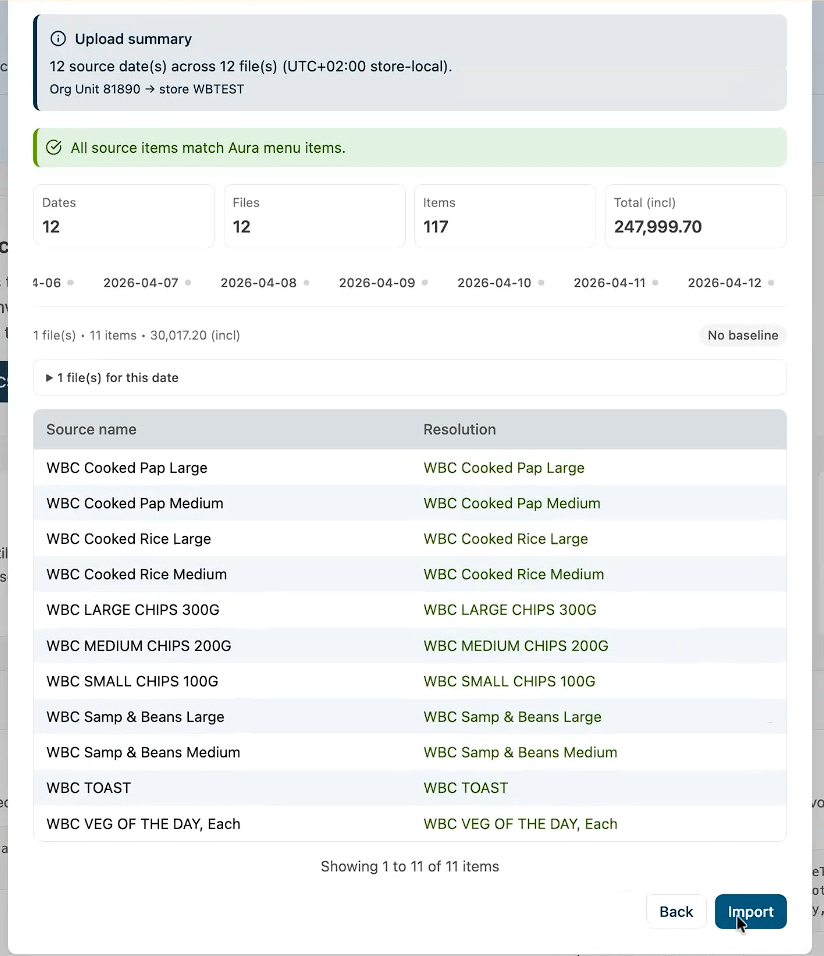
The preview will show you all items that can be matched and imported across all imported files. Take a moment to go though the preview and verify the data is correct before clicking Import.