
How to set an image for the Customer Display on CounterPOS
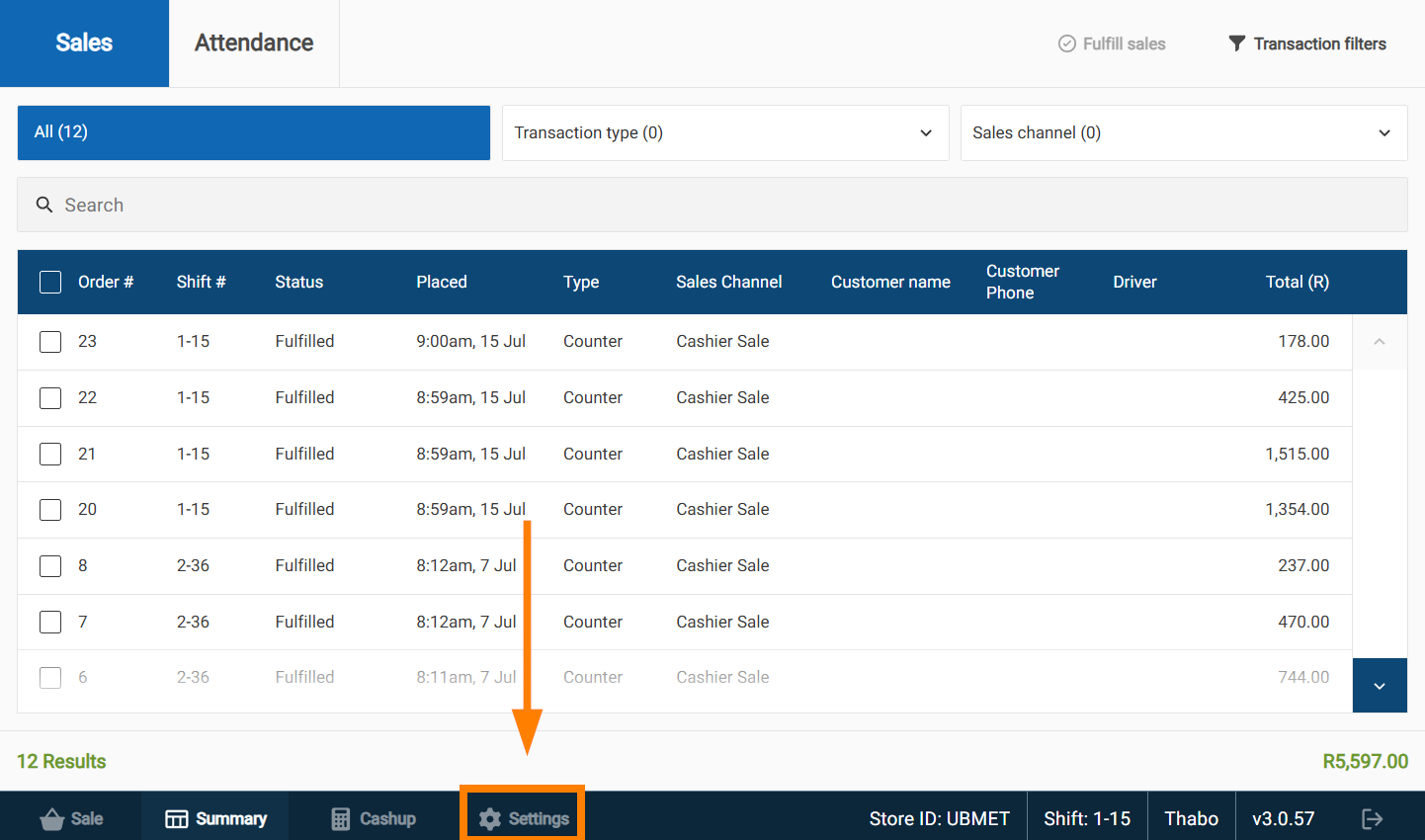
To set an image, tap ⚙️Settings at the bottom of the CounterPOS screen
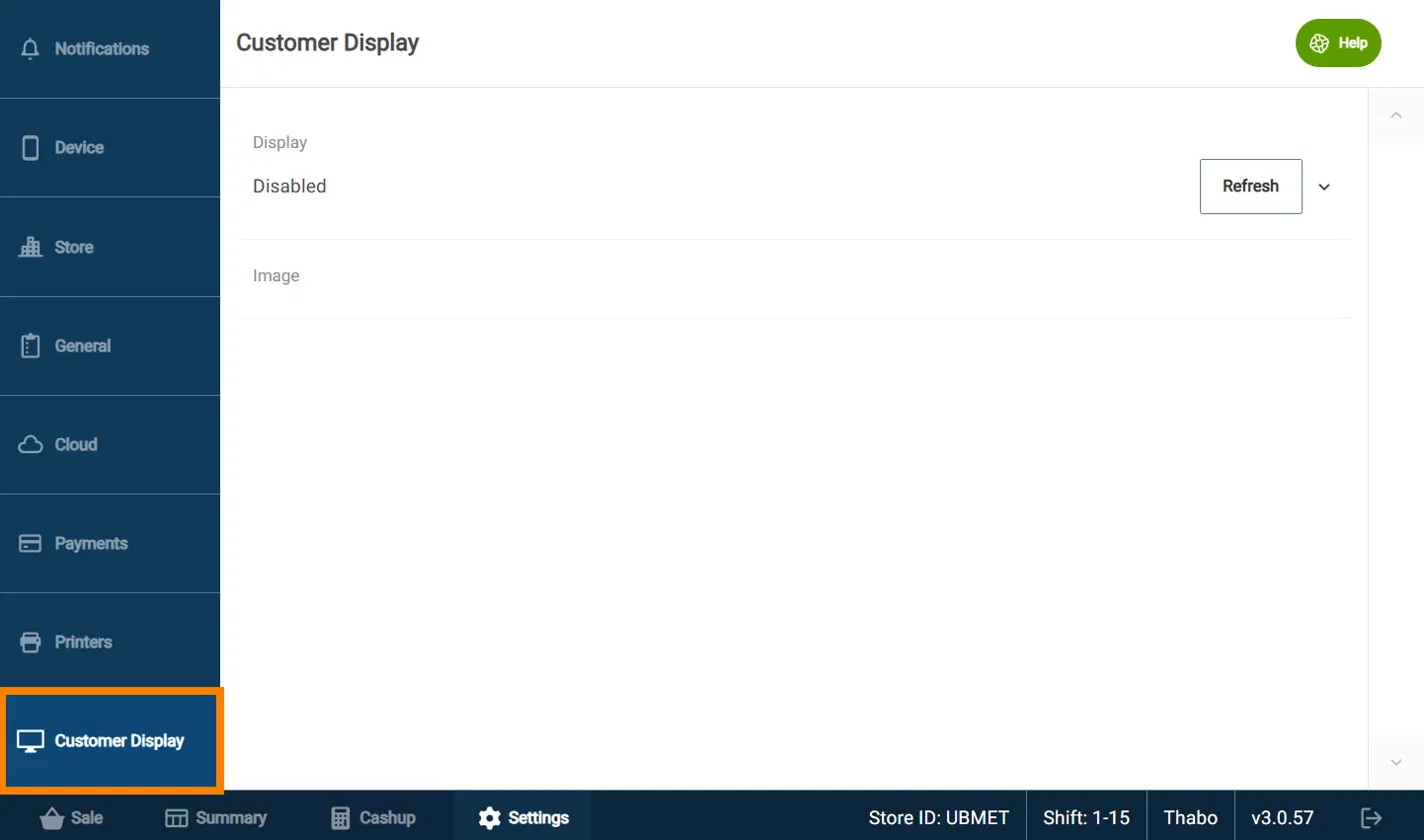
In the Settings screen, tap Customer Display.
Under Display, tap the drop-down arrow to see a list of displays connected to this device. The Refresh button lets you refresh this list if you connect a display later.
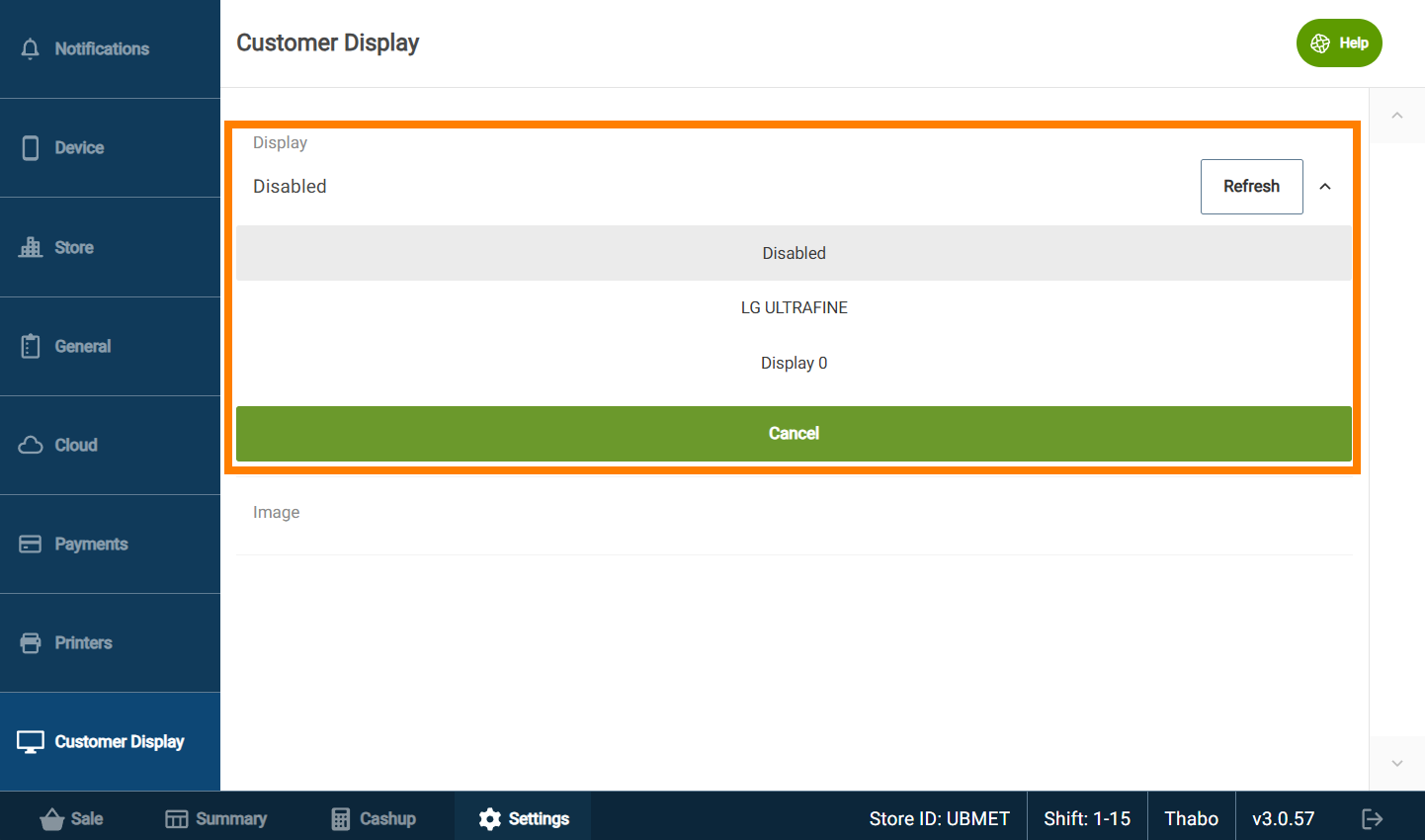
Note: Selecting the wrong display may result in your current screen going blank. In this case, use a keyboard and press Alt+Tab to switch back to CounterPOS and set the correct display. |
With the display screen selected, tap Image to select an image saved to your device. When selected, it will preview the image and immediately display it on the selected display.
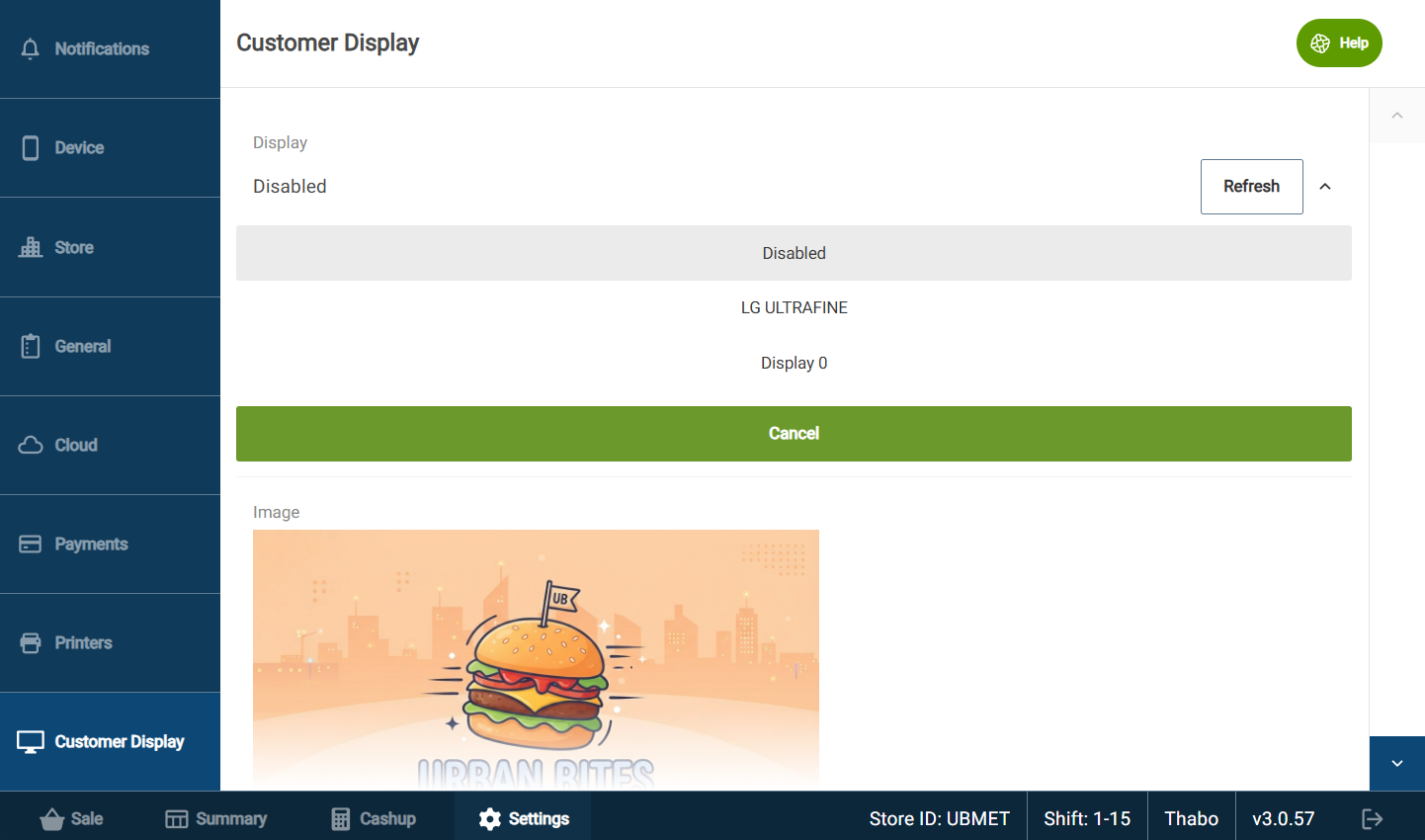
Once done, you can leave the settings page. To change the image, just tap the preview image to change or remove it.