
Previewing and Publishing a Menu
Testing the Menu
Before publishing, it is important to test the menu thoroughly in by clicking Preview POS. T
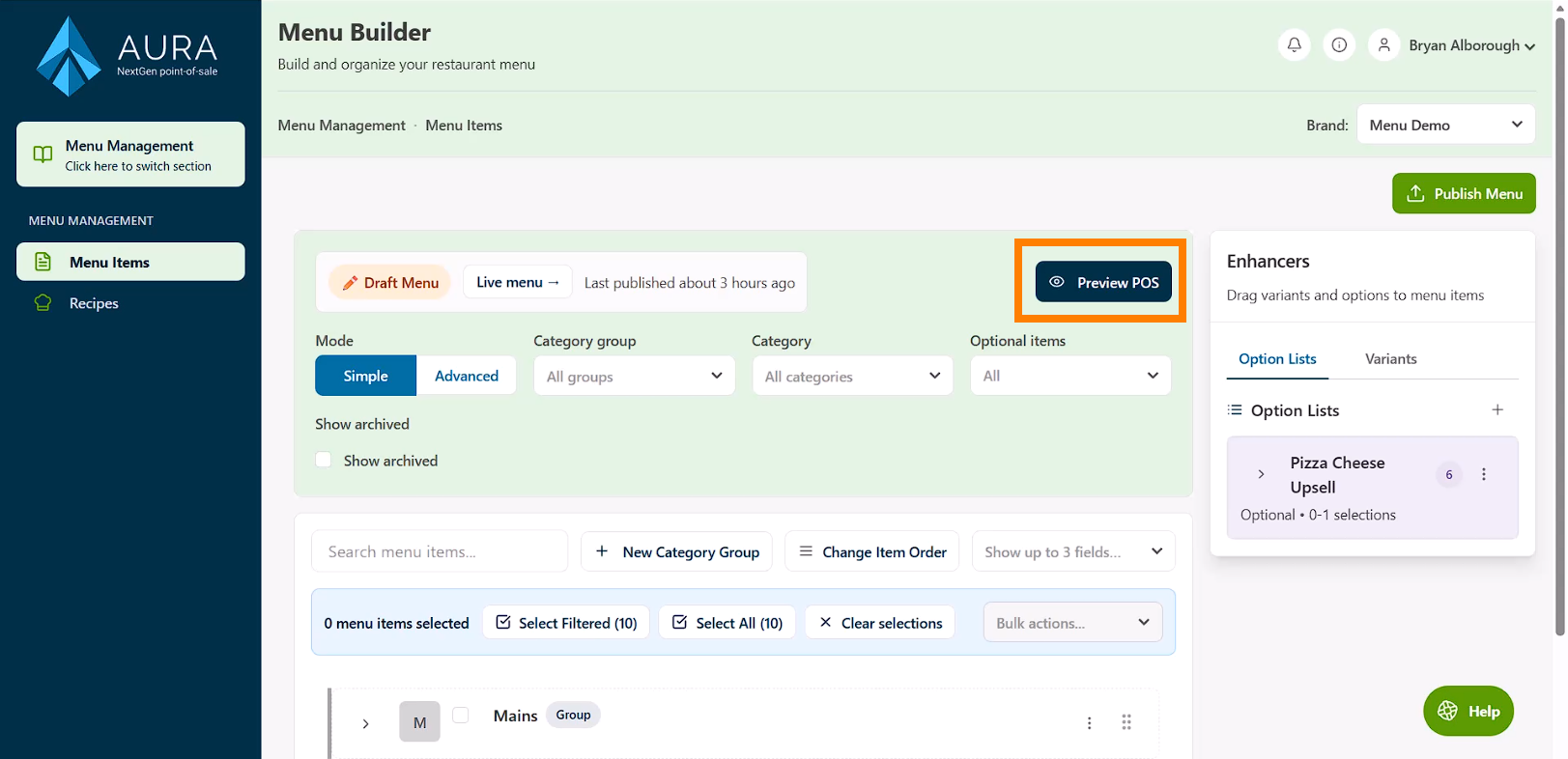
. This launches a CounterPOS sandbox environment with the current draft menu. Note that this sandbox is completely isolated and will not impact your sales or history in any way, so feel free to experiment.
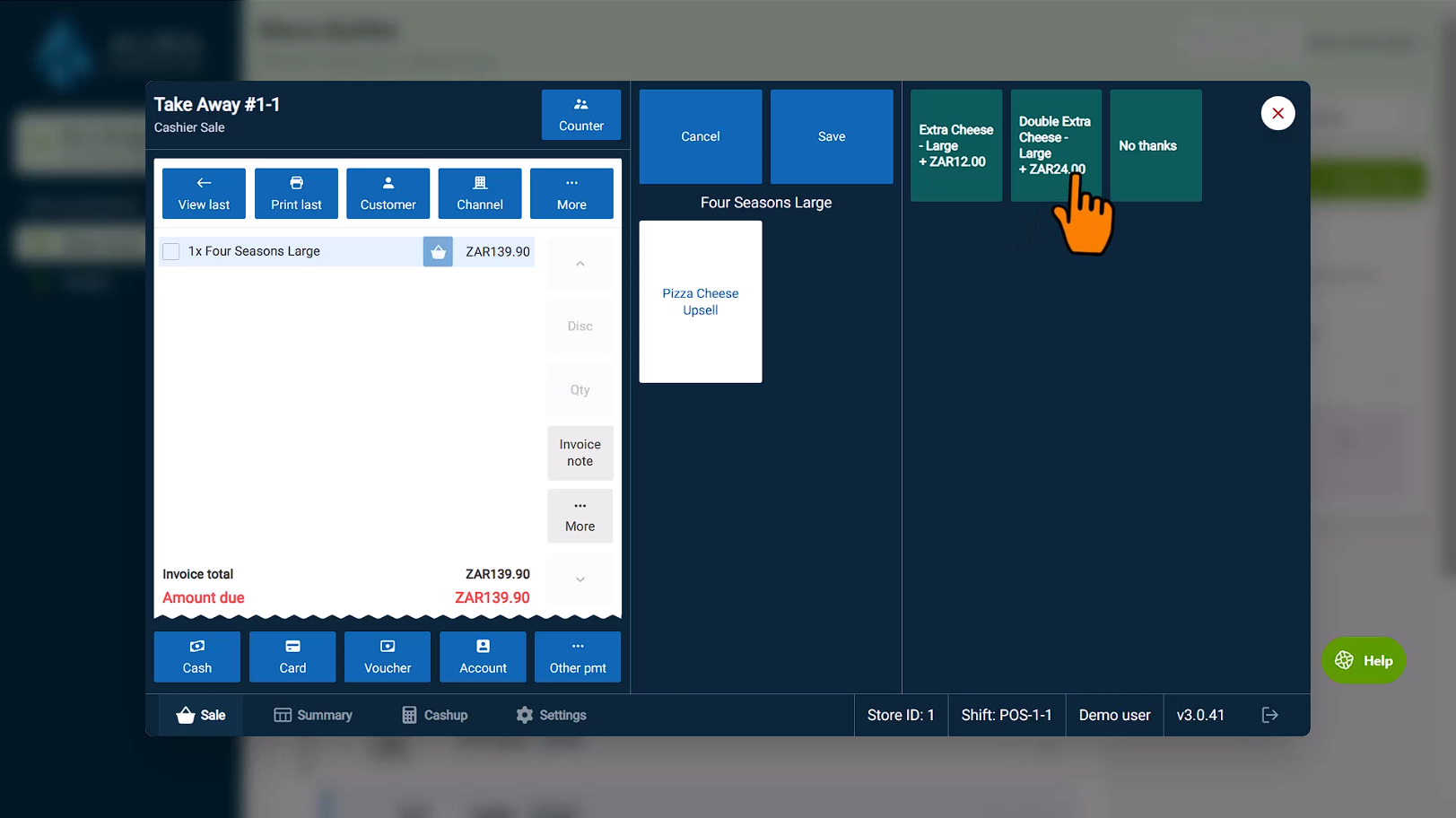
Check that:
- Items appear in the correct categories
- Prices are correct
- Variants behave as expected
- Option Lists trigger and display correctly
This can help you catch configuration issues early and ensures the menu performs correctly during service.
Publishing the Menu
Once the menu is ready, click Publish Menu. This action applies the current draft and makes it available immediately on all CounterPOS devices.
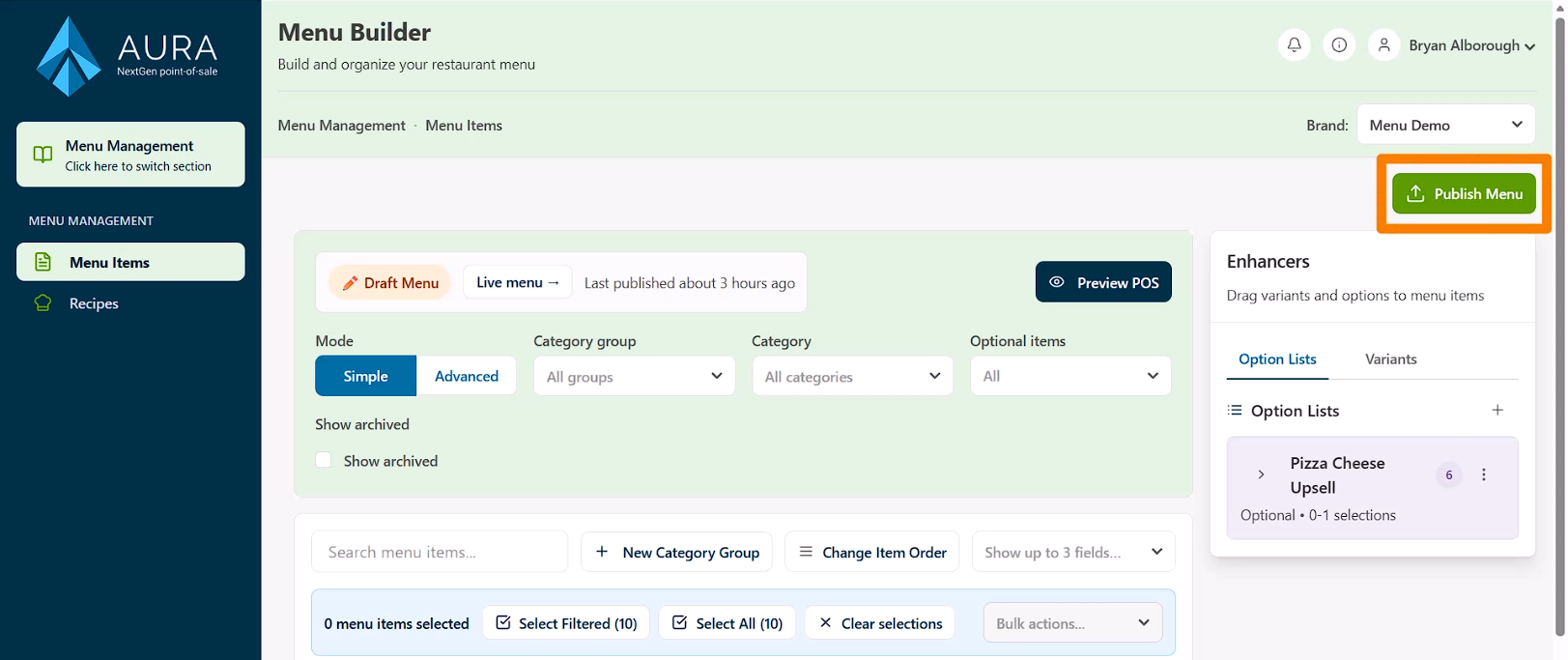
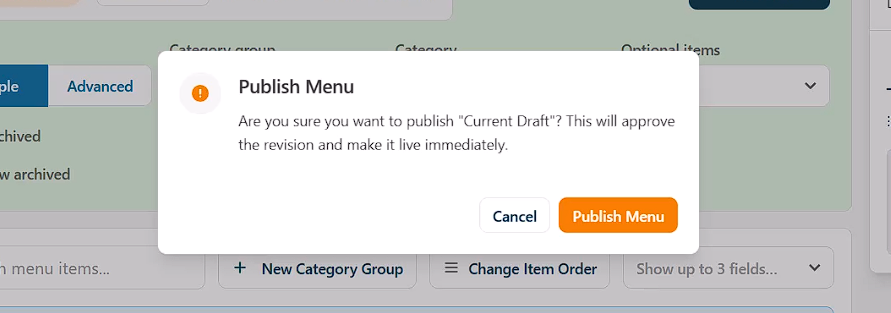
The system will indicate that the selected draft will be published immediately.
Click Publish Menu to commit the changes.
Live Menu State
After publishing, the menu becomes Live. A live menu is locked for editing and can only be viewed.
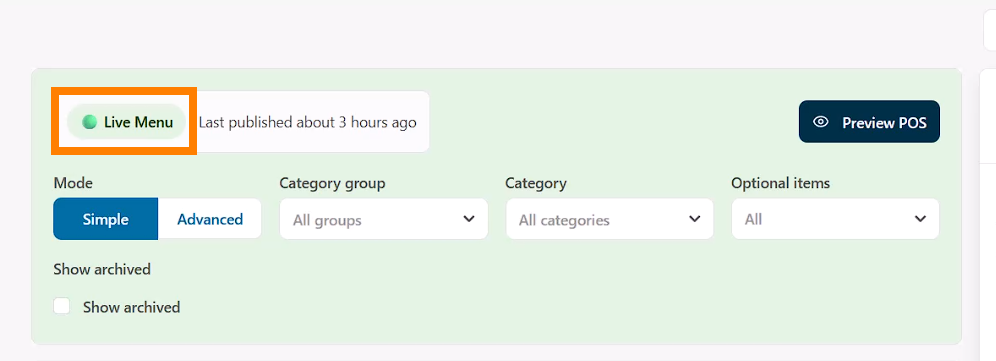
To make further changes, a new draft must be created. This allows updates to be prepared without affecting the live environment.
Creating a New Draft
A new draft can be created at any time by clicking the New Draft option. The draft can be given a name, after which edits can begin.
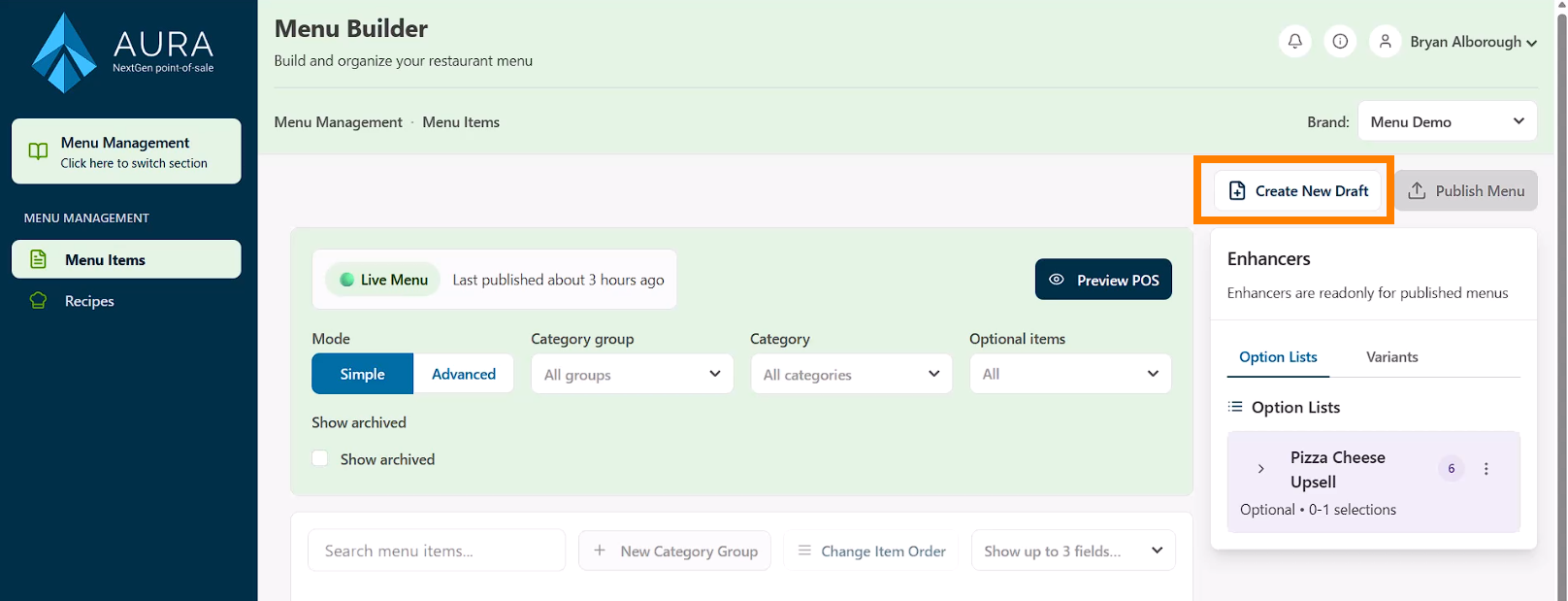
This draft-and-publish workflow ensures that changes are controlled and do not interrupt active POS operations.